
Never delete duplicate records. Instead, always merge them to preserve all associated data.
The Problem with Deleting Duplicates #
When you delete a duplicate record, you run the risk of creating “orphaned data” – information that no longer has a parent record to link to. Here’s what happens:
Example scenario: John Doe has two contact records, each with associated data like Supports, Attendance, and Reachout.
- If you delete one record: The remaining record keeps its data, but all the data from the deleted record becomes orphaned with no contact to associate with.
- If you merge the records: The system combines both records into a single contact and preserves ALL associated data from both original entries.
The Solution: Always Merge #
Merging ensures that:
- You maintain a complete history for each contact
- All contact information is consolidated
- No data is lost or orphaned
- Related records (supports, attendance, outreach, etc.) remain properly linked
Note: Only accounts with Bulk Edit permissions are able to merge records.
Selecting Duplicates #
Tip: While this tutorial specifically covers contacts, the concept will work for all modules
Navigate to the list view of the module that has duplicates
Then click on the filter button.

Once the filter pops up and enter in the criteria to search for your duplicated record
Then scroll to the bottom and click Search

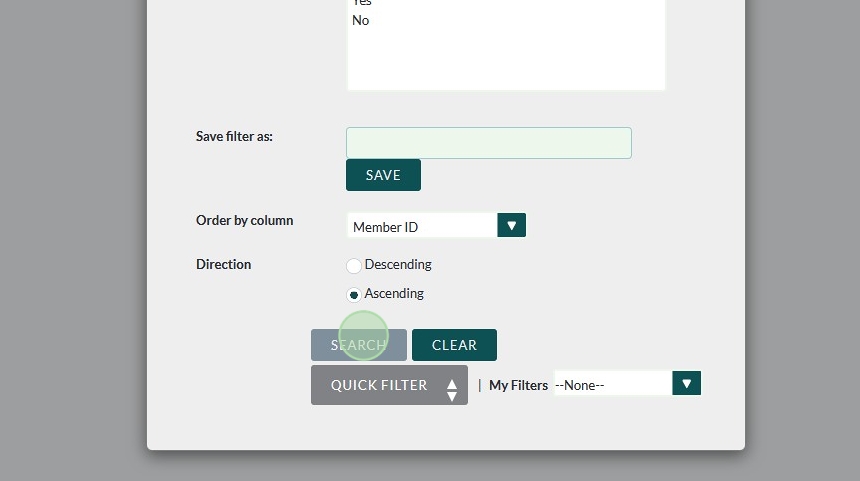
Tip: If you are struggling to find both records with the filter due to a misspelling or nickname issue, edit one of the records so that the search criteria matches on both records.
Please ensure that both records are truly duplicates prior to doing this
Select the duplicated records
If all records on the list are duplicates you can check the box at the top to Select All
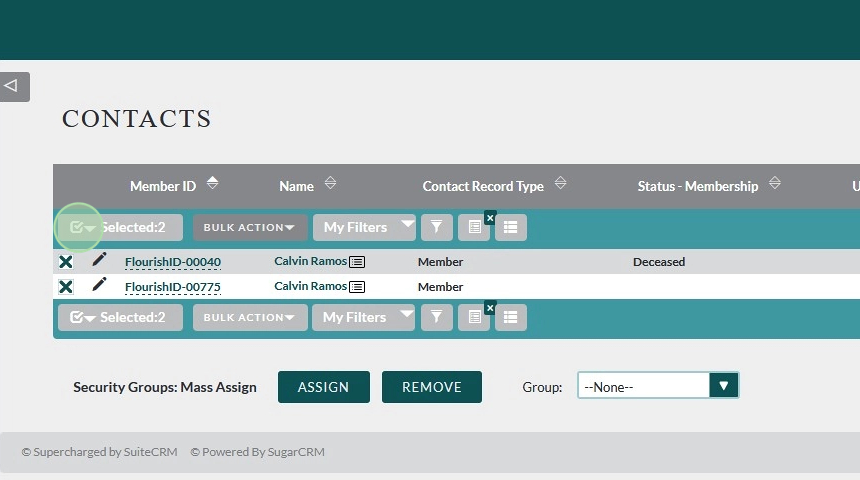
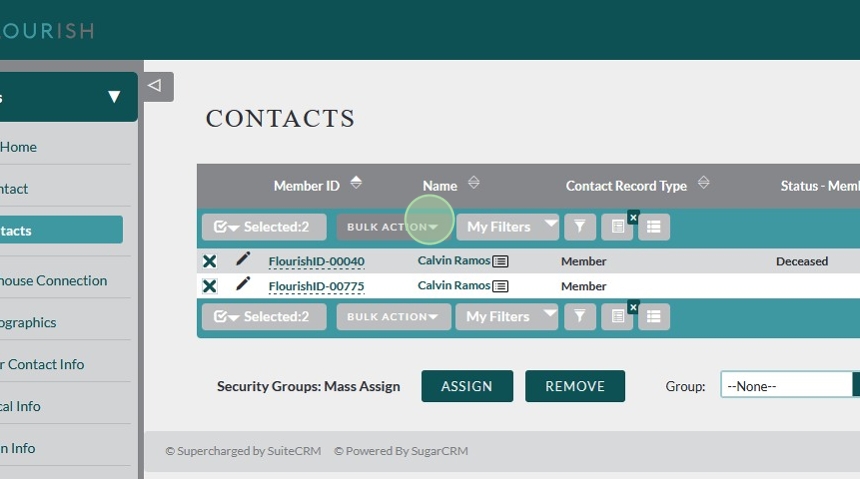
Once all duplicates are selected expand Bulk Action
Select Merge
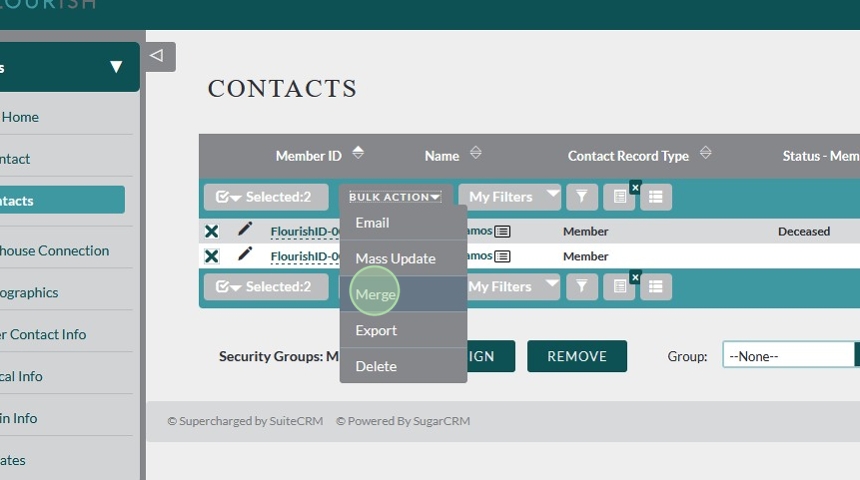
Merge Screen #
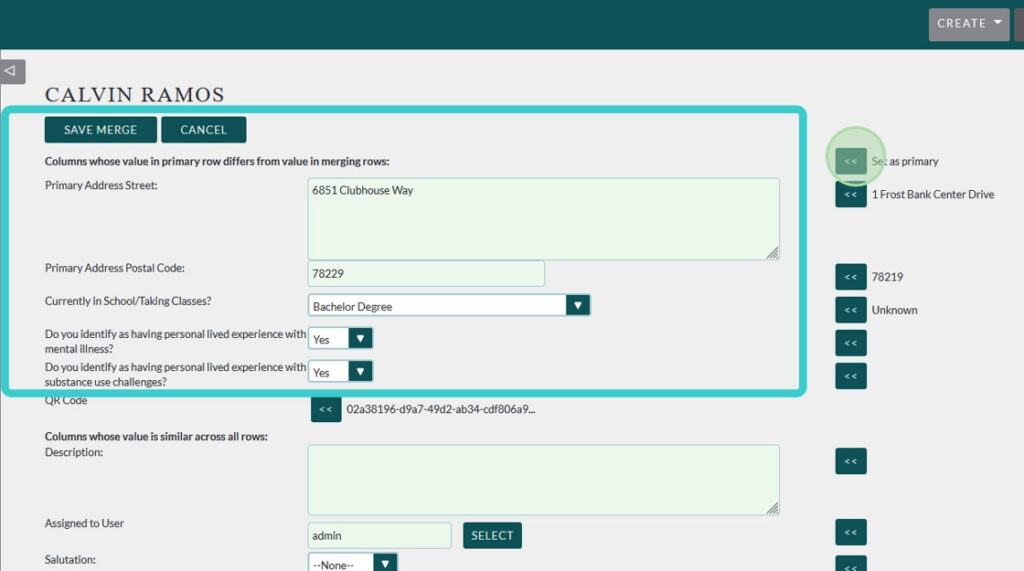
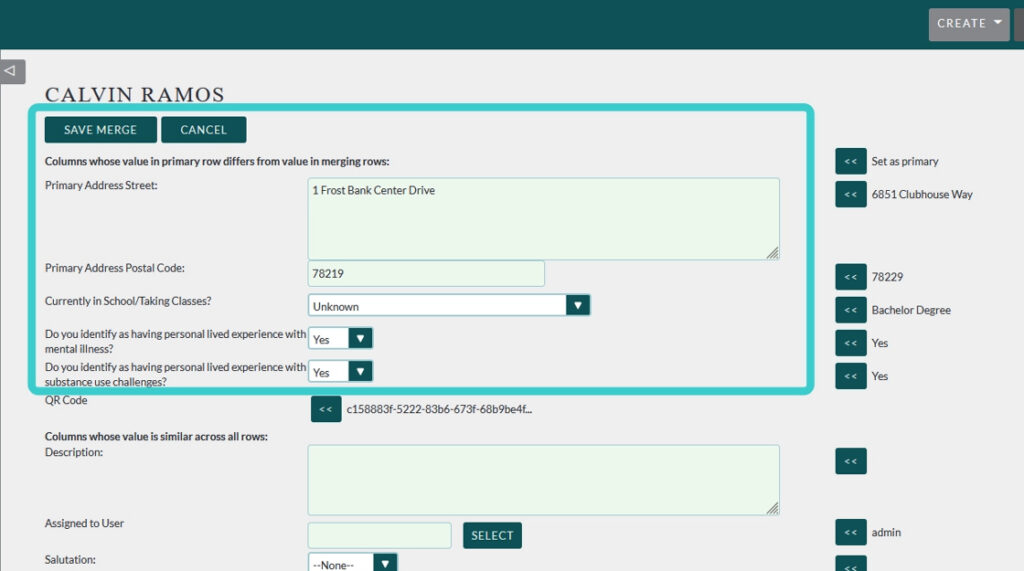
You will see both records on the next screen. The editable record on the left is the new Primary Record. This is the information that will be saved to your new contact.
The data on the right is from the Secondary Record. This setup gives you the opportunity to choose which data saves to your new record.

Changing the Primary Record #
If you are finding that the current Primary Record is not as accurate as the other record you can click Set as Primary on the right hand side. This will move all data from the right to the left. This will become the new primary record.
Moving a Single Item from Secondary to Primary #
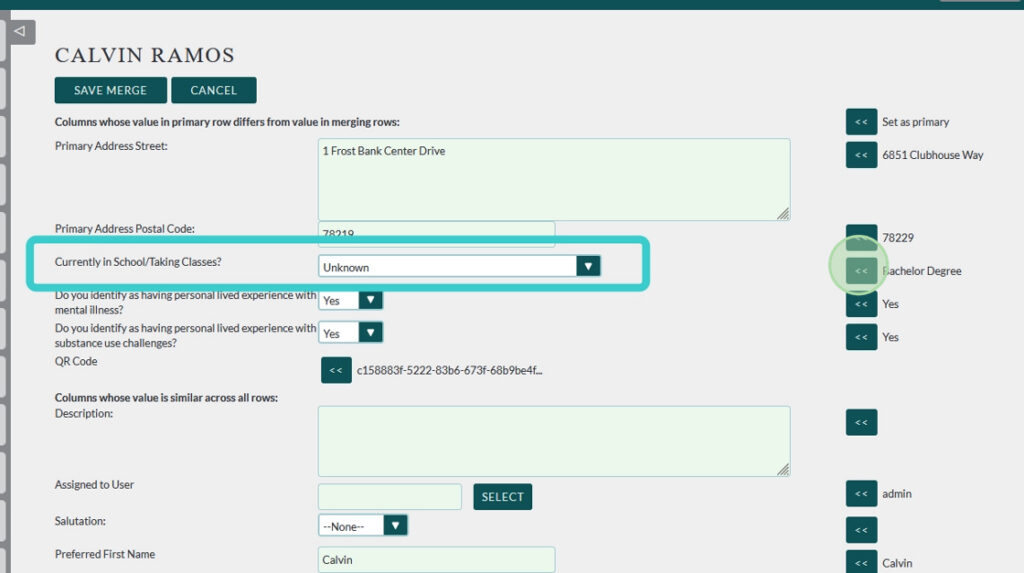
If you see that some data from the Primary Record is correct, while other data from the Secondary Record is correct you can select the data that is moved to the Primary Record individually by clicking on the arrows on the right. This will move just that one item to the left.

Updating/Adding New Information #
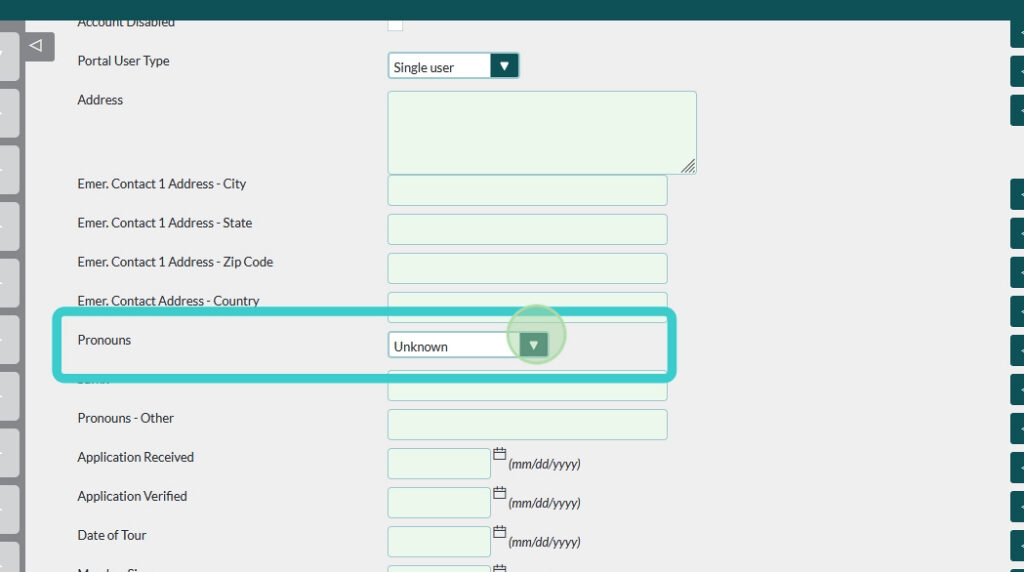
If neither record has the correct information for a data point you can edit that here as well.
Just make the changes to the Primary Record and it will be reflected in the final result.
Completing the Merge #
When everything looks correct in the Primary Record scroll to the bottom and click Save Merge

A pop up will appear warning you that the Secondary Record will be deleted
Click OK

Reminder: Depending on the number of associated records that need to be merged this may take a few minutes. If you run into any issues with it timing out please contact us via Support Ticket on our website at https://www.clubhousedata.org/request-support/
Tip: Once the record is merged you’re able to make edits to the new record as if there had never been a duplicate.
For this reason it’s very rare that the deleted record would need to be restored.
Should you need the deleted record restored please contact the flourish team via Support Ticket on our website at https://www.clubhousedata.org/request-support/
Note:
While we can usually restore the record, we may be unable to reverse the merging of associated records. Please ensure that all information is correct and the records are truly duplicates of one another prior to clicking Save Merge.
Your new record will reflect all information from the Primary Record on the merge screen.

If you are having issues with this process please reach out to the Flourish Team via Support Ticket on our website: https://www.clubhousedata.org/request-support/