
TIP: Scan these code directly from your screen, or print out to have handy at any point
- On pages with multiple codes, use your hand or a sheet of paper to hide the codes you don’t want to scan
- Make sure you’re in “Trigger Mode” when you’re setting up your scanner. This means you manually have to push the button to scan. See the last page of this document for instructions on how to turn off “Auto-Sense Mode”
- Keep the cards that came with the scanner handy. They have good quick codes to help you turn off vibration and change the sound settings.
- Get the full manual by navigating here:
(https://scanavenger.com/wp-content/uploads/2021/06/ScanAvenger-User-Manual-v4.1.pdf)
Scan “Set Prefix”
This chooses the specific setup mode your entering:
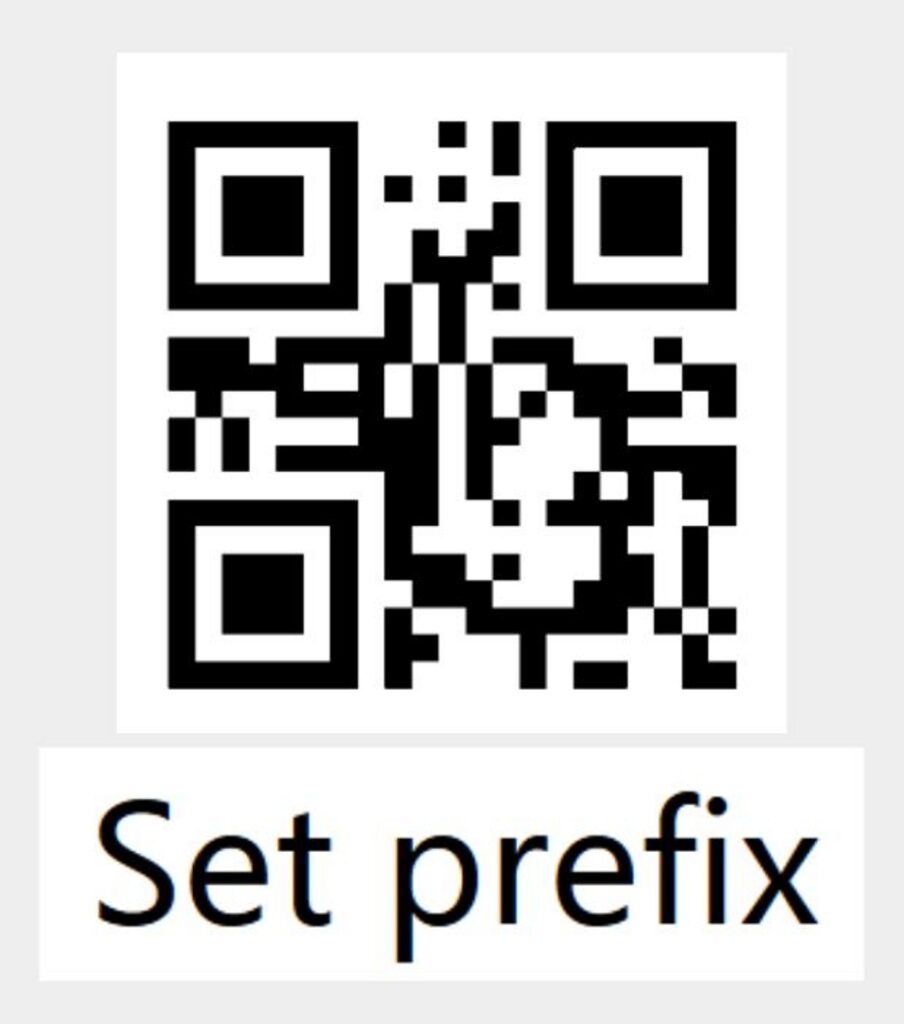
Scan this code to set the first prefix key to F6
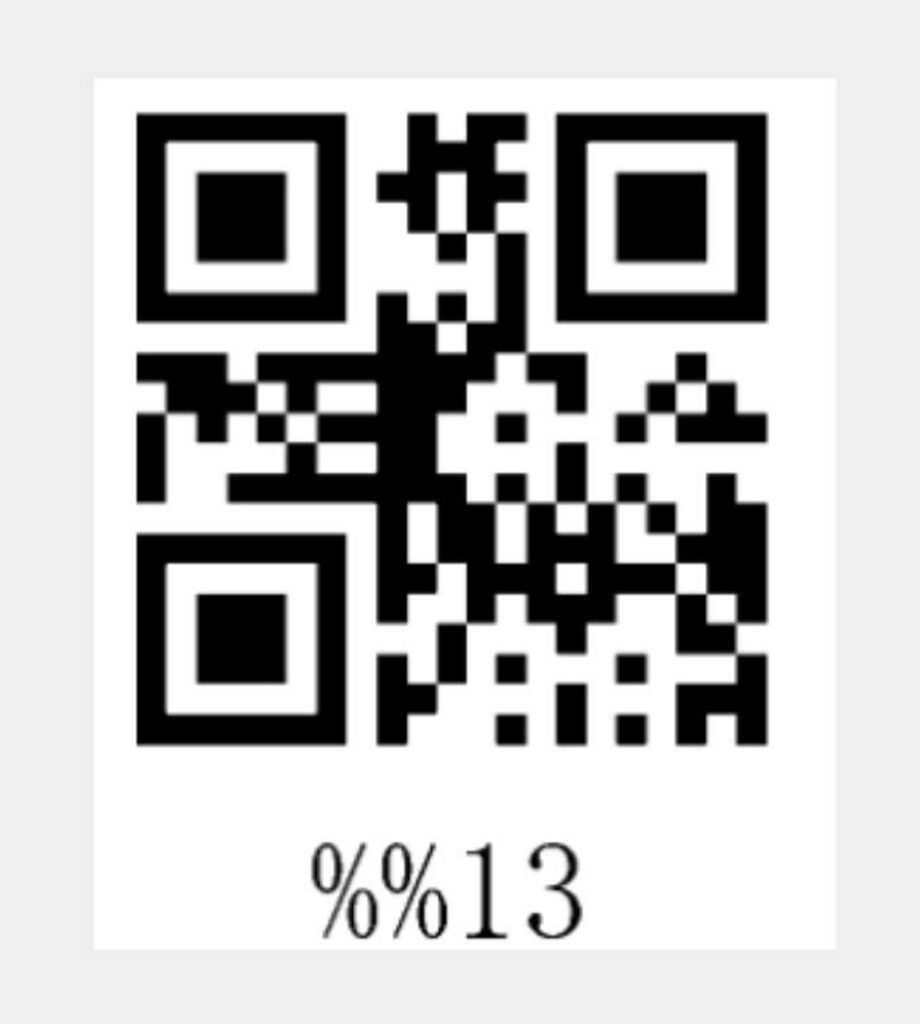
Alternate between scanning each of these next codes 3-4 time each. (steps 4 and 5)
This will add pauses into your scan before sending the data to the computer. You cannot scan the same code twice in a row, so there are 2 different codes to add pauses.
This specific portion may take a little bit of troubleshooting, depending on the processing speed of your computer. If you find you the URL is being cut off by the first few letters, add these pauses until you no longer get that result.

Note: You have to go through the entire prefix setup process each time you want to add additional pauses
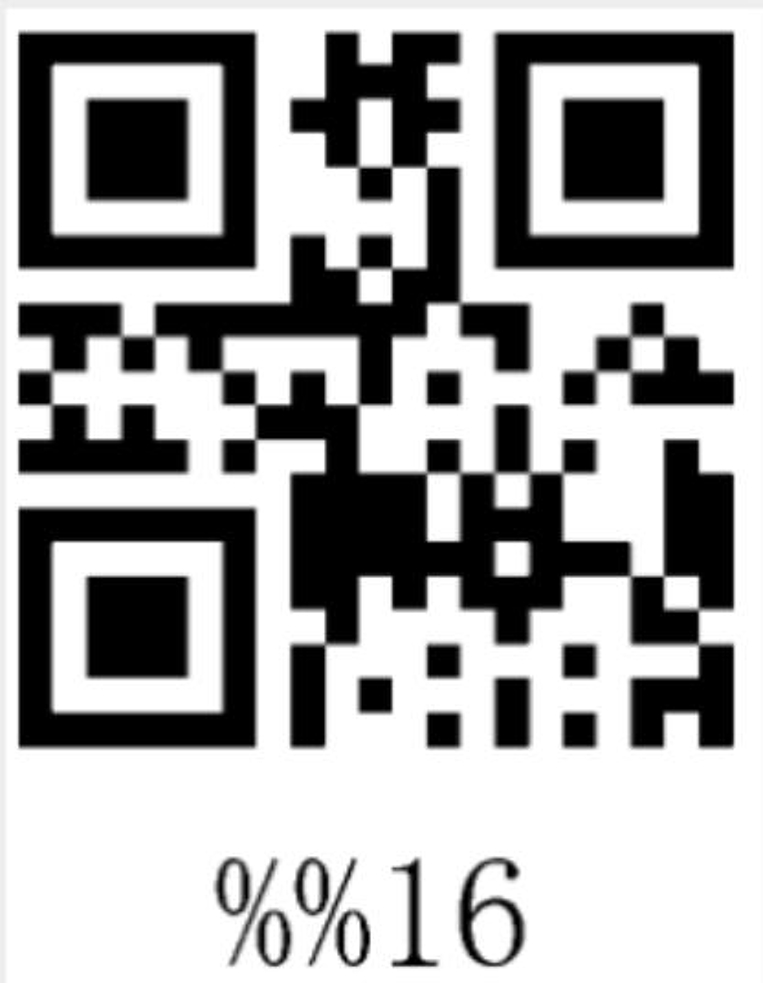
Scan to Exit Setup Mode
This step is key to put you back into regular scanning mode!

Changing the Transmission Speed (Optional, but recommended)
Scan these codes to slow down your transmission speed. This can help you combat the url getting cut off.

Set Transmission Speed to “Very Low”
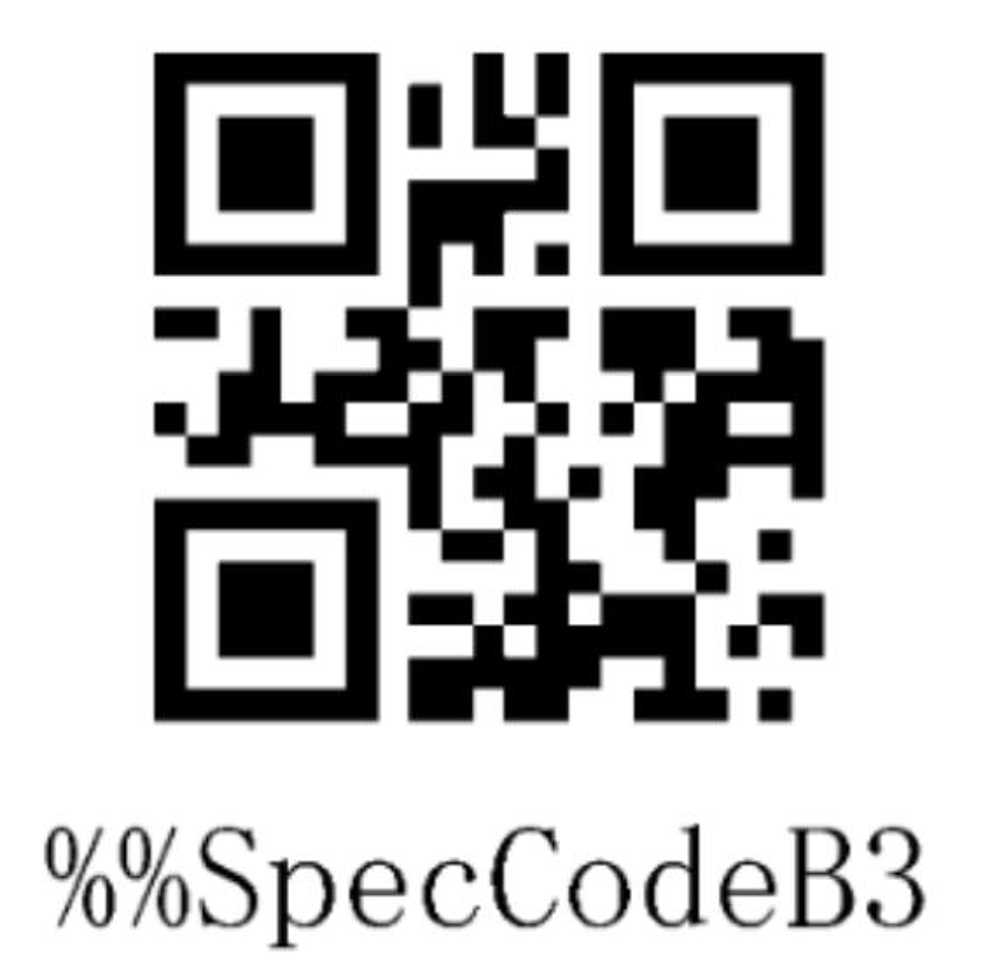
Exit Setup Mode

Change the Trigger Mode
Disable auto sense mode
When auto sense mode is disabled, you should trigger scanner by
pressing button. This mode is factory default.
This is the best mode to use during setup

Enable auto sense mode
When the auto sense mode is enabled, the scanner can
automatically detect the barcode in front of the lens and scan the barcode.
This is the best mode to use for a sign in kiosk
