
First, log into your Flourish account with Unit editing permissions.
Go into the “Admin” dropdown and select “Create Unit”

Creating a Unit #
For this tutorial, we will be creating a “Tutorial” unit in the highlighted field
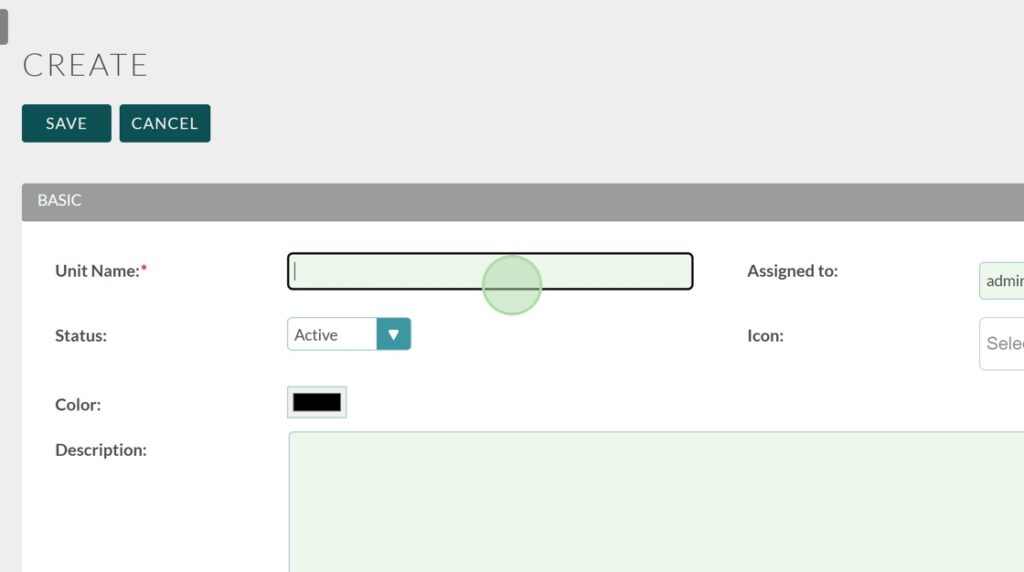
Let’s go ahead and assign this module a icon
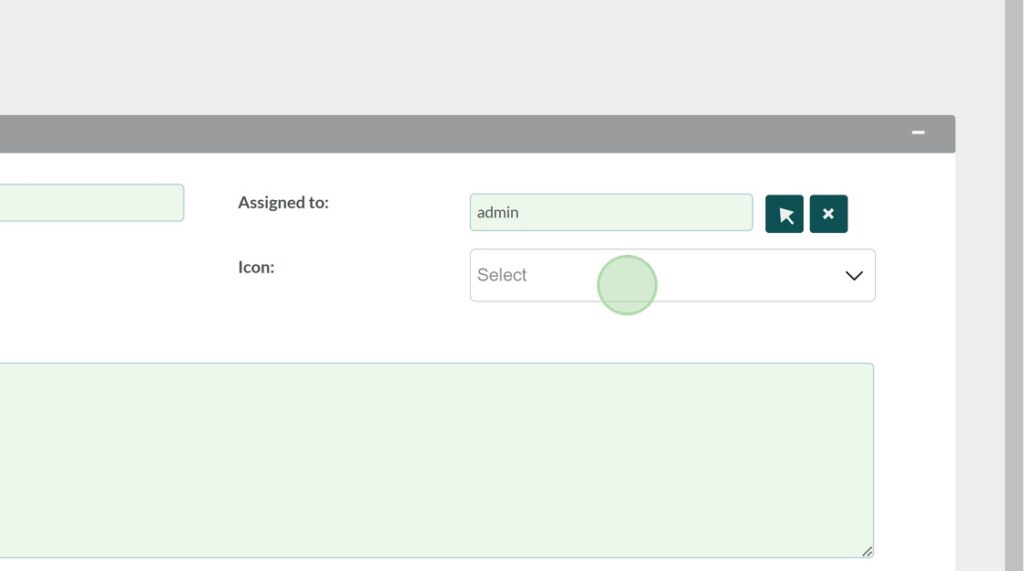
For this unit, I’m gong to use the “Clipboard” option
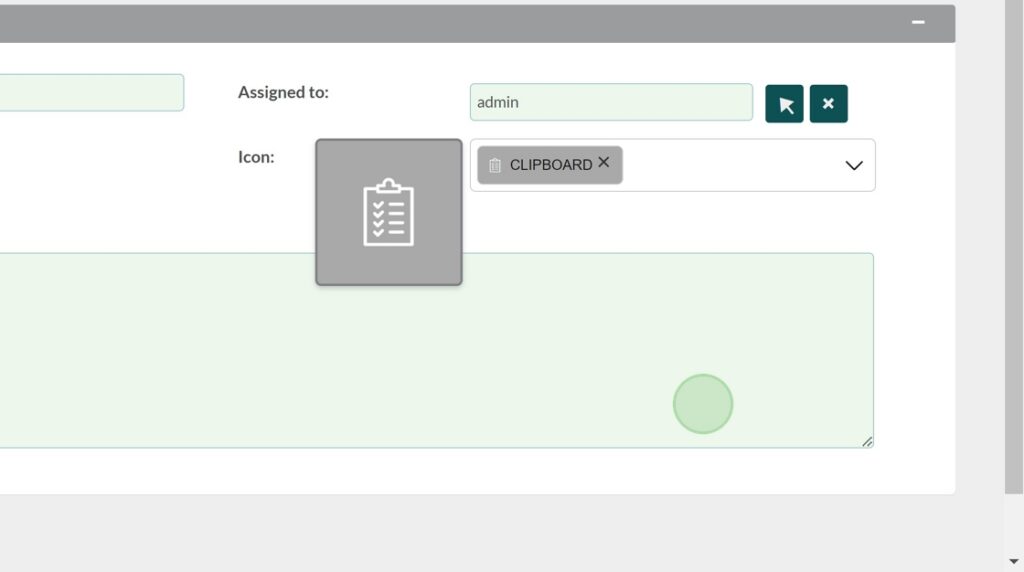
You have the option to assign a specific color to the icon as well!
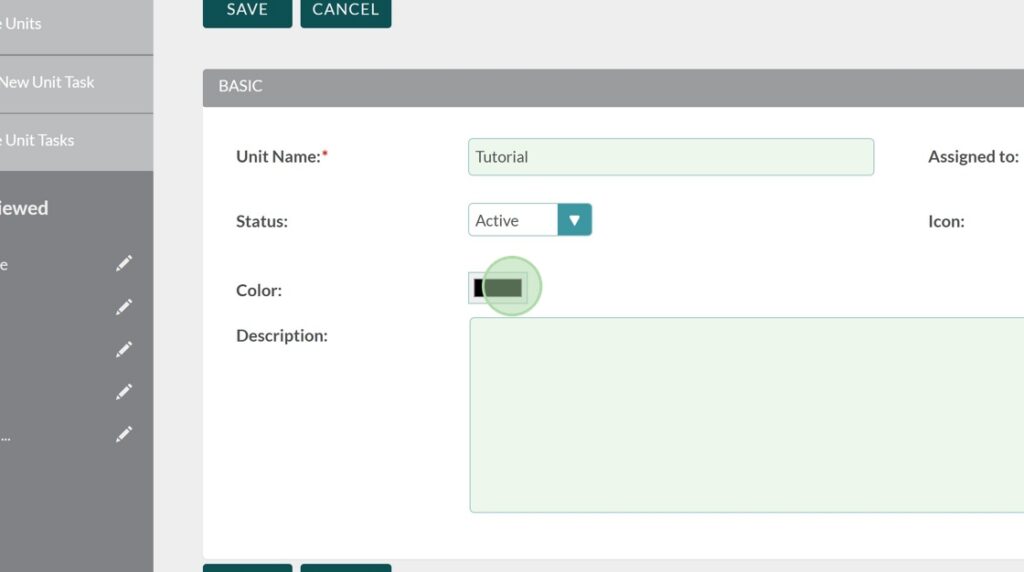
I set mine to violet.
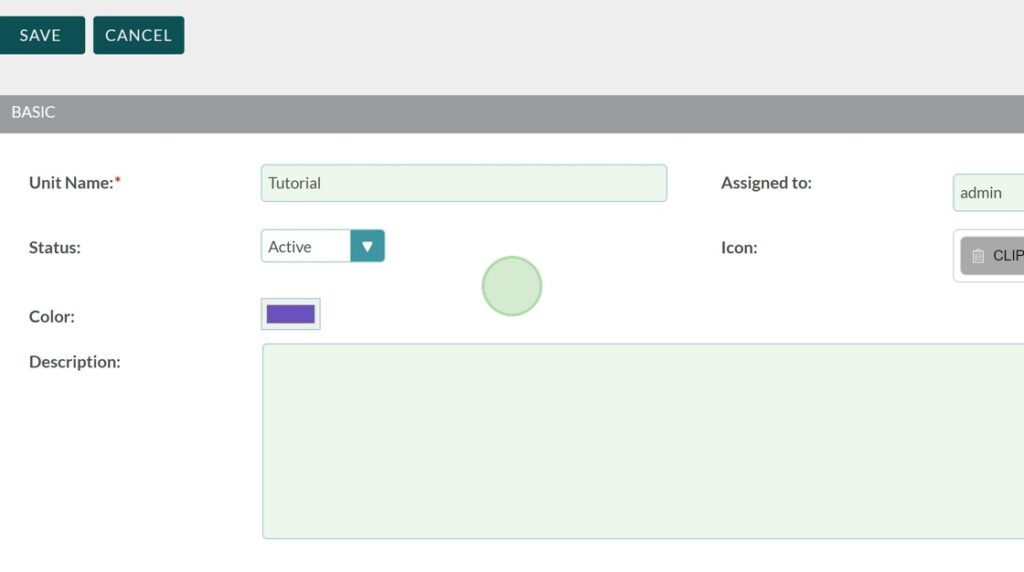
You may choose to add a description
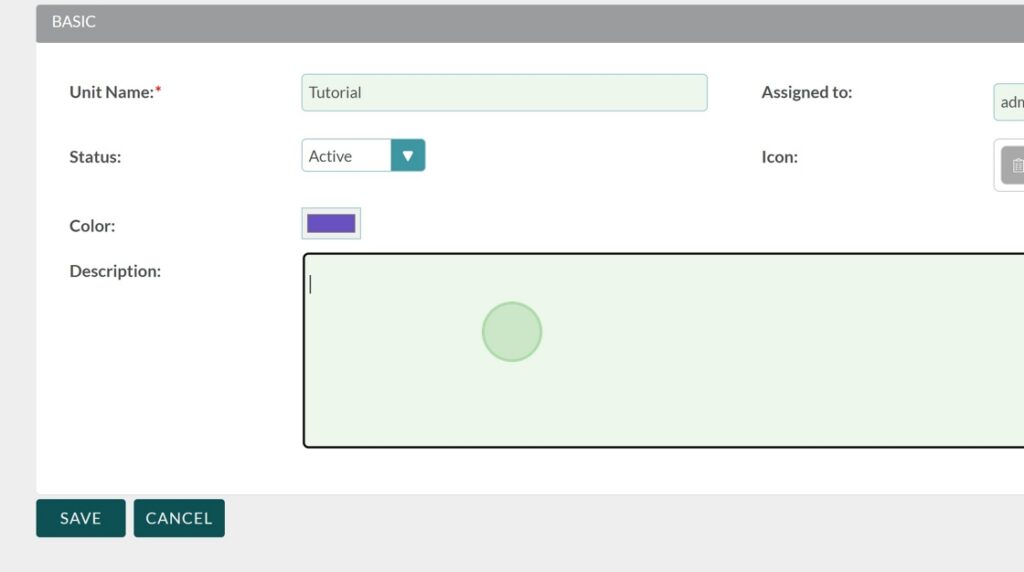
Now, let’s save the unit
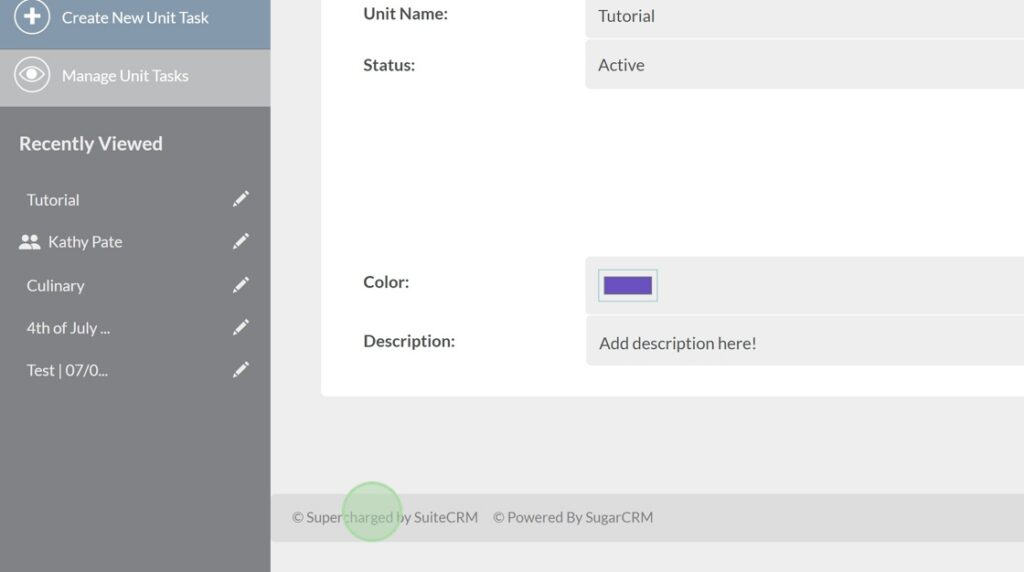
Creating a Unit Task #
Now, our new unit needs unit tasks so lets click on “Create New Unit Task”
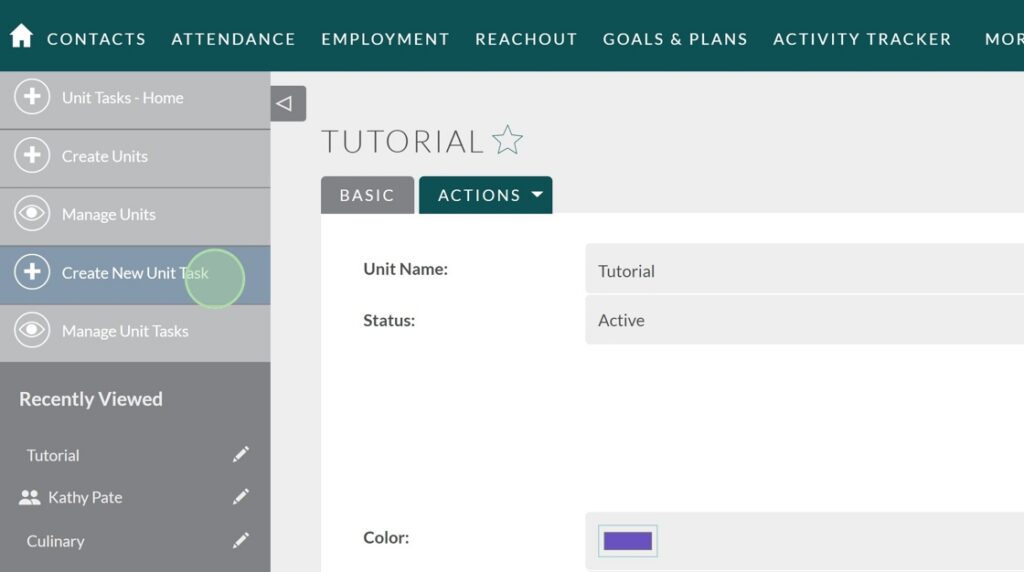
To select our unit, we have to type it in the search field. Let’s search “Tutorial”

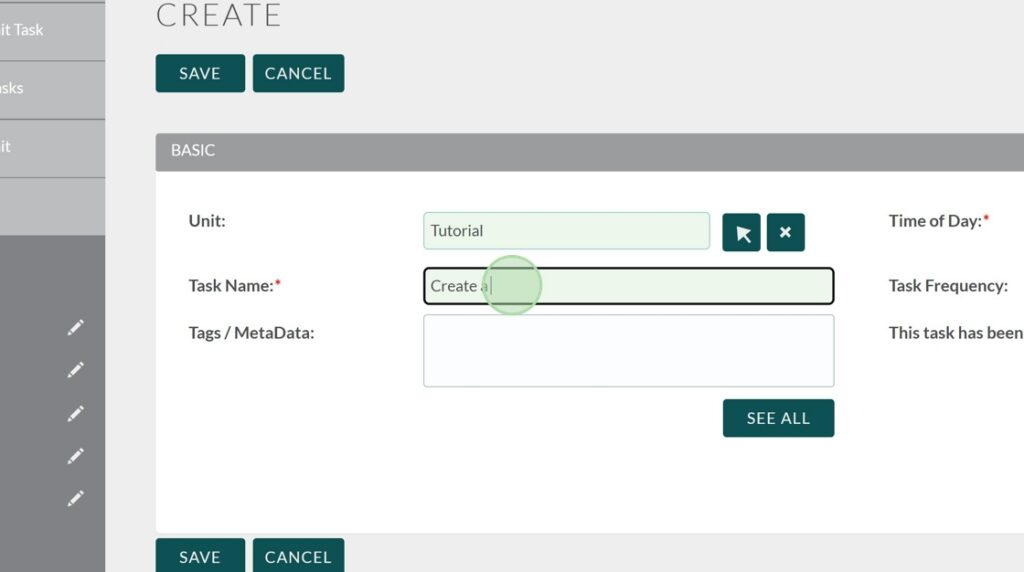
We will name this unit task “Create a Tutorial” in highlighted field
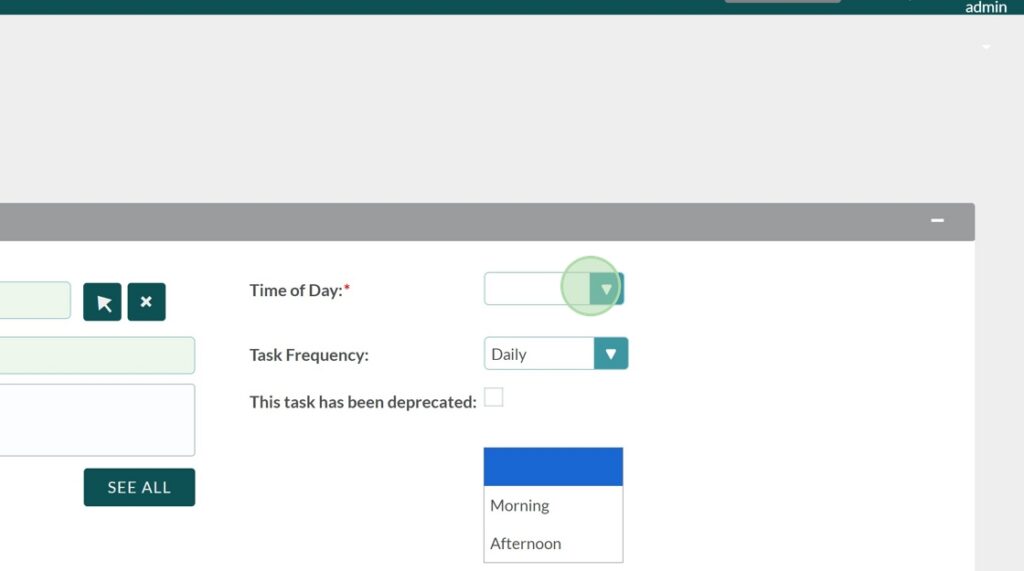
With the “Time of Day” field, it gives you two options, the morning and the afternoon. Depending on which option you select, it will place the unit task in its corresponding unit
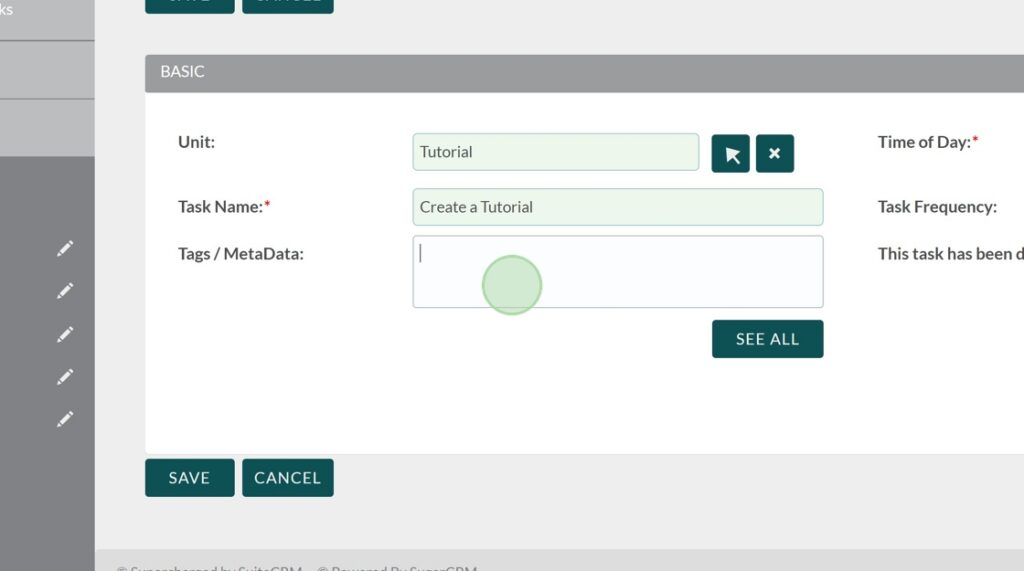
Under the Tag/MetaData field, you may create or search for tags that best describe the task you are making.
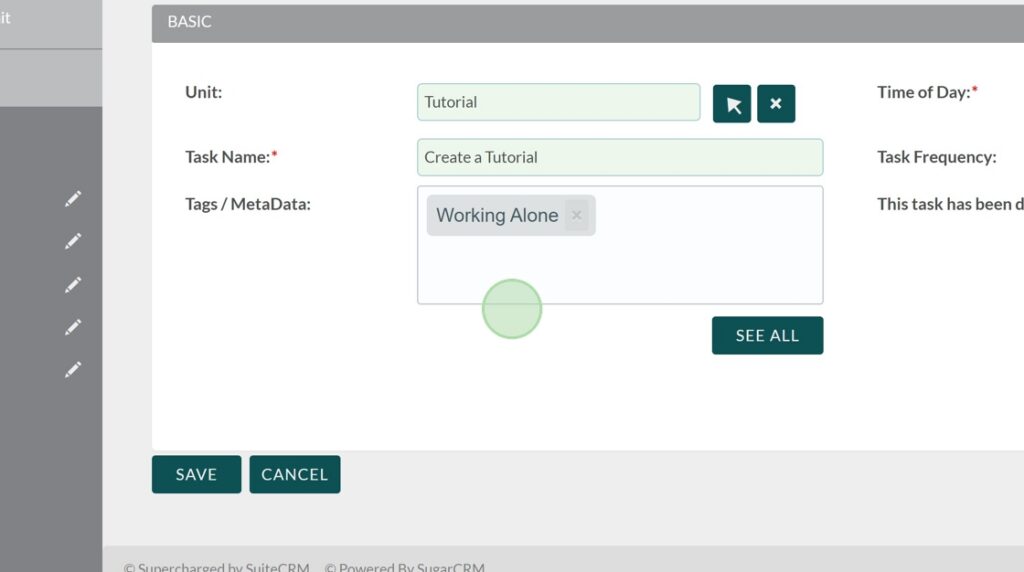
For this task, “Working Alone” is an existing tag, so let’s go ahead and just use that since this work is more of a individual task.
More on Tags / MetaData #
Tip!
Setting up your Tags / MetaData allows you to keep track of the job skills used/gained by clubhouse members through the performance of certain tasks.
For example:
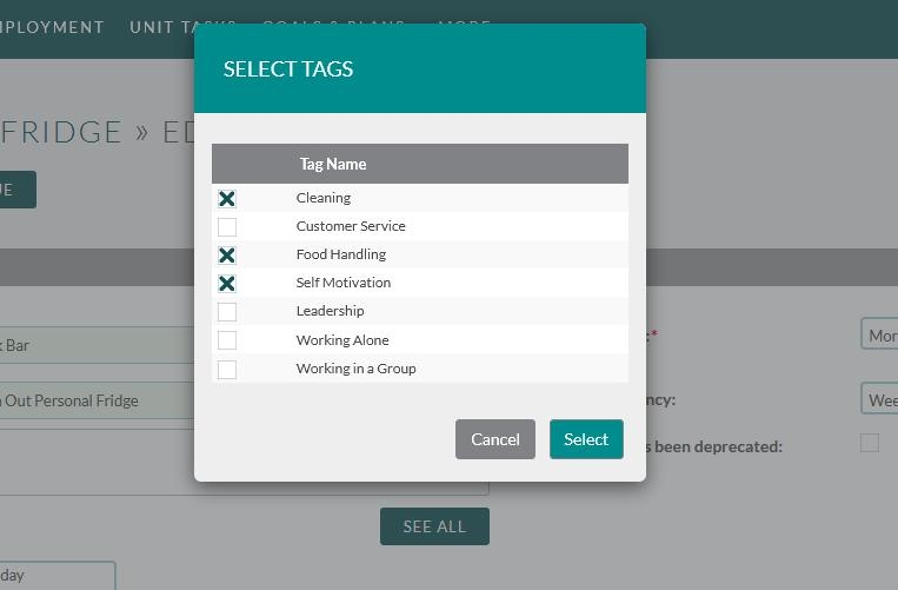
For the creation of the “Snack Bar” task, we first select the “See All” button which allows us to see the list of existing tags.

From there, we are able to apply Tags that relate to the job skills of that task. To finalize the selection, press “Select”.
Note:
Flourish is currently working on a Tasks Report which will allow you to download a list of all job skills a member has gained through doing task work in the clubhouse. By encouraging clubhouses to set up Tags / MetaData, our eventual goal is to have Flourish use this data (along with employment, education, etc.) to help generate a rough draft of a resume with the click of a button.
Please keep in mind that this is a work in progress and is subject to change.
Creating a Unit Task Continued.. #
Now that we have completed creating our task, let’s save it.
Note: For those who have noticed the “This task has been deprecated field,” we will touch on it later in the tutorial.
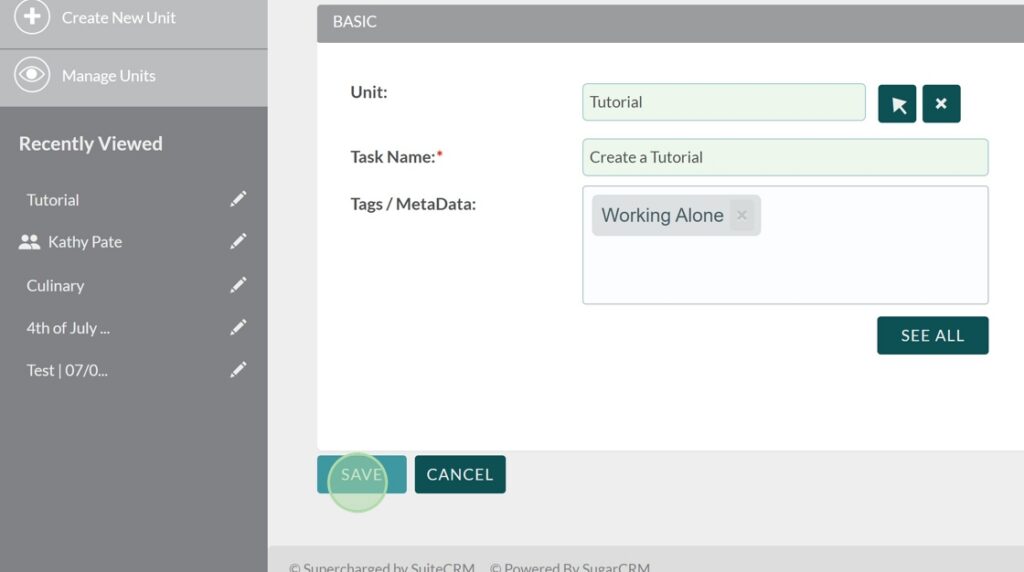
Once again, let’s create a new unit task
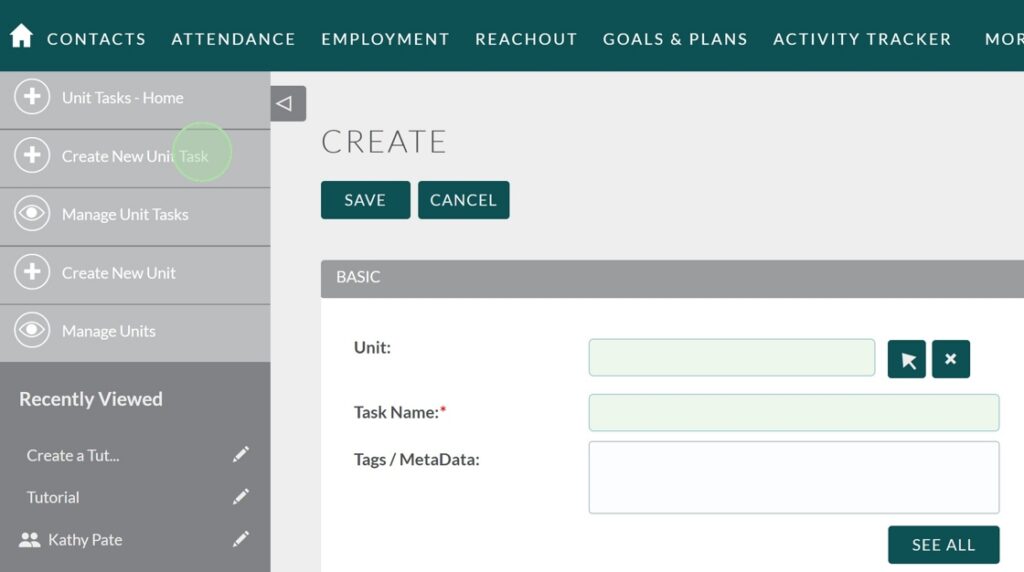
Since this is for the same module, the initial Unit selection will be the same.
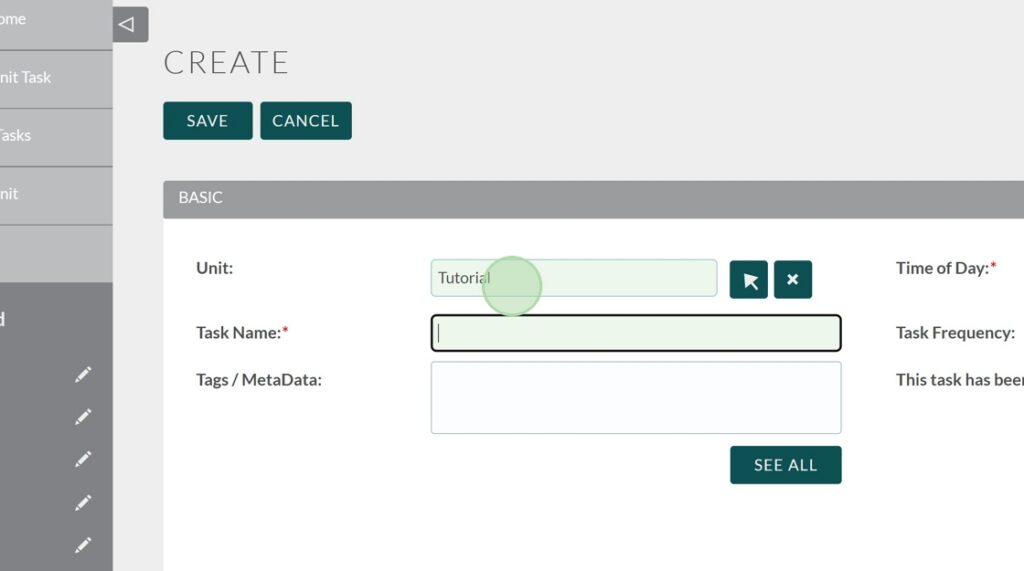
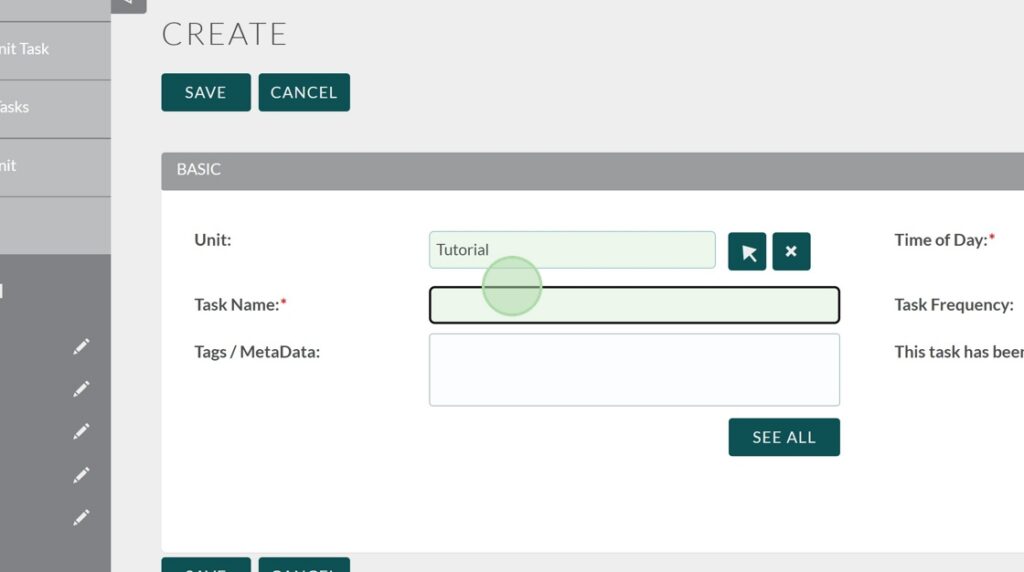
For this unit task, we will name it “Tutorial Consulting” in the “Task Name” field
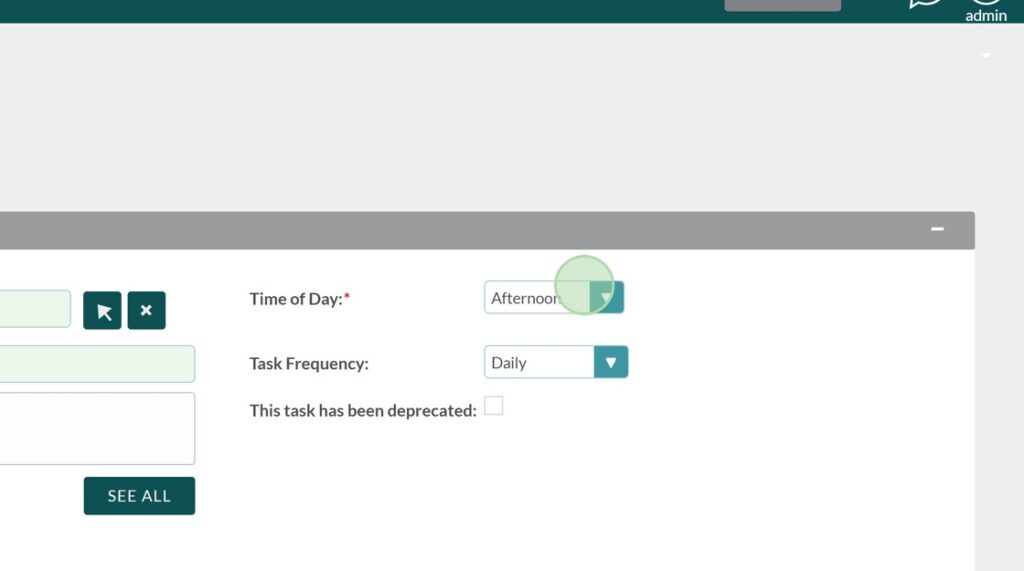
For this task, we will have it take place in the afternoon unit.
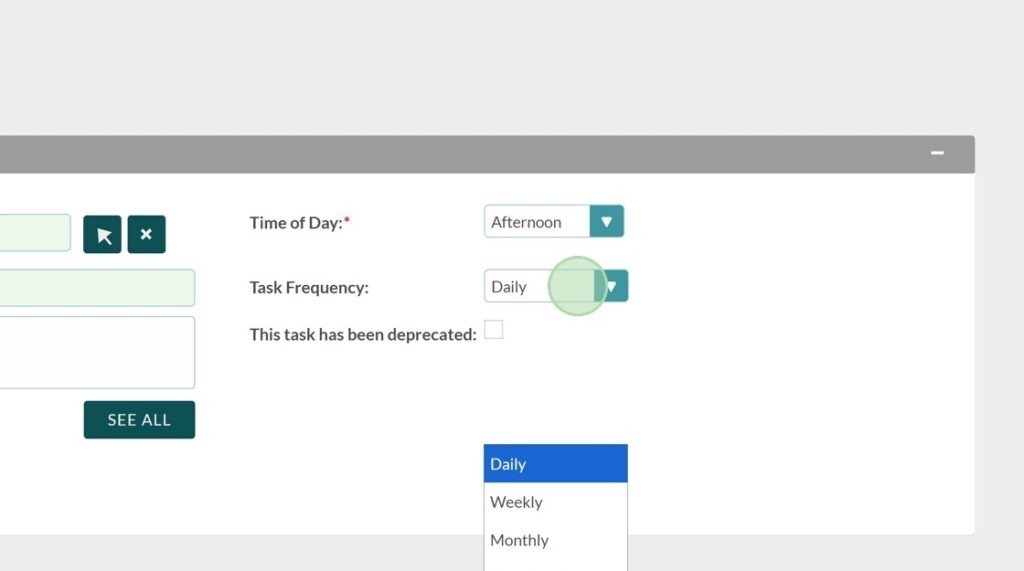
We will select the “Task Frequency” field and set the field to weekly.
If you have multiple days in a week that you do this task like I do, hold the “CTRL” button and click the additional day(s)
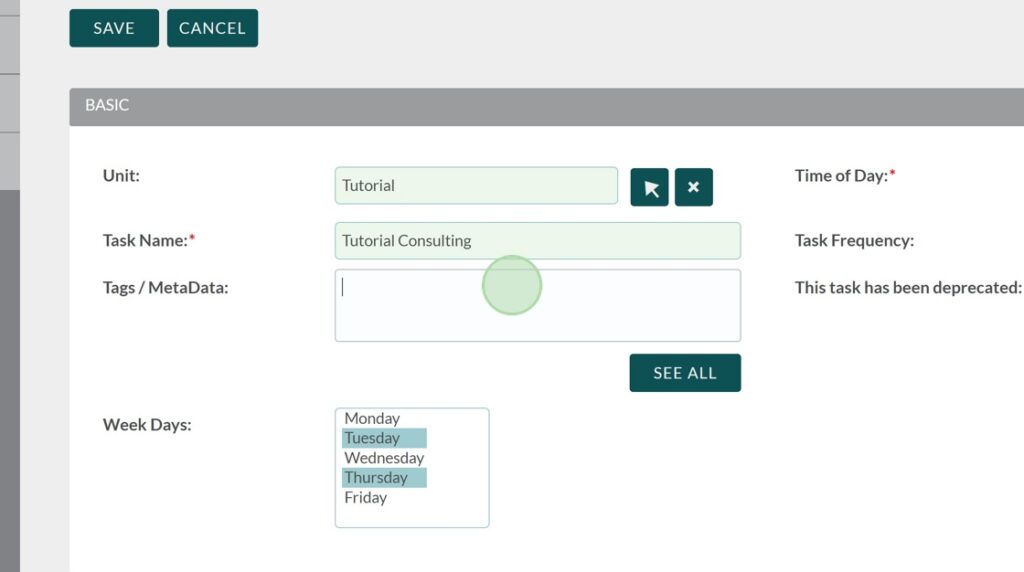
For this Tag, let’s go ahead a new one. By writing out “consulting,” it gives me the option to create a consulting tag. I will go ahead and click on the option to select it.
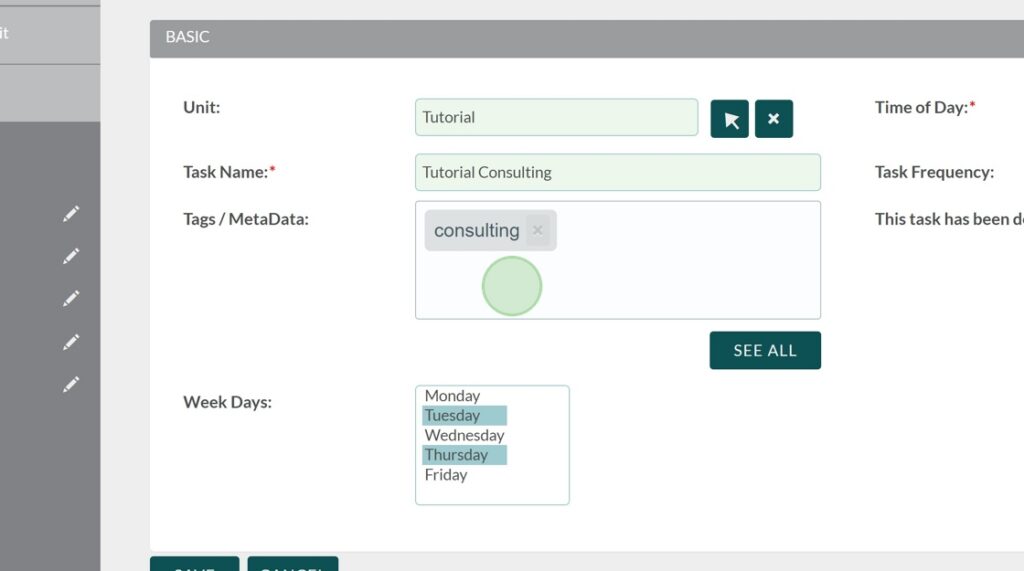
With the unit task complete, we will save it
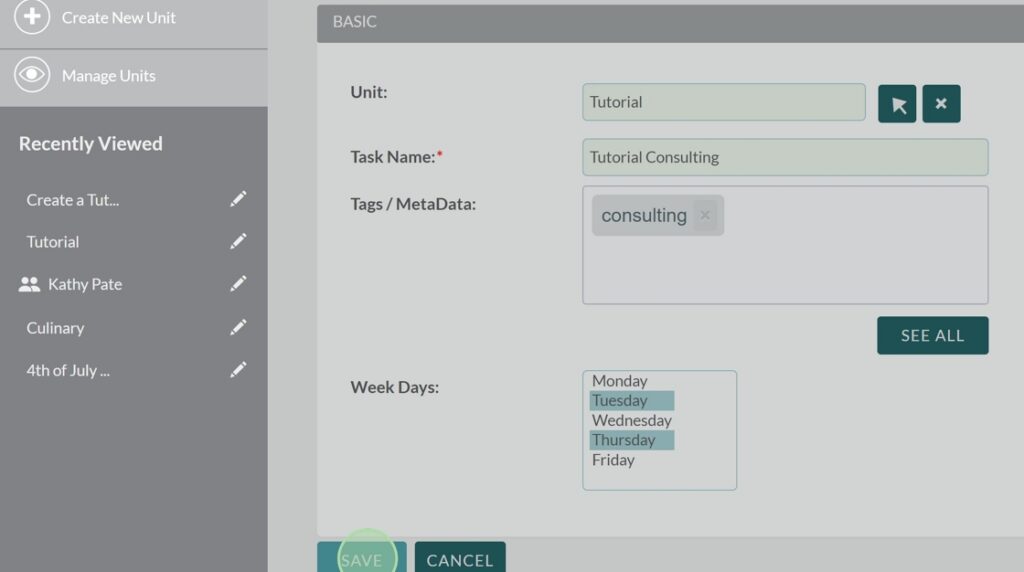
One last time, let’s create a new unit task.

As you know, it is a Tutorial Unit task.

Go ahead and name the task “tutorial workshop.”
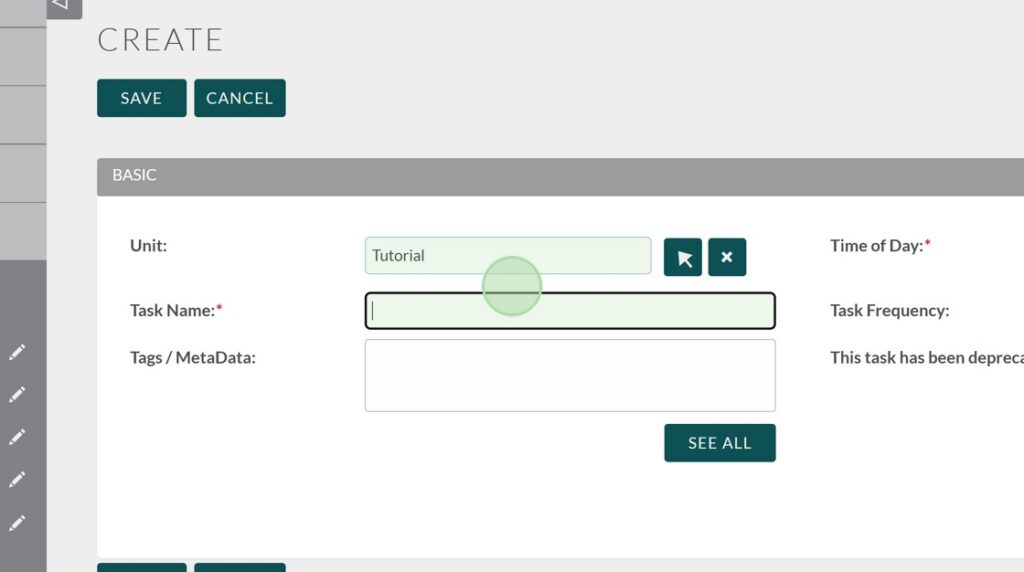
Set the tags
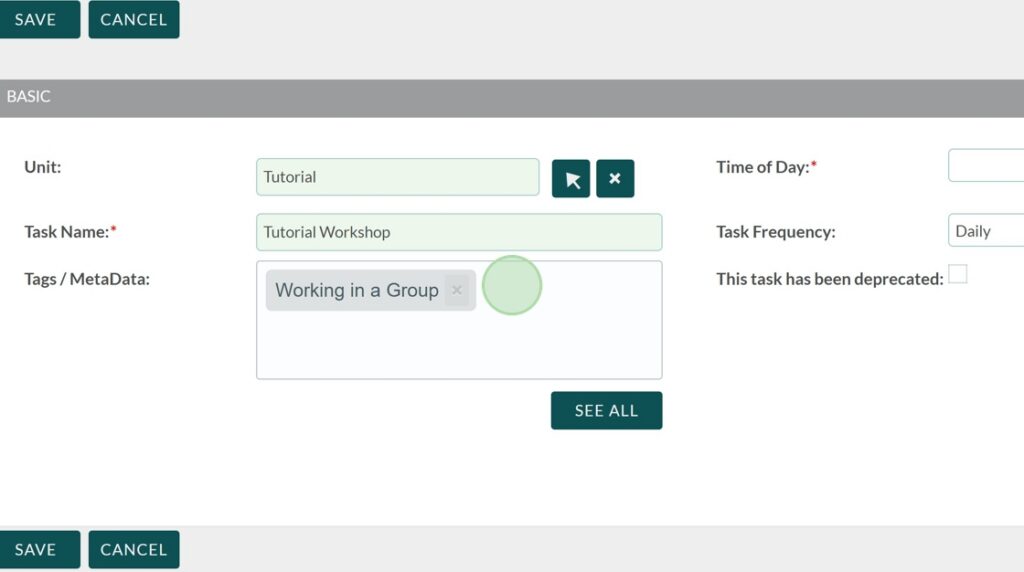
Set it as an Afternoon task.
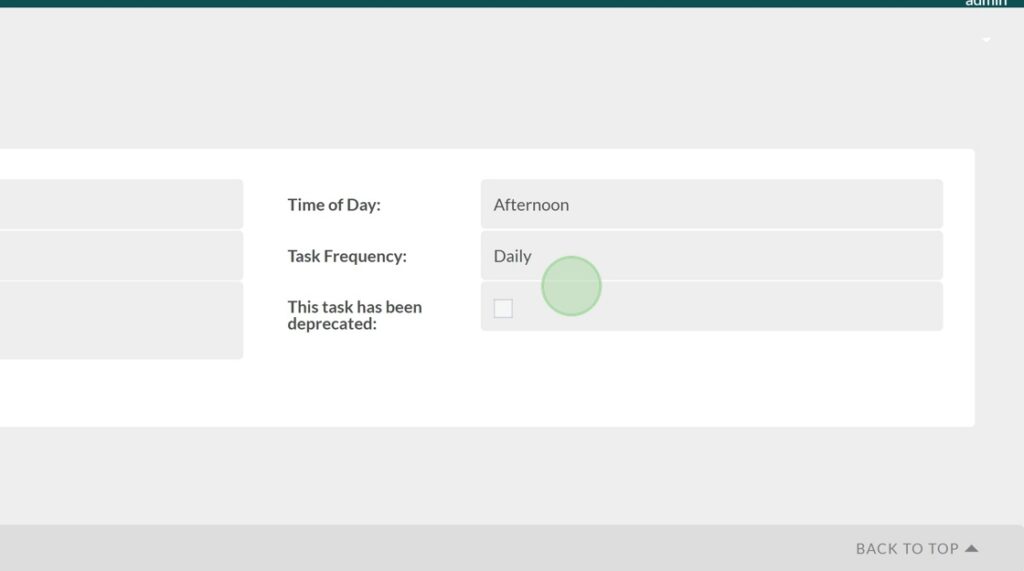
And save!
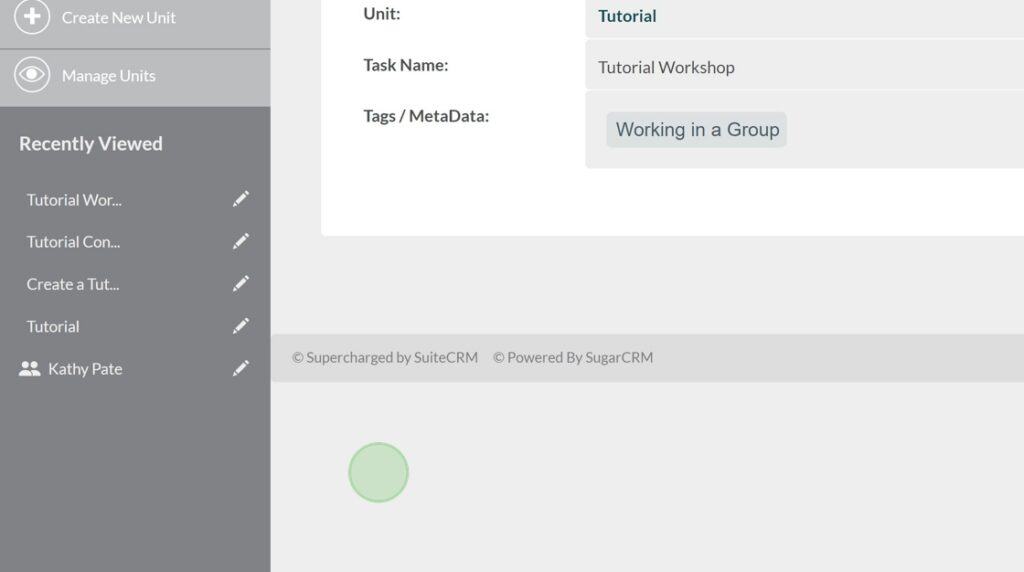
Navigating Your Units #
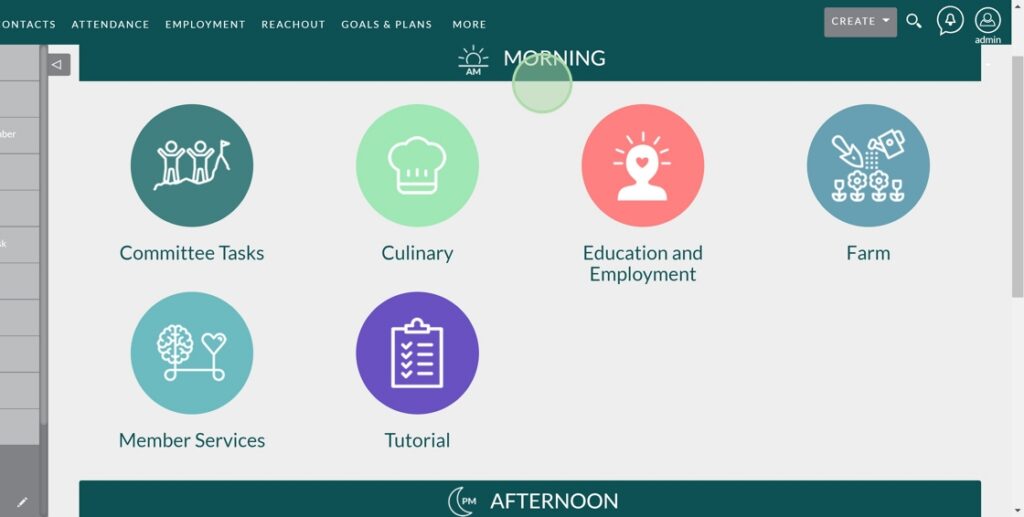
Navigate to the Units module
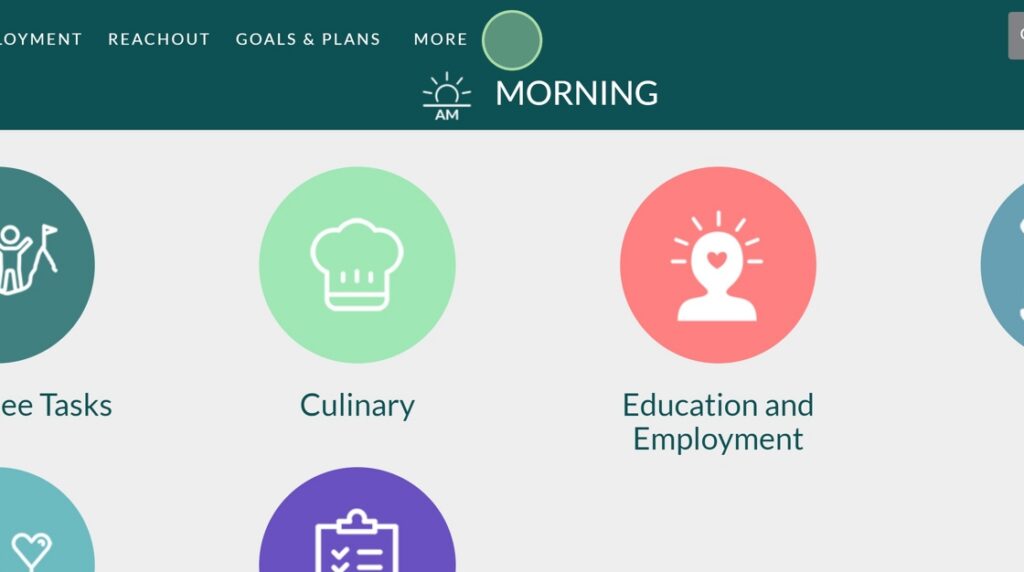
From here, click on the morning Tutorial unit.
Entering Data Into Your Unit #
Let’s set the Date of the data entry first. You may click on the field to type out the date, but there is also the option to click on the calendar icon and select the date on a calendar.

For this tutorial, we will select “Today” as the Date. This calendar will automatically fill out the field with the corresponding date.
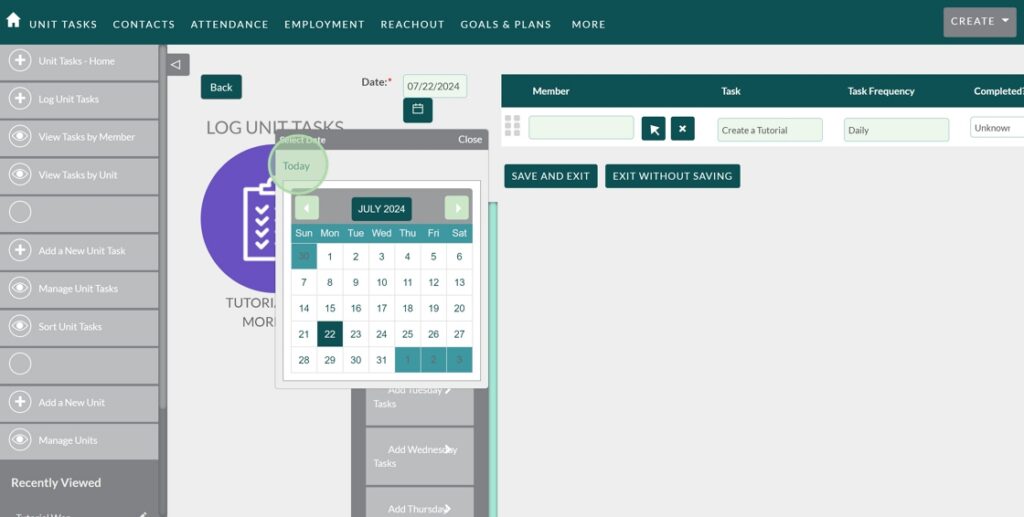
As you can see, for Daily Tasks, they appear automatically on the data entry list. Let’s ago ahead and mark member Frances Coleman as our task assignee.
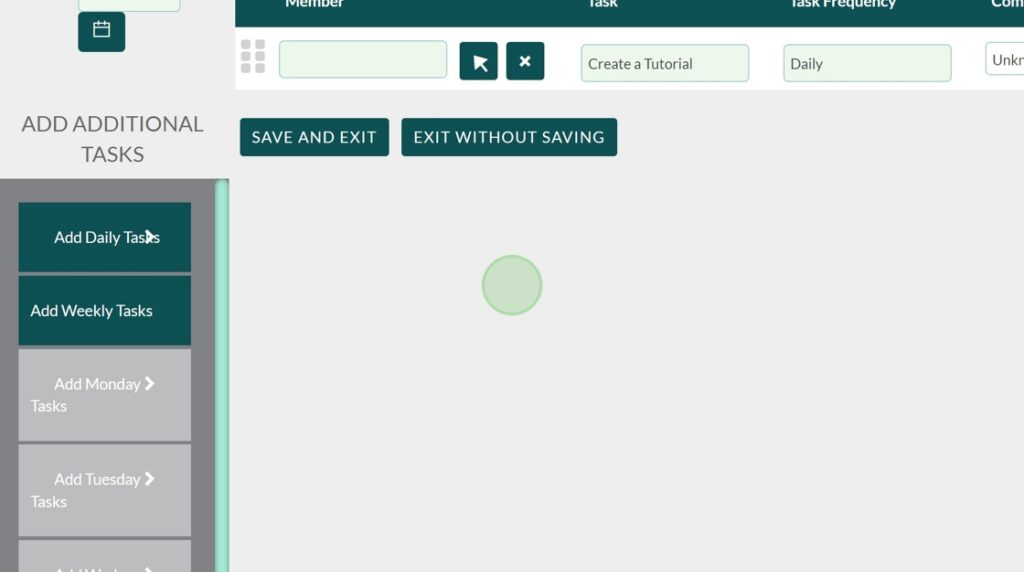
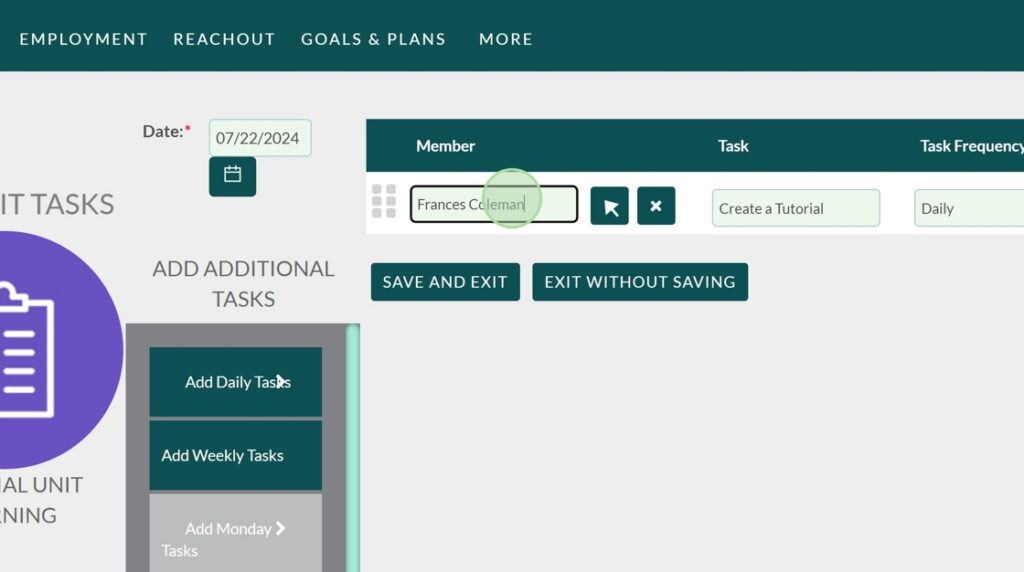
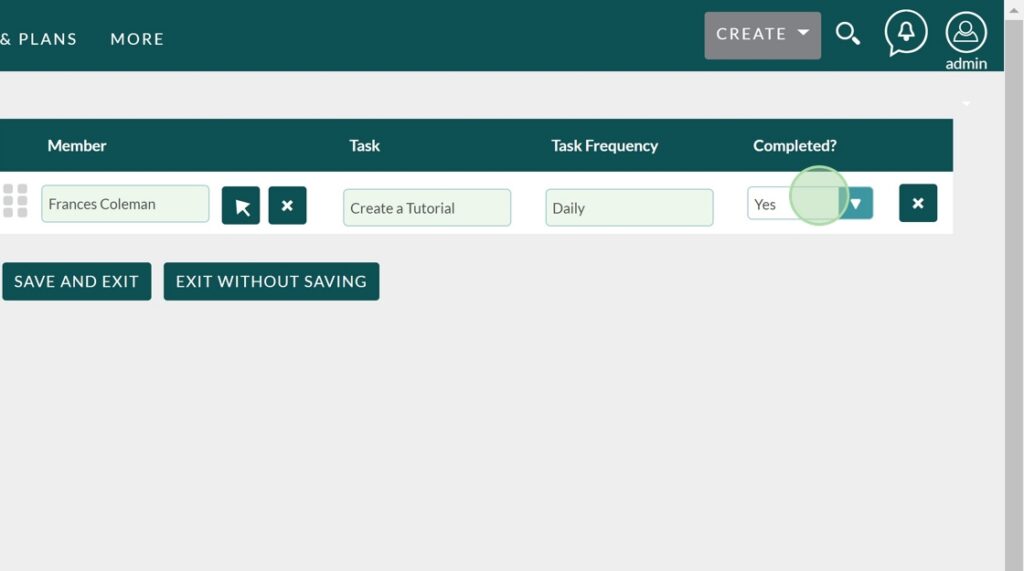
Since we know his task was completed, mark it the field as “Yes”
Note: The Units allow you to view when daily units are not being completed by not deleting the tasks the get marked as “Unknown” or “No” under the “Completed?” field. This can help your clubhouse notice tasks that go left undone.
Our daily task is done, but we have a new member who wants to take part of the Tutorial unit! This is not a task that happens on a Daily, Weekly, or Monthly basis. So since this task does not fit under any of the mentioned times, let’s go ahead and click on “Add New Occasional Task.”
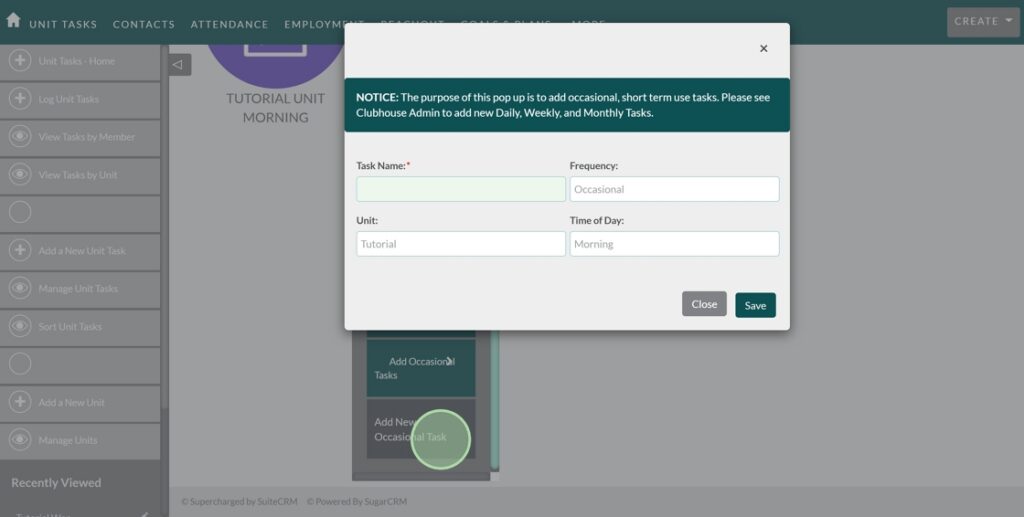
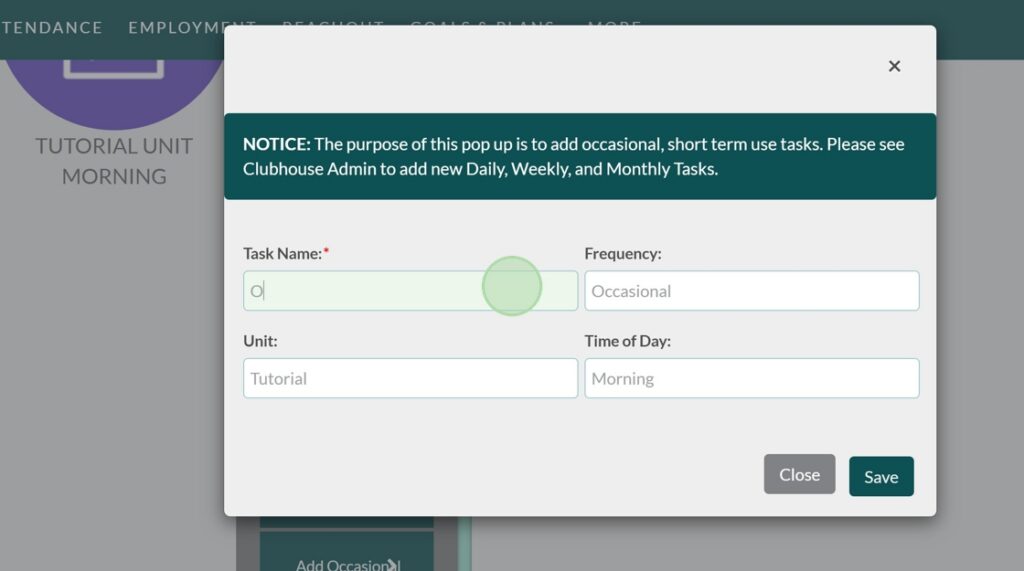
Since a new member wants to join in and we have to show them the ropes, let’s name this task “Onboard Tutorial Member.” Then save.
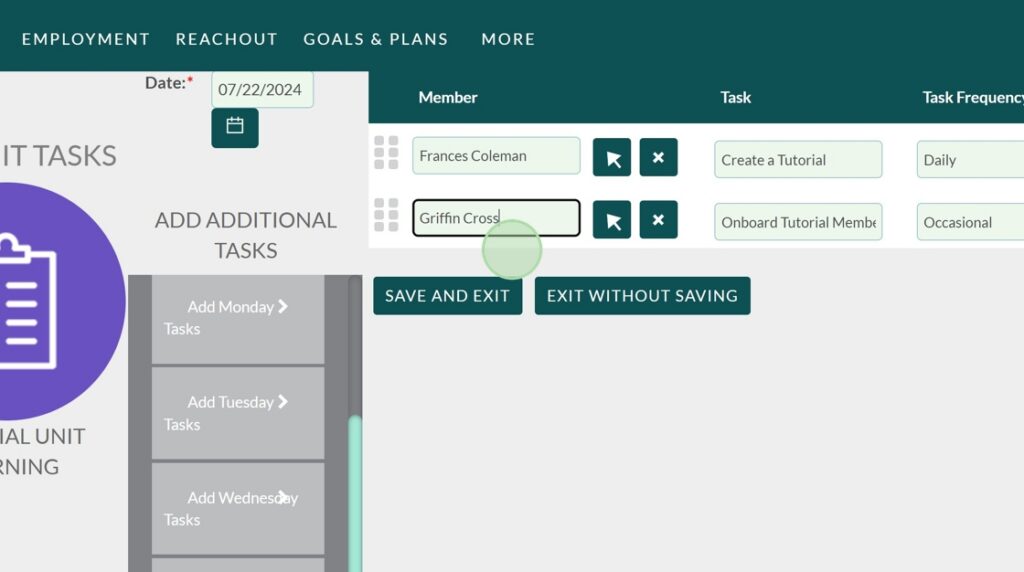
Our member Griffin Cross will go ahead and onboard the newest member, Hannah Alvarez.
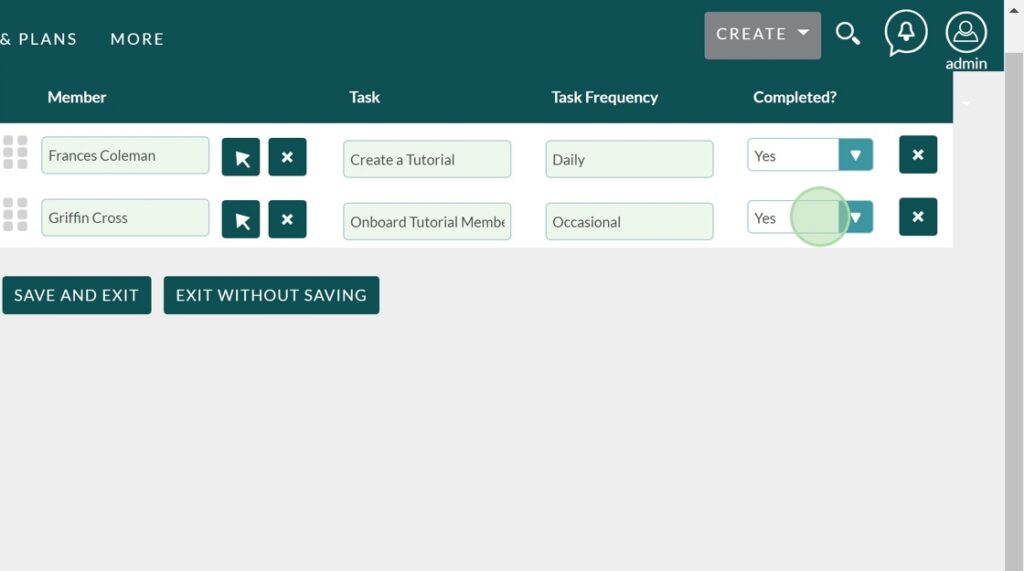
Griffin was able to finish onboarding Hannah, so let’s mark it as complete.
Under this dropdown will be all the listed Daily Tasks. Let’s add another “Create a Tutorial” entry.

Oops, we added one more entry than we needed, to remove the entry, click on the rightmost X button.
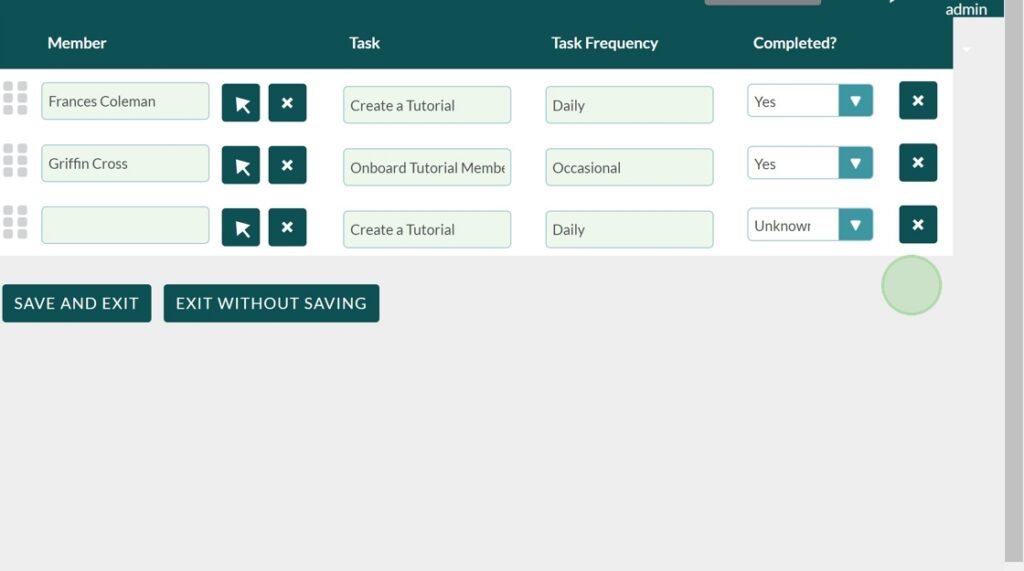
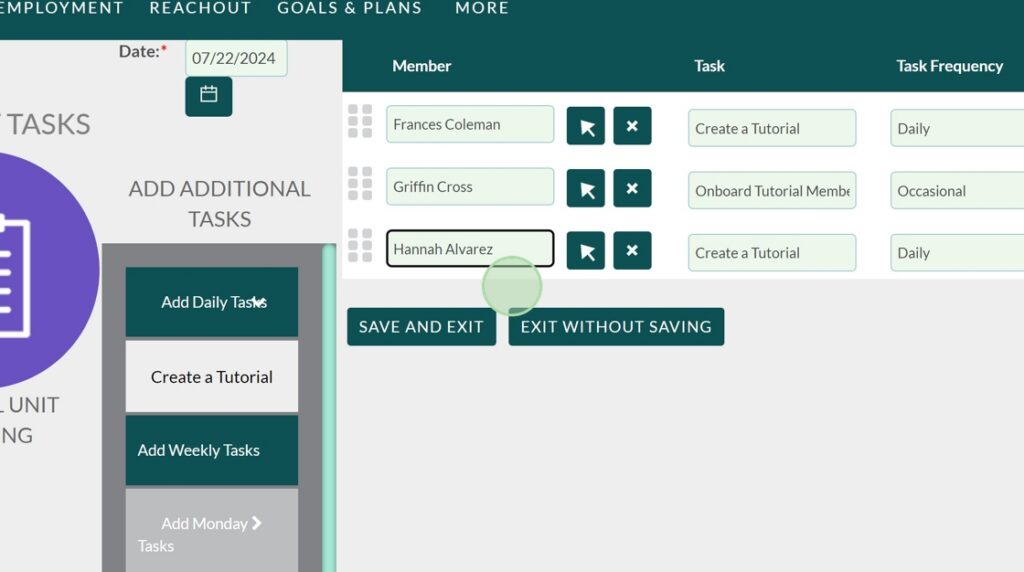
Let’s mark Hannah Alvarez as our Member who completed the task.
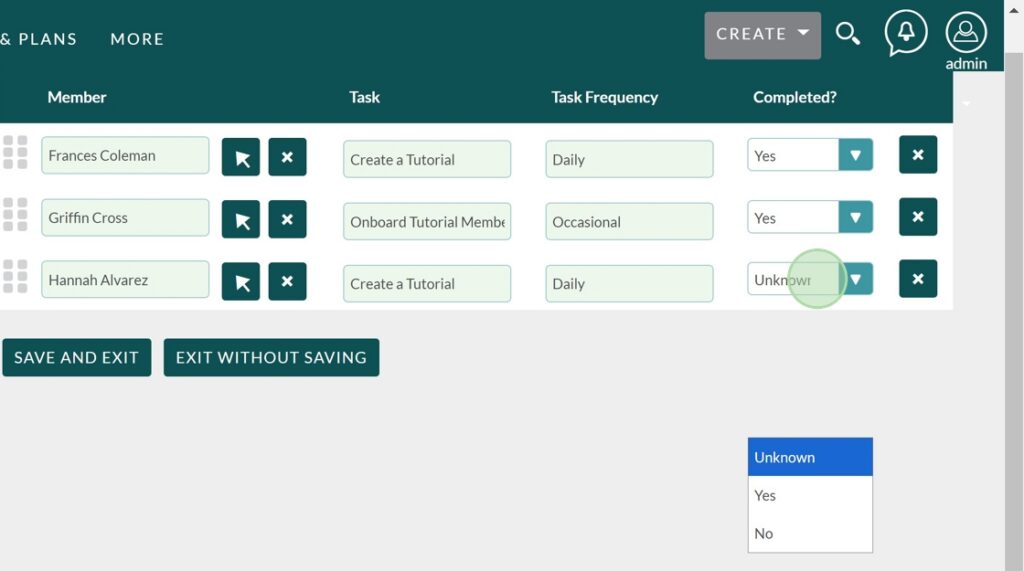
Remember to mark the task as complete!
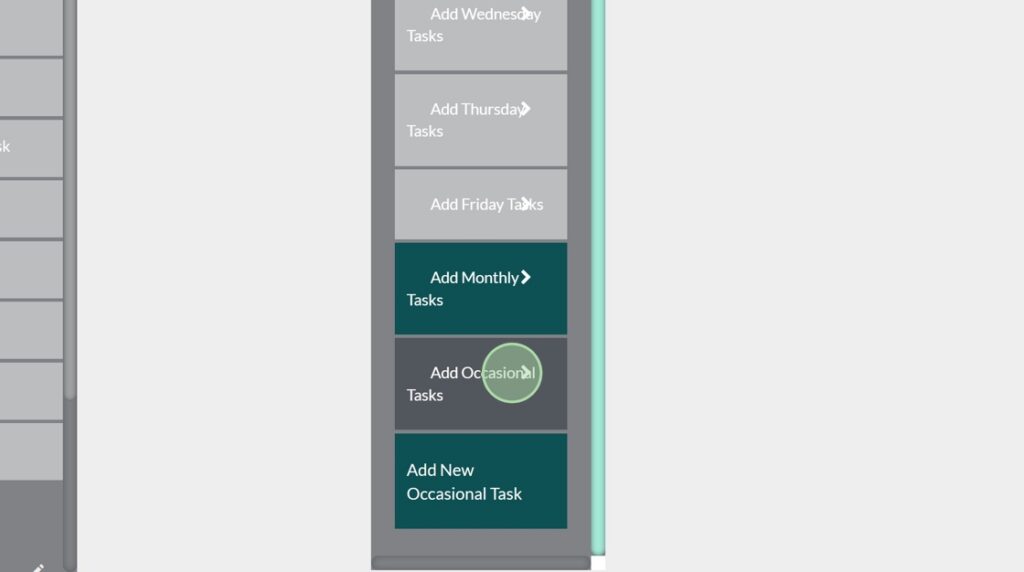
Occasional tasks occur… occasionally, so in the case that they do appear again, you can select “Add Occasional task” for a list of previous occasional tasks.
Now that we got all the morning tasks wrapped up, let’s save and exit so we may begin on the afternoon.

Returning to the units page, let’s click on the Afternoon Tutorial Unit.
Note: For the afternoon portion we will skip steps that have already been covered.

Hannah will go ahead and take part in the tutorial workshop.
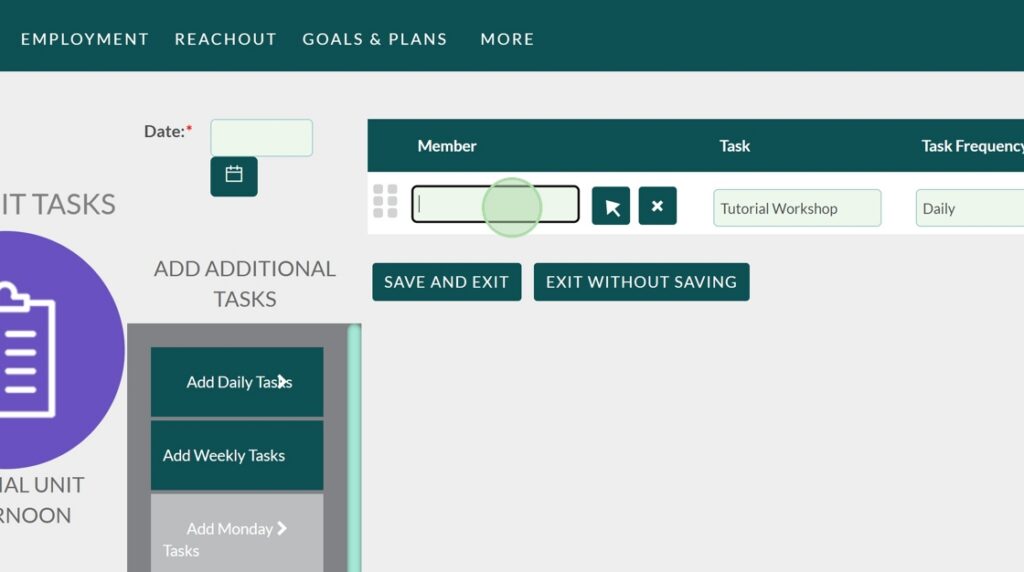
Don’t forget the date!
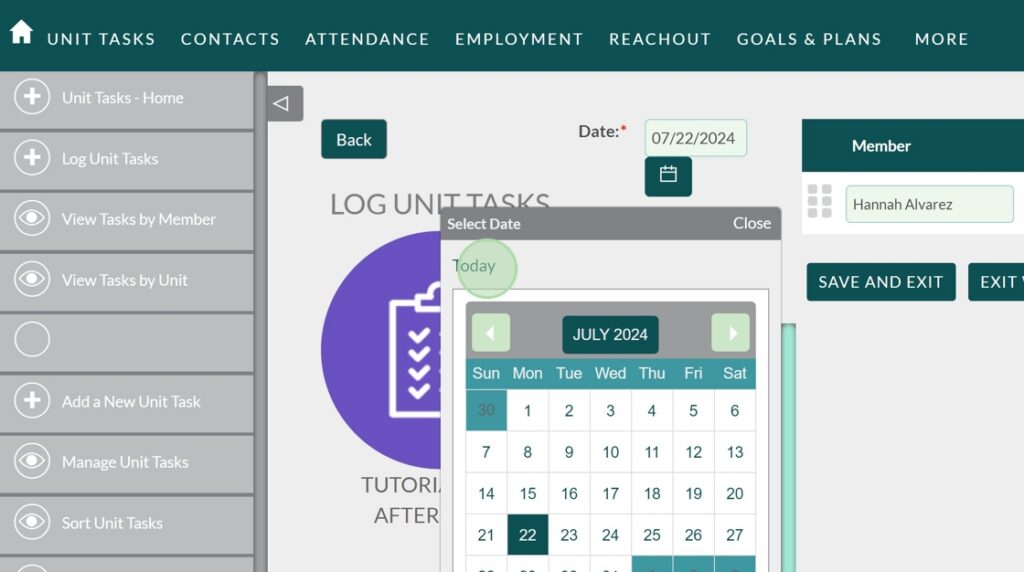
Completed field marked as “Yes.”

If you recall, in the afternoon we created a weekly task named “tutorial consulting” that occurs every Tuesday and Thursday. To view the task, we will click on Tuesday.
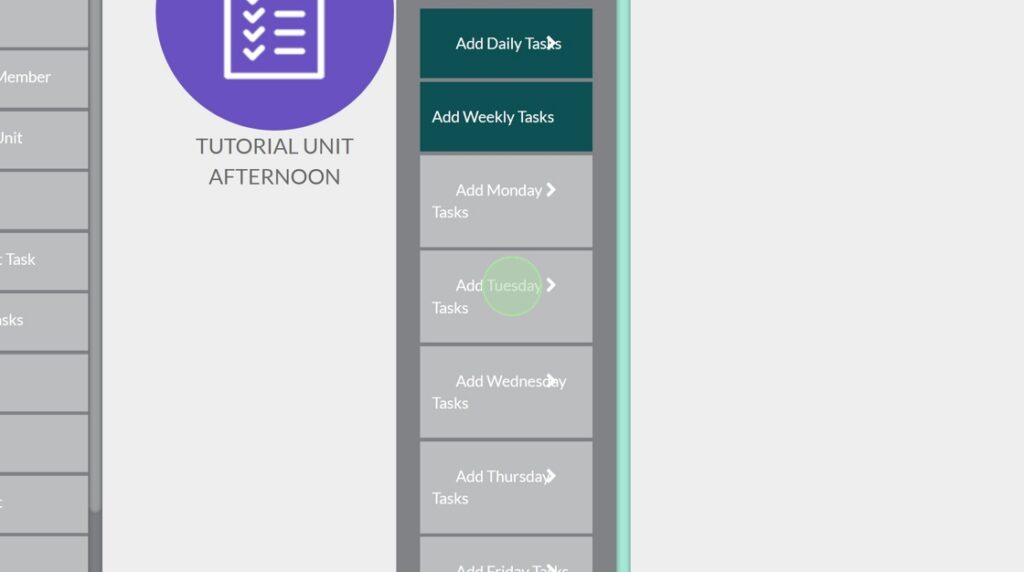
As you can see, our task is stored where it should be. Let’s add it to the data entry.
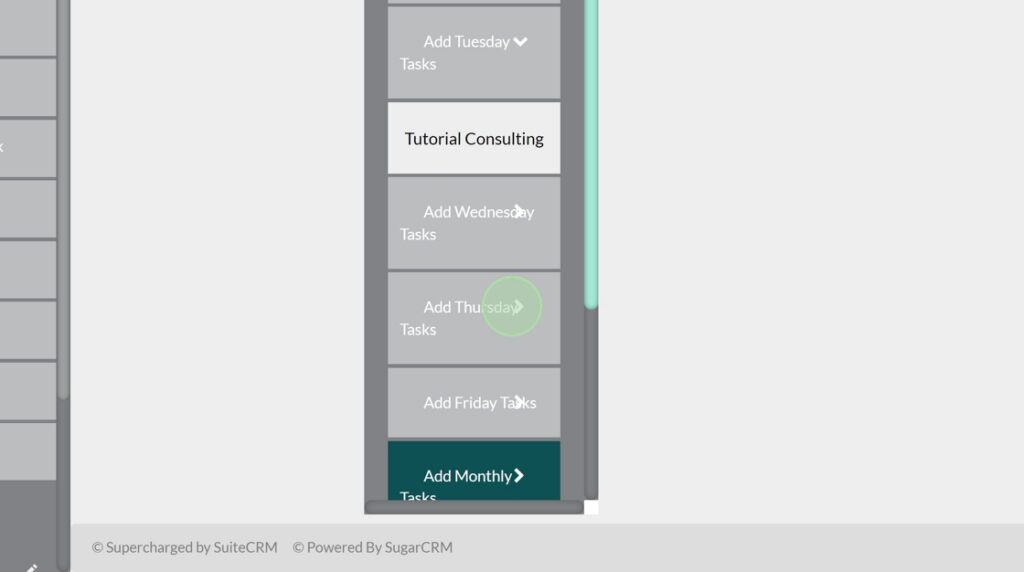
Today we actually did end up doing a Thursday task so let’s click on Tutorial Consulting to add it
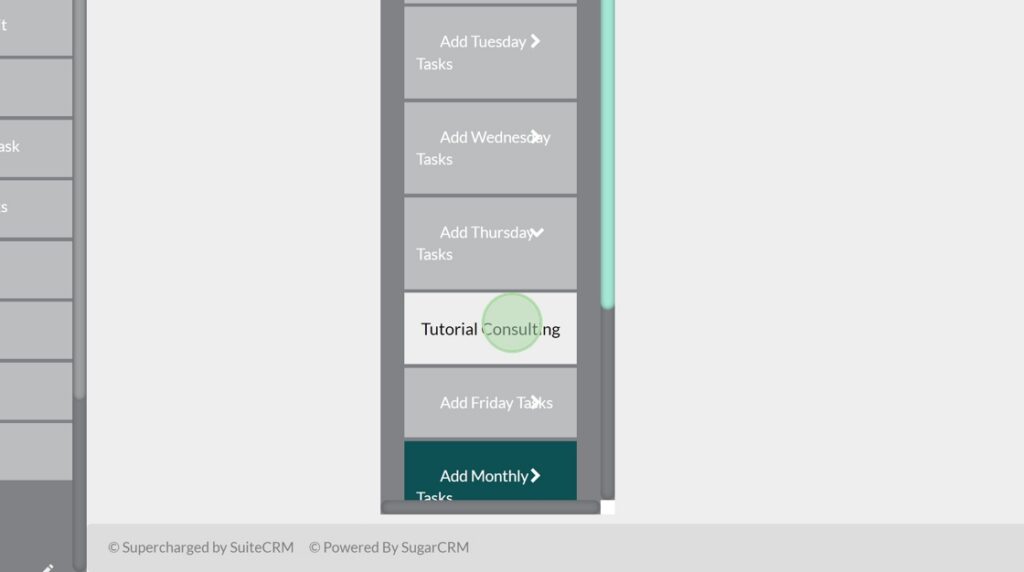
Griffin took care of the Tutorial Consulting task today.
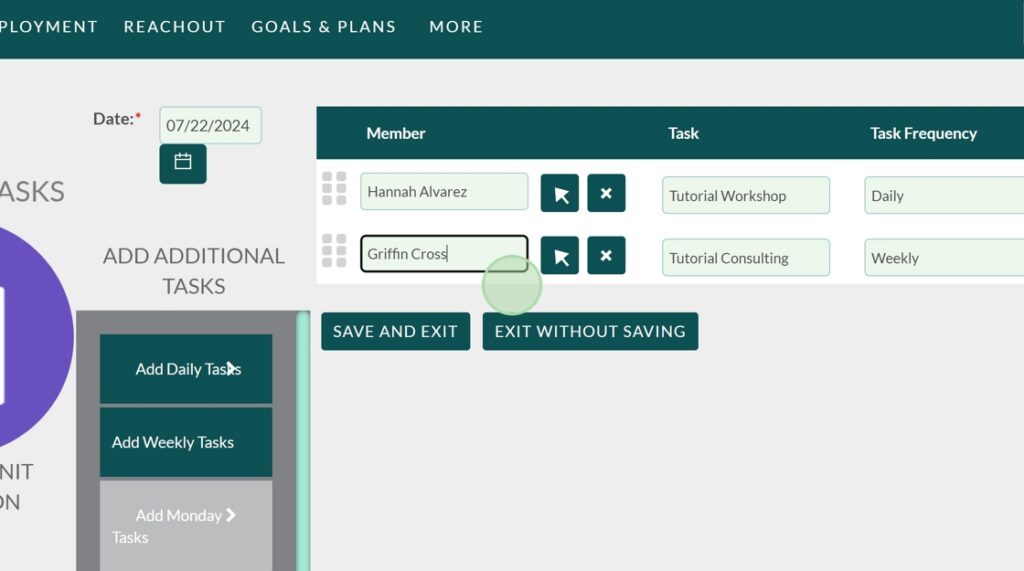
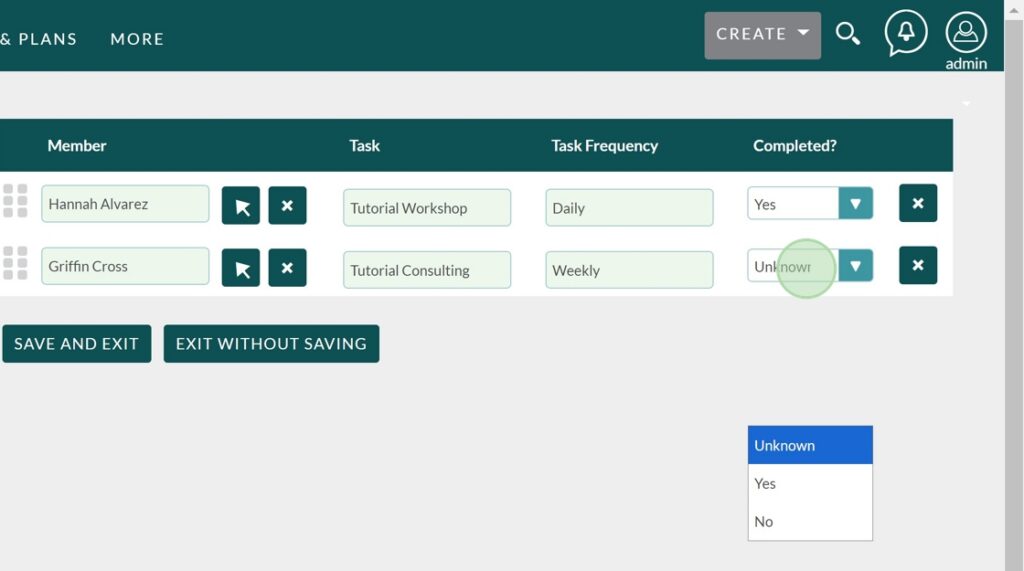
Remember to mark the “Completed?” field as “Yes”
As a side note, let’s take a quick look at our weekly tasks for Monday
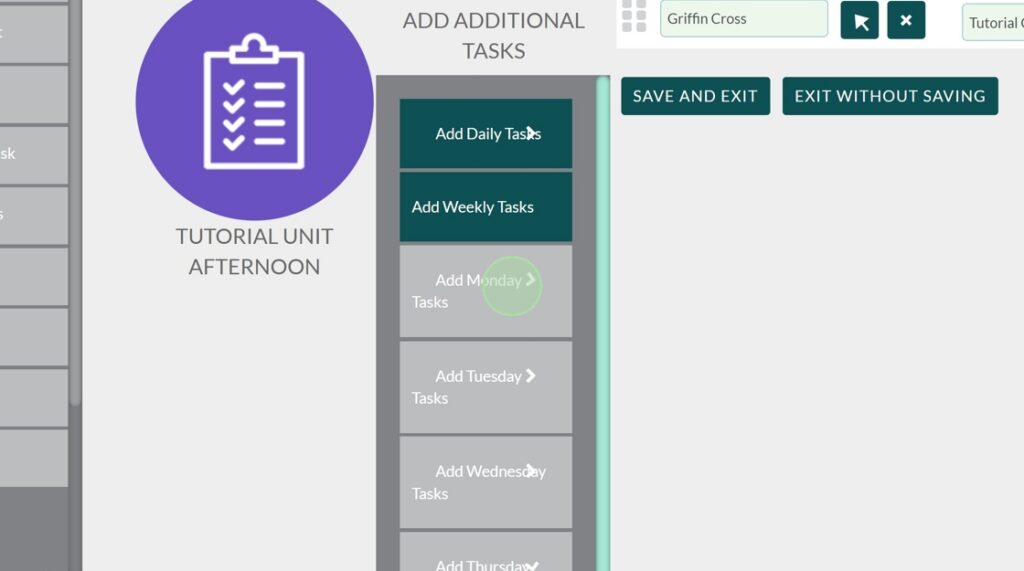
As you can see on our Weekly tasks, the tasks will only exist in their appropriate days. Monday, Wednesday, or Friday does not contain our Tuesday/Thursday task.
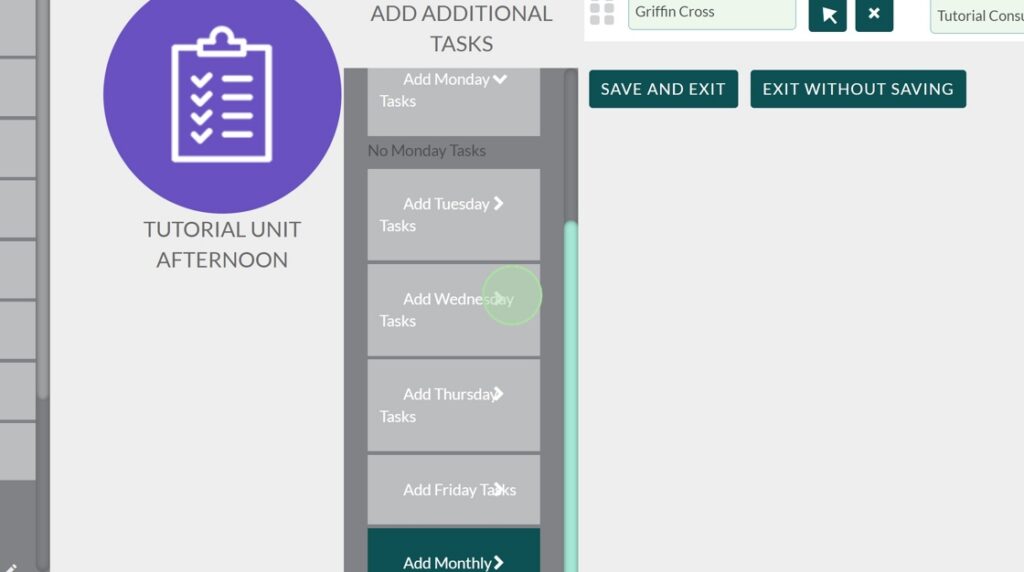
Let’s go ahead and save this data entry.
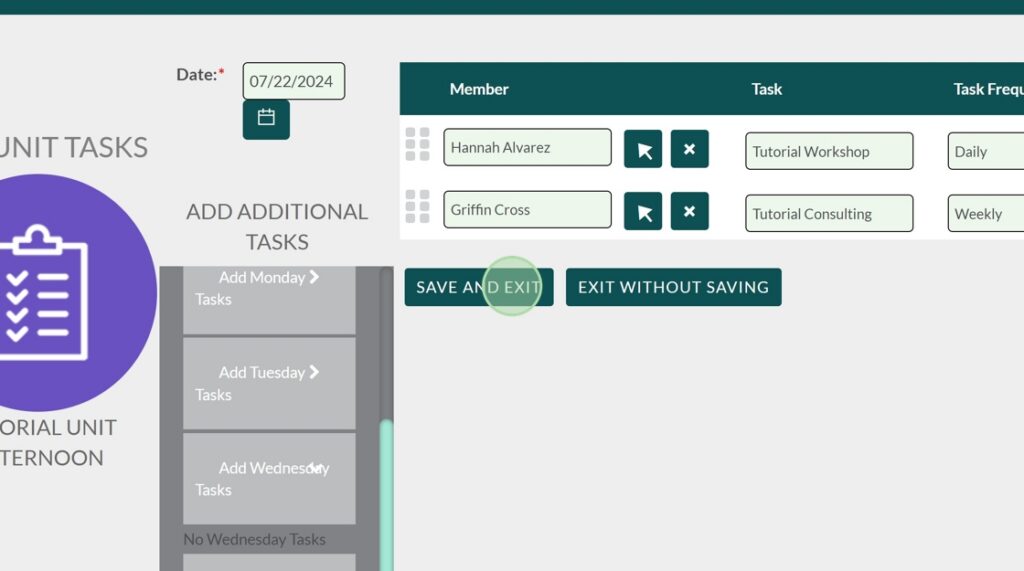
Oh, we just heard that we need to change one of our unit tasks, let’s go ahead and click on “Manage Unit Tasks.”

Deprecating Unit Tasks #
We were told that we aren’t dong Tutorial Consulting anymore, so we have to change the status of the unit task.

Double click on the pencil icon to edit the field from this page
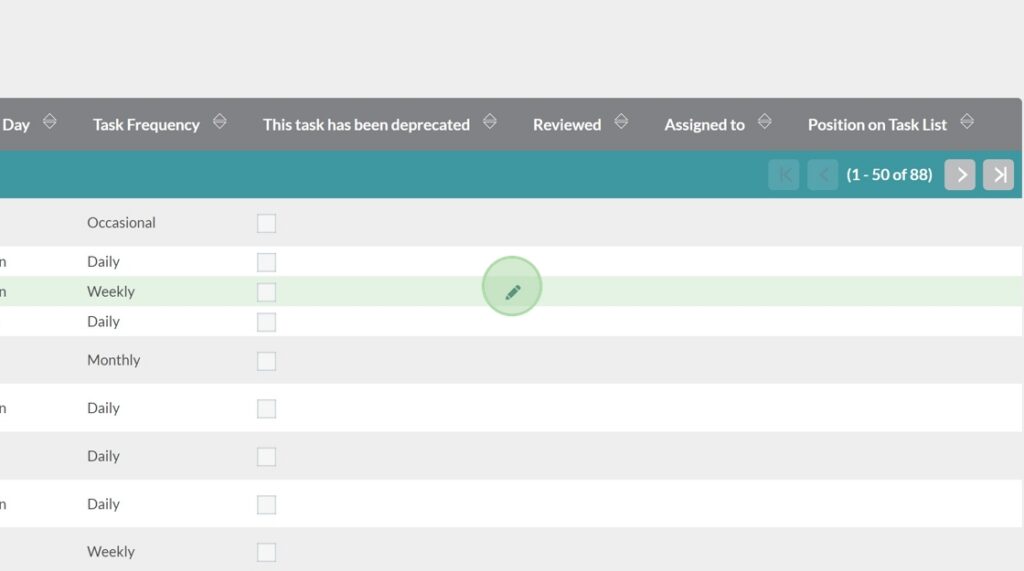
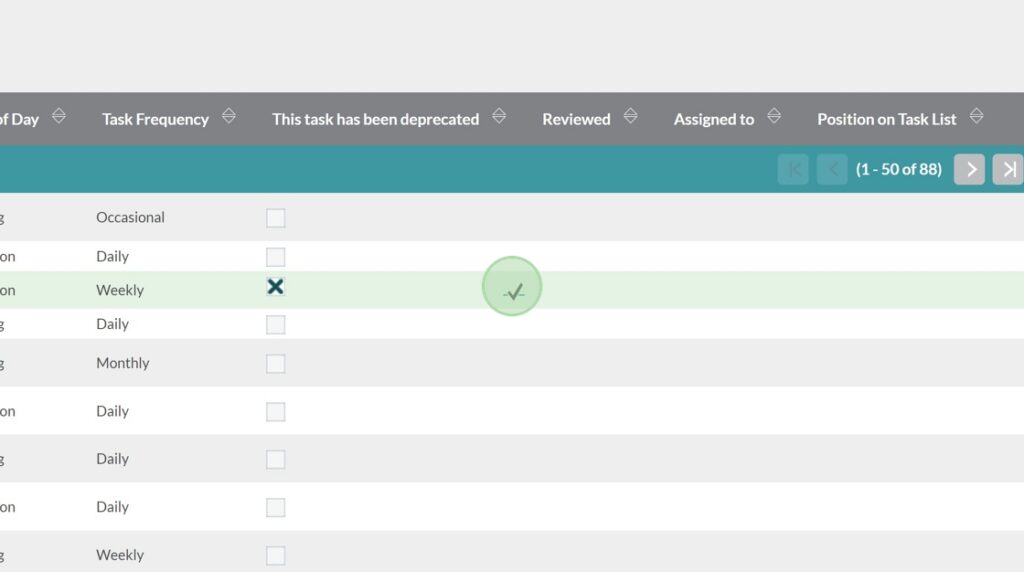
Once you’ve double clicked it, click the checkbox to mark the task as deprecated.
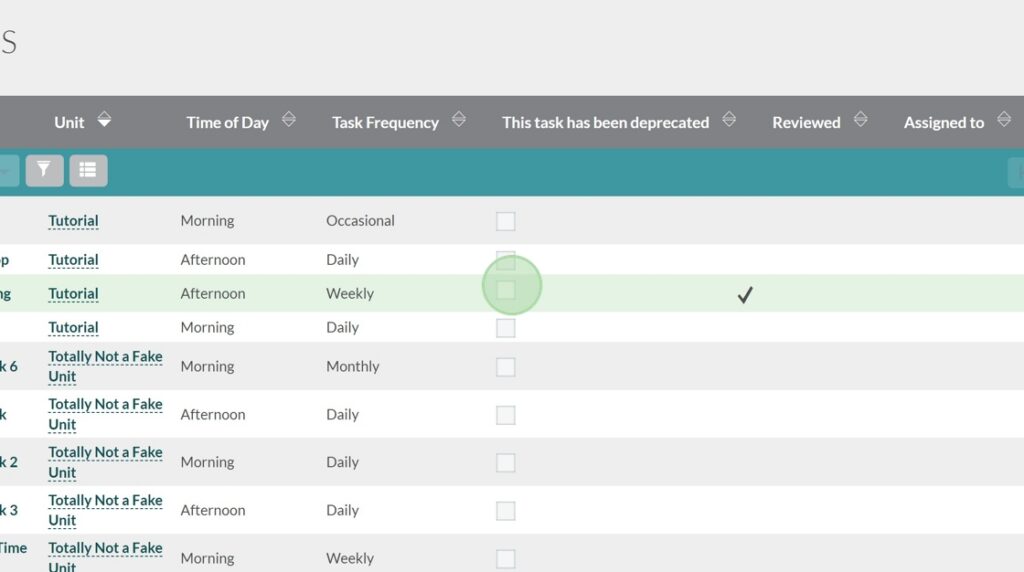
Note: Marking the task as deprecated is the only way you should discontinue a unit task. This means that you will not be able to select the unit task for data entry anymore, but it can still appear on previous tasks of when the task was still active. This works to prevent loss of data in general and for other functions like reports.
Do not delete unit tasks.
Once you’ve marked the checkbox, to save the change, click on the checkmark.
Marking Units as Inactive #
Hold on, it seems like we might have to work on the Unit a whole lot more. Let’s go ahead and prevent anyone from accessing the unit until we finish the changes. Click on “Manage Units”
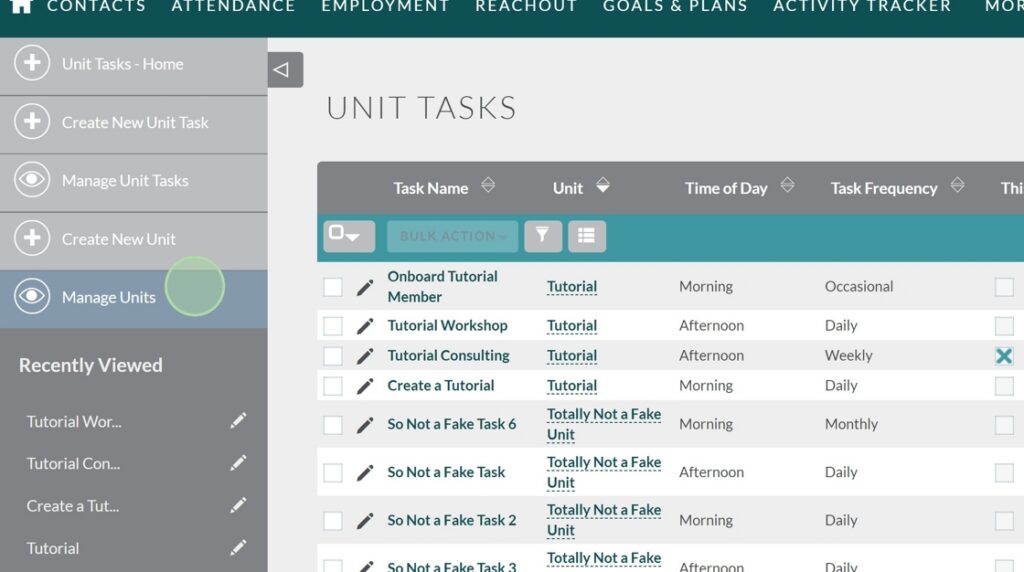
Hold on, it seems like we might have to work on the Unit a whole lot more. Let’s go ahead and prevent anyone from accessing the unit until we finish the changes. Click on “Manage Units”
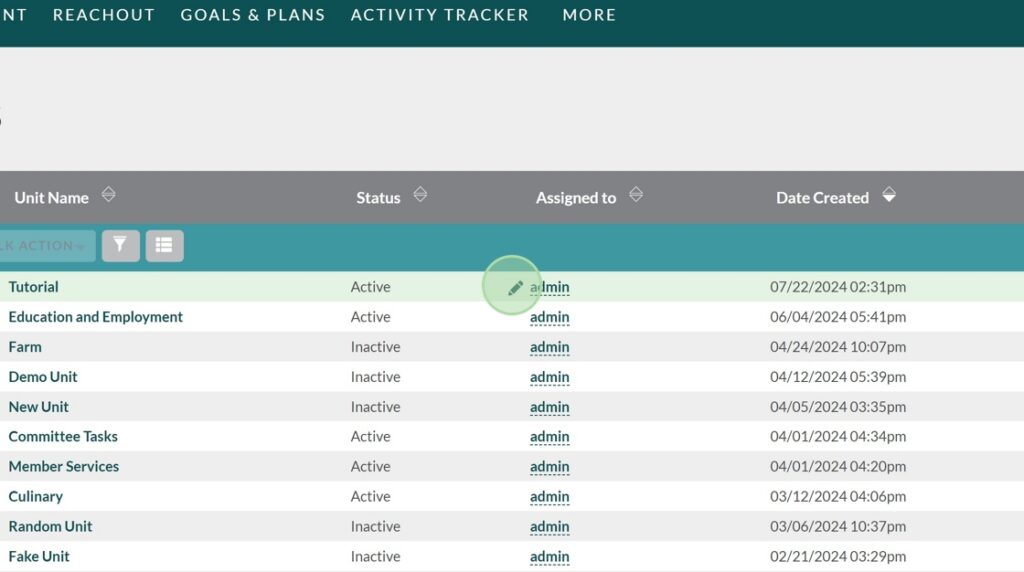
Set the status as “Inactive”
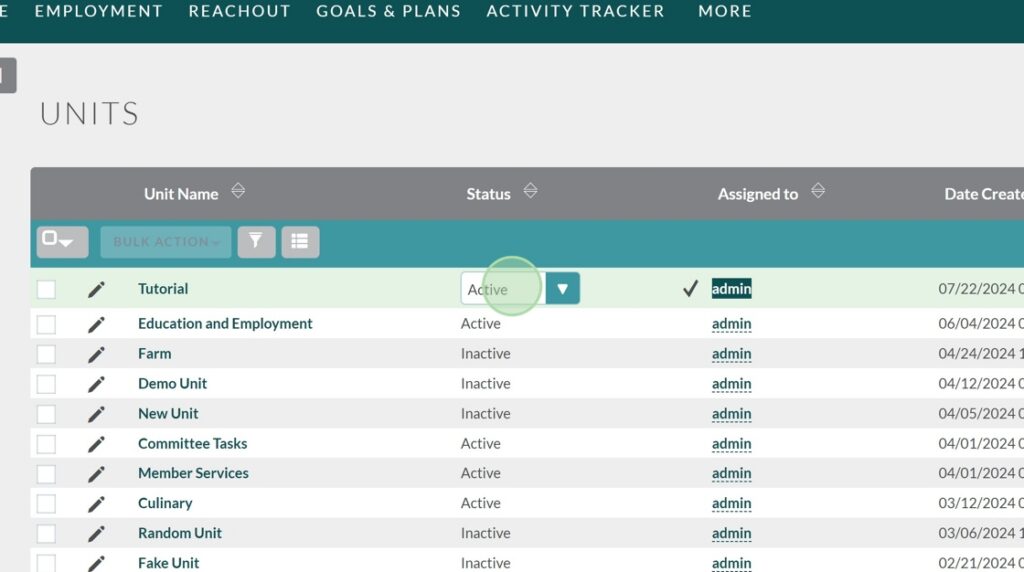
And save the changes with the checkmark.

And with that, you have completed a general overview of the Units and Unit task! More tutorials will be coming out for the units so stay tuned for more.