
Modern browsers try to make your life easier by storing portions of webpages. In theory, this is great. It saves precious page loading time. Unfortunately the downside is that as we make new updates, sometimes your browser has stored an outdated version of the code.
When Flourish is not acting as it should, try these steps first to see if you can quickly fix the issue. If it does not help, please don’t hesitate to reach out to the Flourish Support Team!
support@clubhousdata.org
Always Try these steps first. Unfortunately, when issues are related to your browser cache the Flourish Support Team cannot do much on our end to fix the issue. This is because browser caches are unique to your individual devices. Try these steps before reaching out the Flourish Support to help expedite the troubleshooting process.
Common Places You Might Experience Cache Issues:
• The drop down of names isn’t appearing in Multi-Entry/Log Multiple screens
• A white screen of text and links appears when you try to navigate somewhere
• Shiny Reports are not loading or downloading properly
Please note, the only browsers officially supported and tested for using Flourish are:
1. Google Chrome
2. Mozilla Firefox
If you use another browser we’re happy to try and assist, but do not guarantee that it Flourish will be natively compatible with it.
Quickly Checking for Cache Issues #
The quickest way to check to see if you have a browser cache issue is to open Flourish in an incognito/private browser.
These browsers operate as a “clean slate” and don’t use or store any of your session information such as website history, cookies, or cached files.
Opening an Incognito Window in Chrome #
There are 2 ways to open an Incognito Window in Chrome:
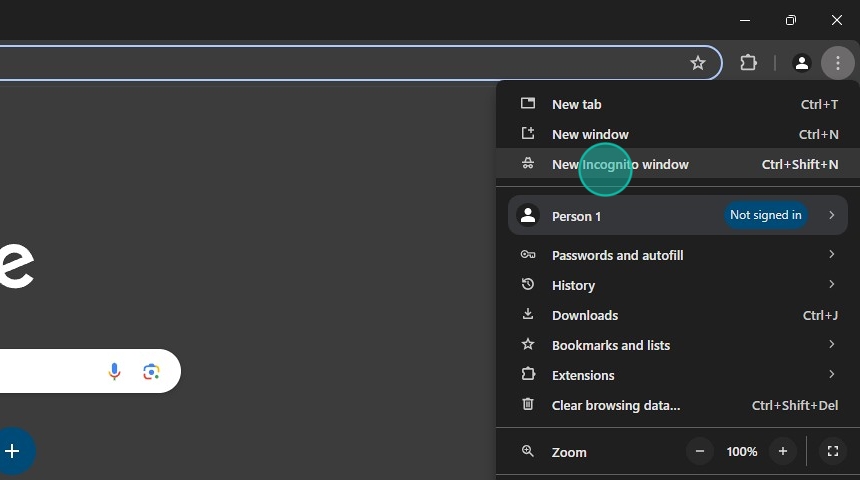
In the upper right hand corner for your browser, click the 3 dots to expand the control menu.
Then click “New Incognito window”
-OR-
You can simply press Ctrl+Shift+N to open a private browser from anywhere within Chrome.
Mac Users: Use Cmd+Shift+N

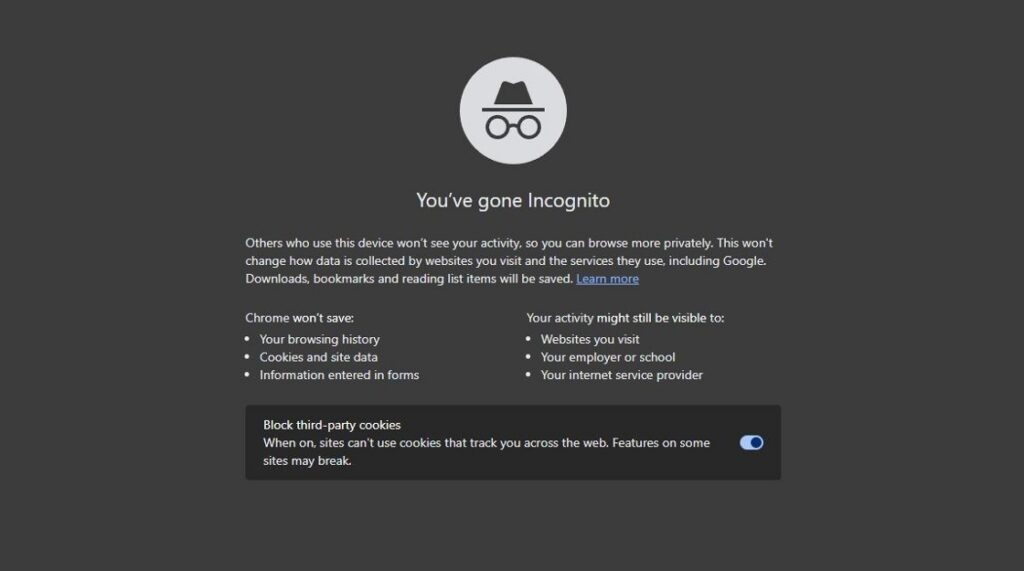
A new window will open up that should look similar to this.
From here, navigate to Flourish and see if the unexpected behavior persists.
Opening a Private Window: Firefox #
There are 2 ways to open a Private Window in Firefox:
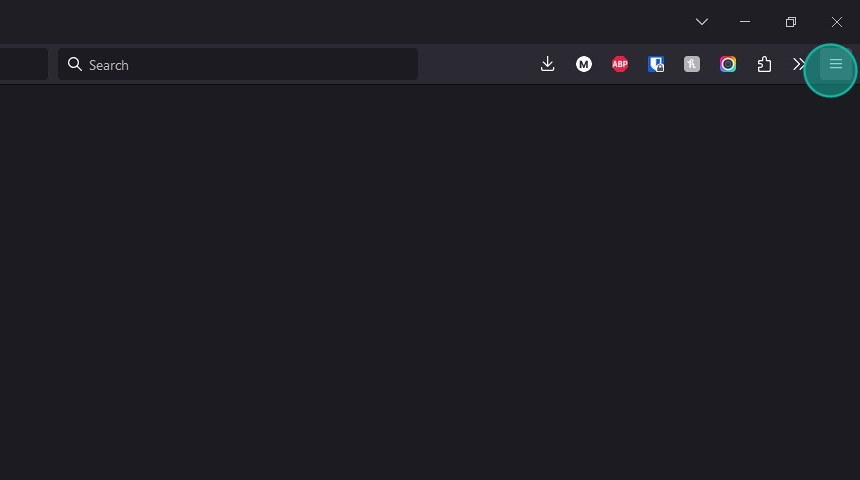
Click the three horizontal lines (hamburger) button on the upper right side of your browser
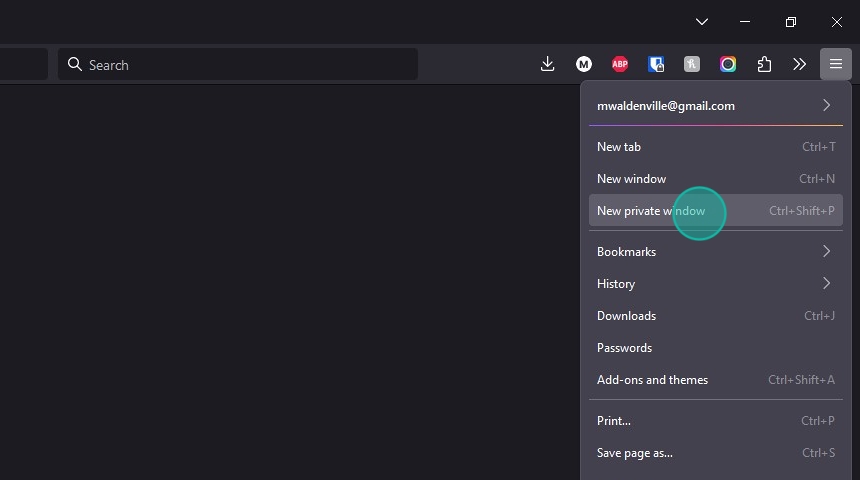
Select: “New private window”
-OR-
You can simply press Ctrl+Shift+P to open a private browser from anywhere within Firefox.
Mac Users: Use Cmd+Shift+P
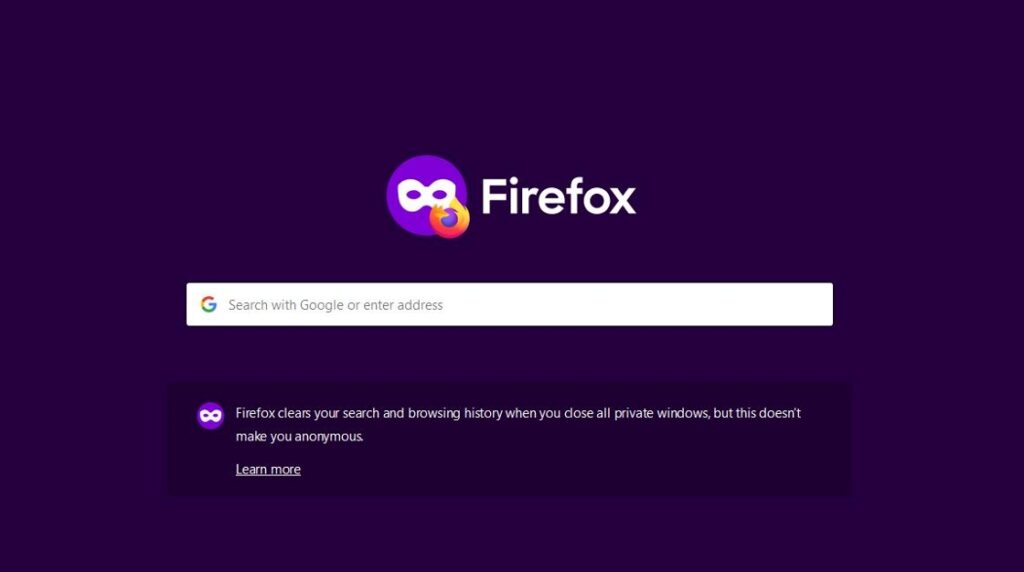
A new window that looks similar to this will open.
From here, navigate to Flourish and see if the unexpected behavior persists.
Next Steps #
If Flourish works as expected in a Private/Incognito Window, follow the next steps to clear your browser cache.
If it’s still not working as expected, it’s unlikely that the issue is related to your browser cache. Please reach out to the Flourish Support Team. Make sure to mention in your support ticket that you’ve already tried using a private window and/or clearing your cache.
support@clubhousedata.org
Quickly Retrieving Updated Webpage Content: Firefox and Chrome #
Often times you can quickly remedy the cache issue by telling your browser to reload the page without using cached files. This will cause it to load a completely clean version of the web page and store the most up-to-date version of the files.
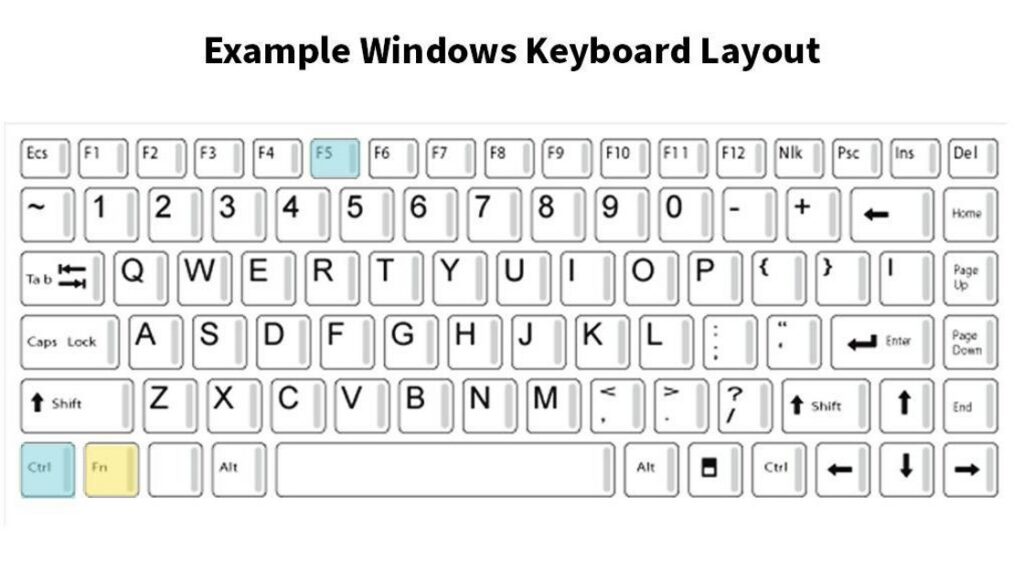
To do this, simply press Ctrl+F5
Note: Some laptops do combine the F keys with other manual control keys such as brightness and volume controls. If you’re using a laptop you may also need to hold the Function (Fn) key.
In this case you’d need to press Ctrl+Fn+F5
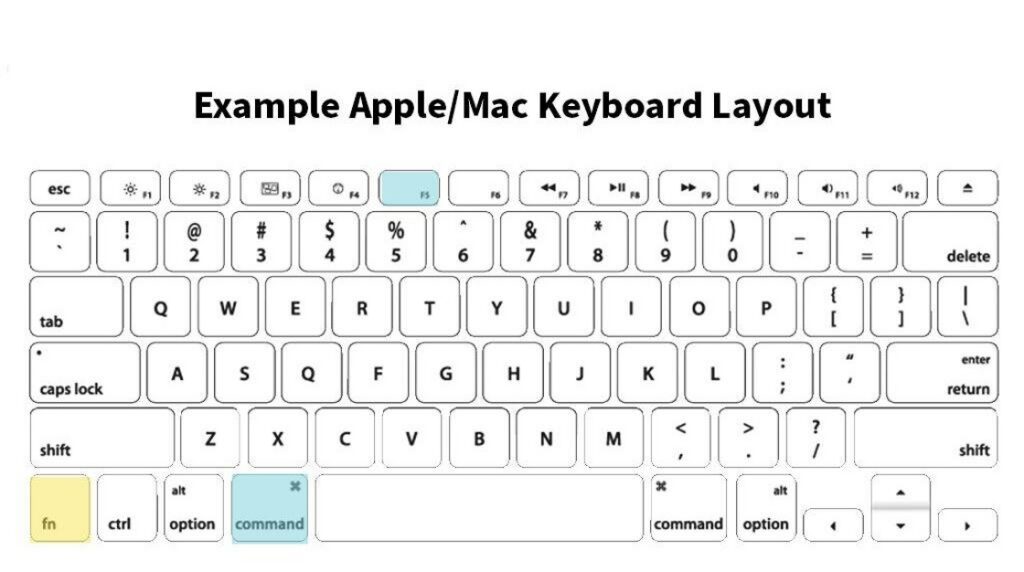
Mac Users Use:
- Cmd+F5
- Cmd+Fn+F5
Although this works most of the time, occasionally a hard reset of your cache is needed.
Manually Clear Your Browser Cache: Chrome #
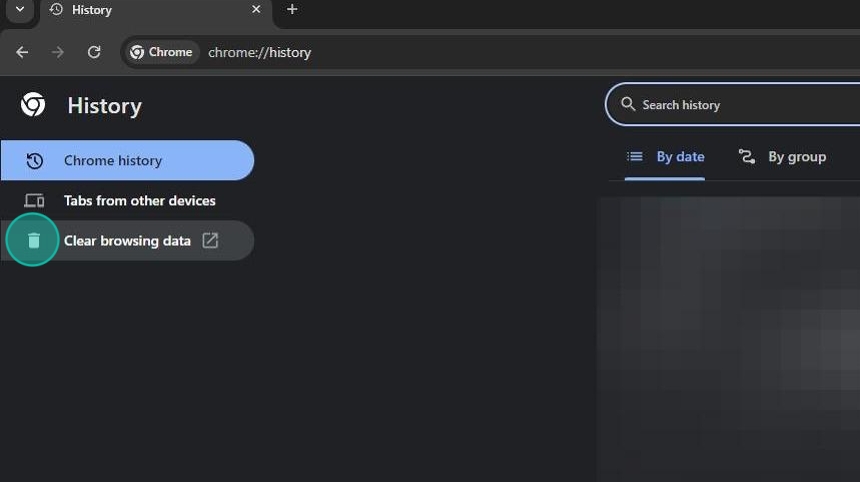
Enter chrome://history/ into your chrome navigation bar
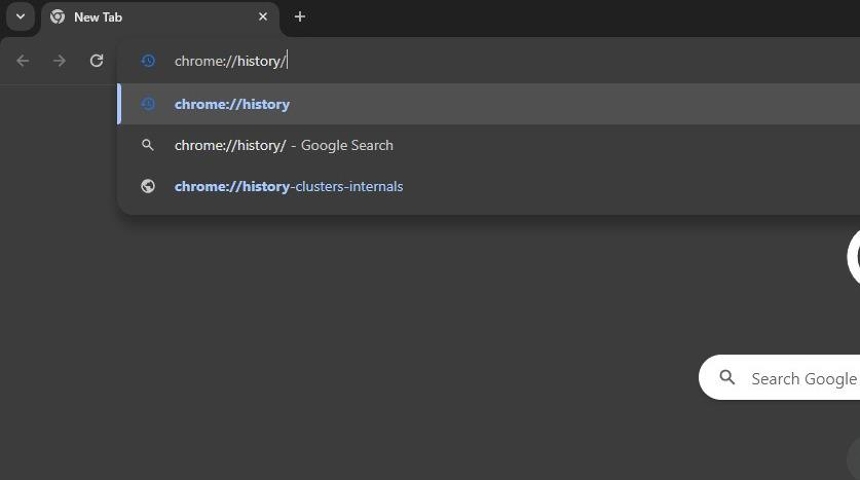
Click on Clear browsing data
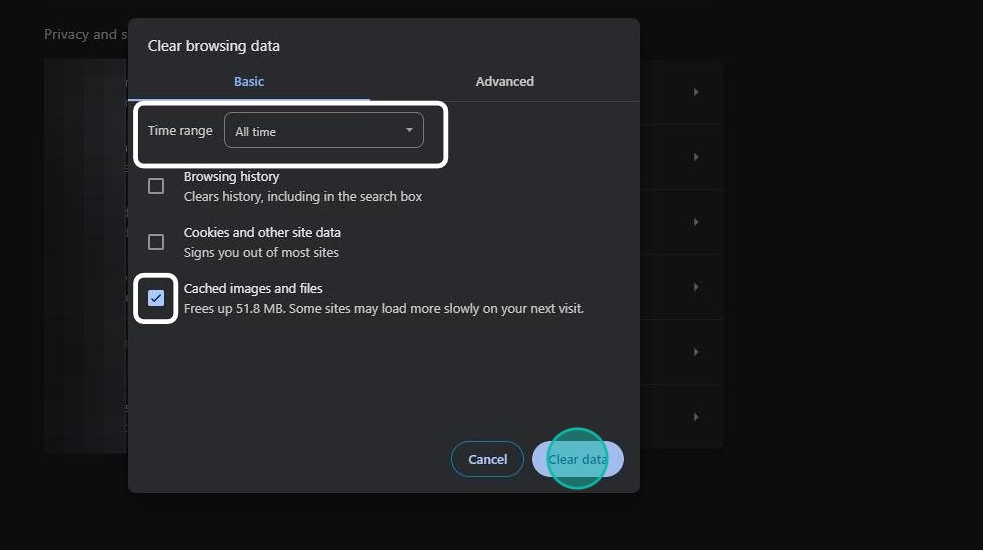
In the “Clear browsing data” window that pops up, make sure that you are on the”Basic” tab. Set Time Range to “All Time” and “Cached images and files” is checked.
Note: It is optional to clear your browsing history and cookies. Only clear those things if you want to. They do not affect how Flourish functions, so they are free to be left alone.
Manually Clear Your Browser Cache: Firefox #
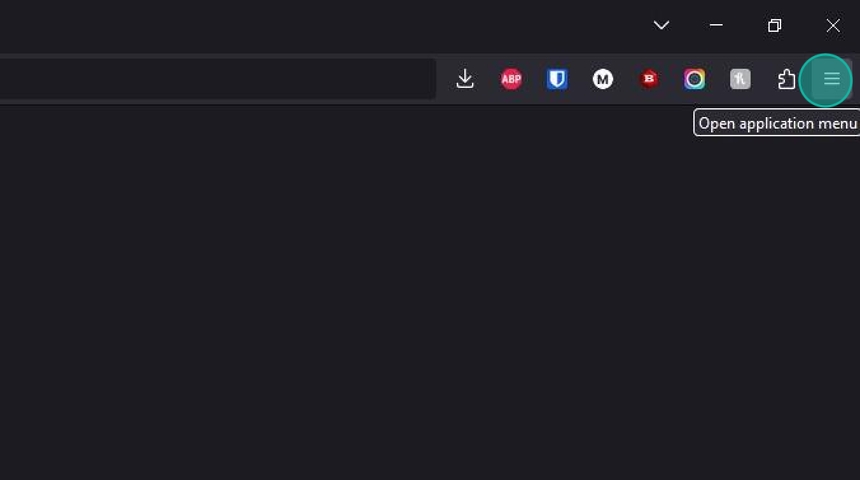
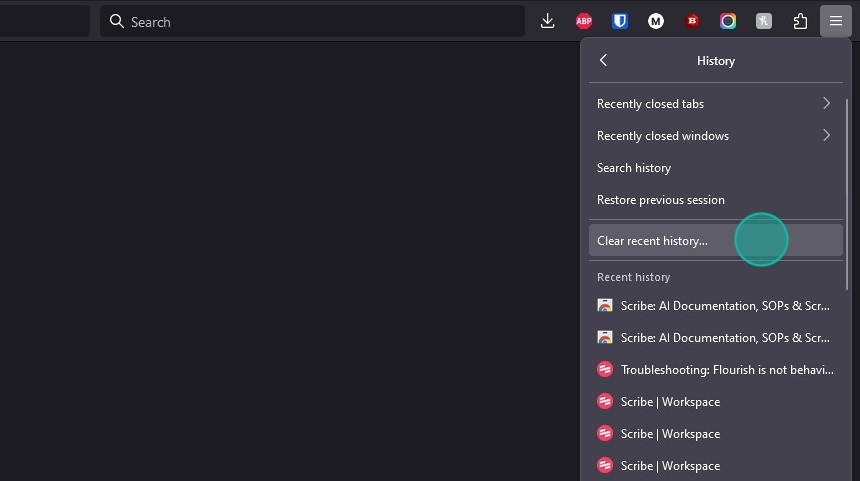
Click the 3 horizontal lines (sometimes referred to as the “Hamburger Button” in the upper right corner of your browser.
Then click “History“
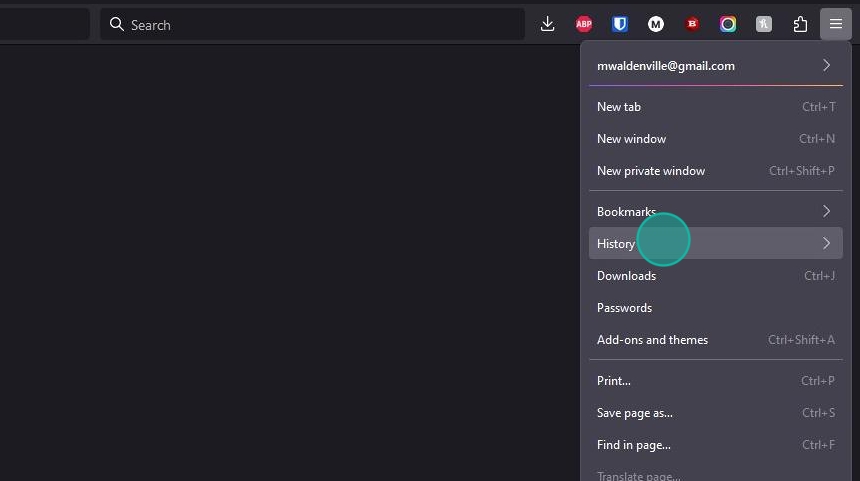
Click “Clear recent history…”
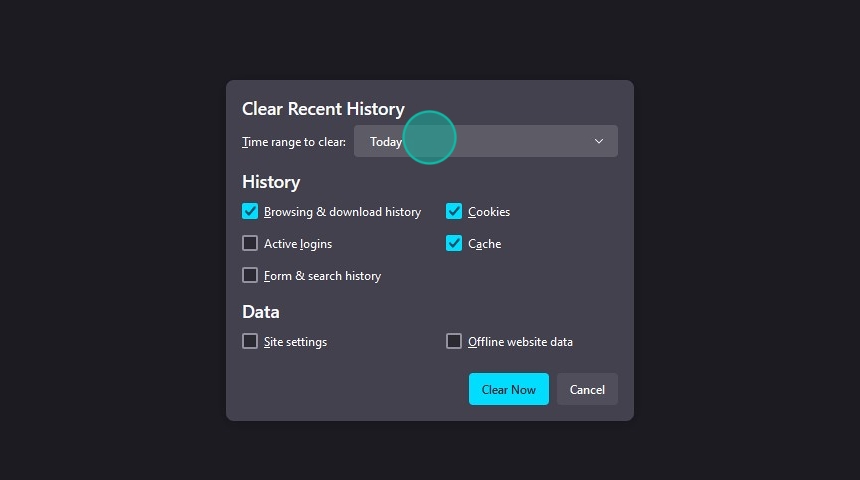
Click “Time range to clear:”
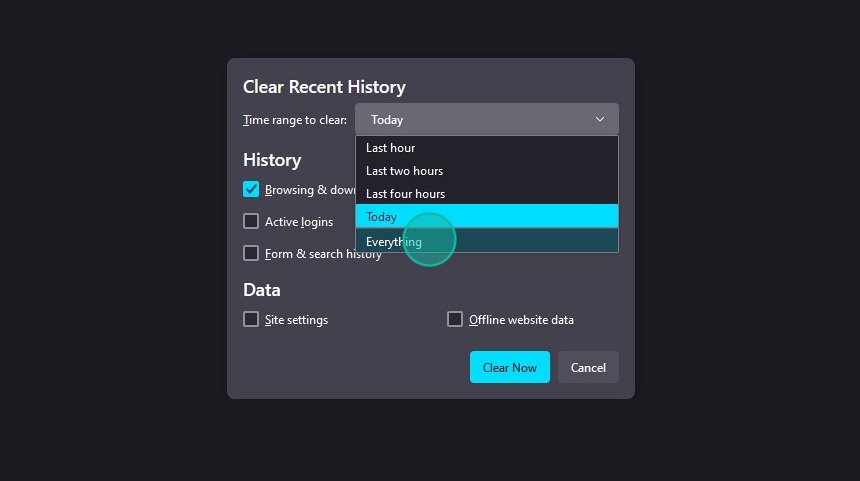
Click “Everything”
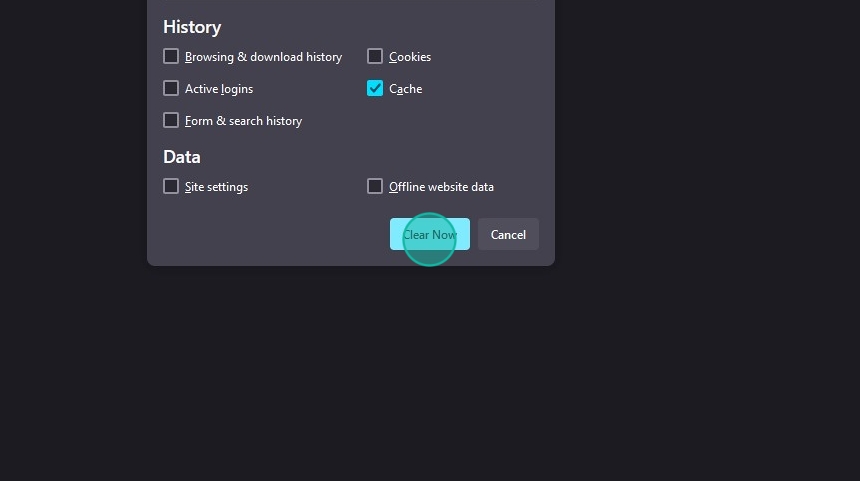
Make sure the “Cache” box is checked
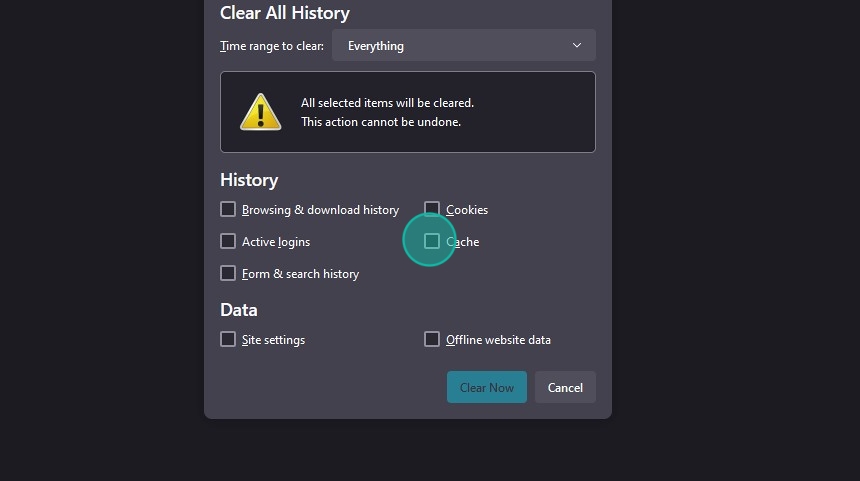
Click “Clear Now”
Trying a Different Computer #
Sometimes when Flourish isn’t acting as expected on one computer, it seems to work on other computers. We recommend trying a different computer and/or browser to see if this is the case. If it works on another computer, please reach out still, but mention that this happened.