
This tutorial will show you how to add a Contact Photo in Flourish
Navigation #
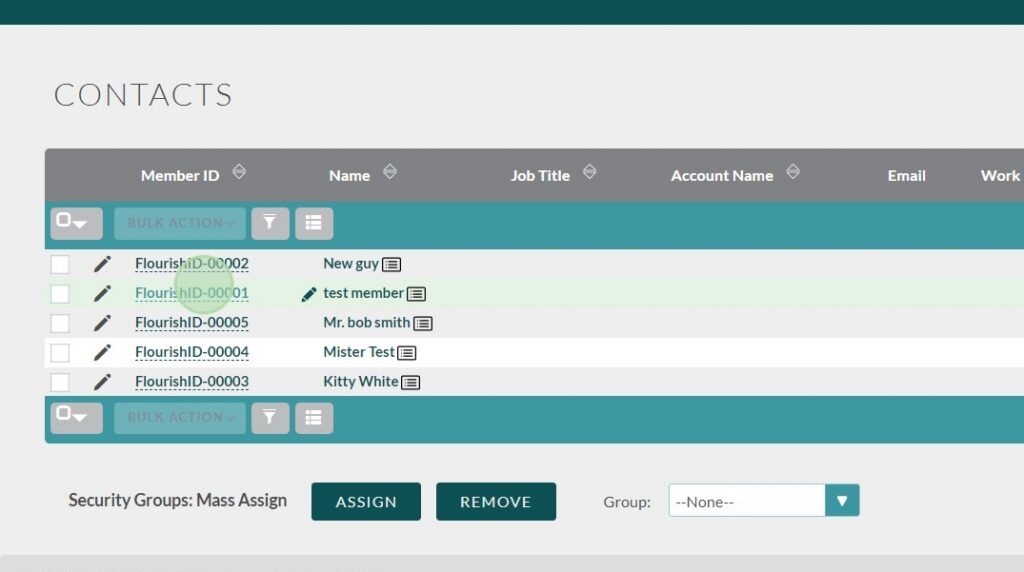
Go to the Contacts module

For this example we will be adding a contact photo to an existing contact, but the steps will be that same for a new contact

Open the Contact profile
Adding the Photo #
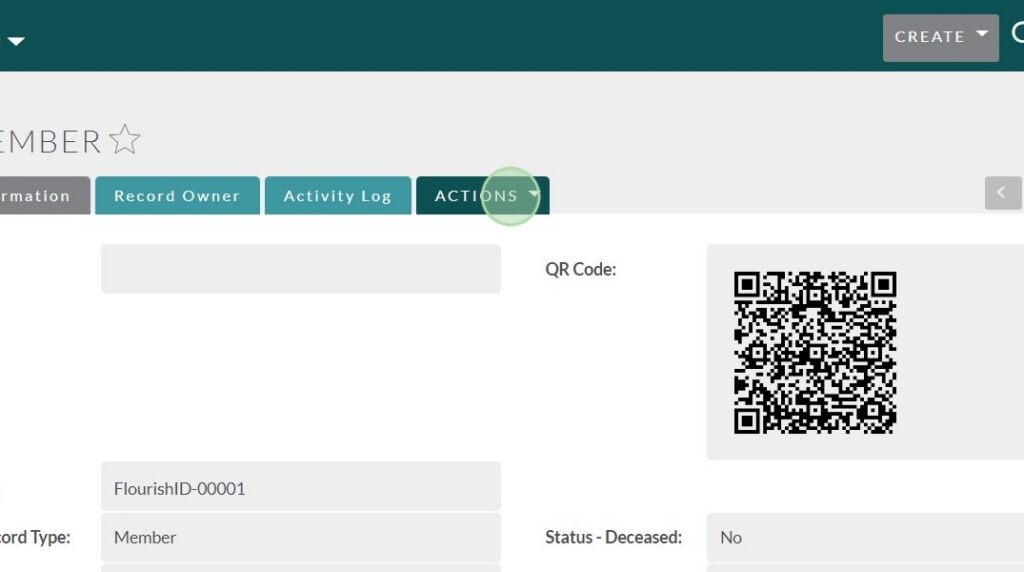
Click “ACTIONS”, then “Edit”

Click the “Choose file” button, and select your contact photo
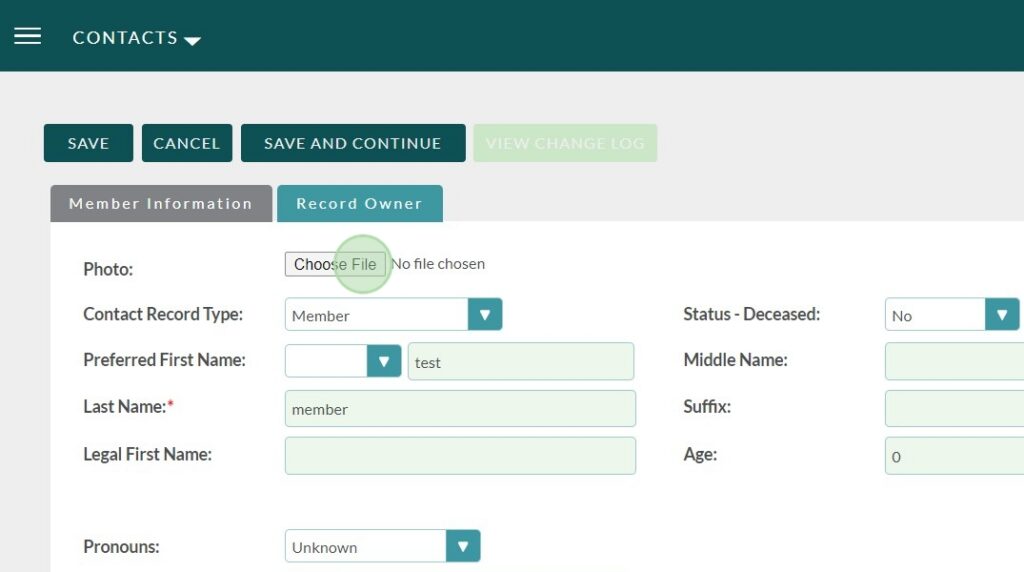
Note: Make sure that whatever photo you use is cropped in a square, otherwise it will appear distorted!
Once you have selected a contact photo make sure save all changes clicking the “SAVE” button.
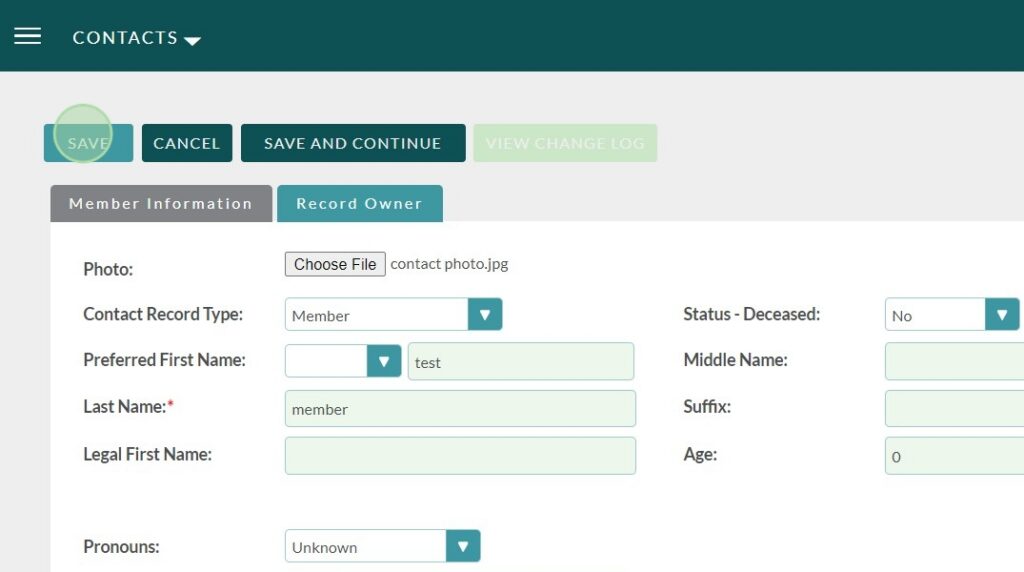
Your photo should now show up on your profile!

If you are having issues with this process please reach out to the Flourish Team via Support Ticket on our website: https://www.clubhousedata.org/request-support/