Navigation #
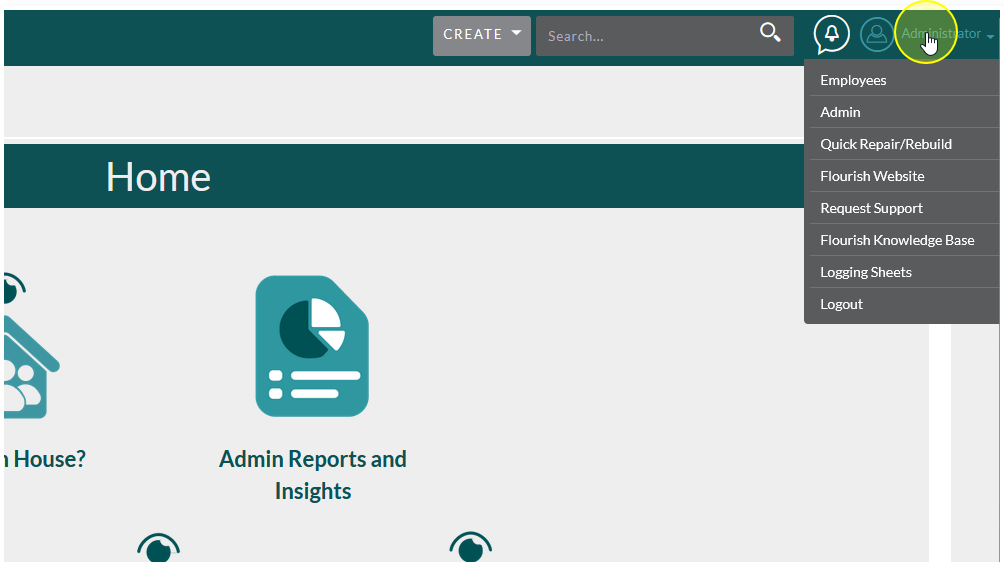
Hover over your username in the upper right hand corner
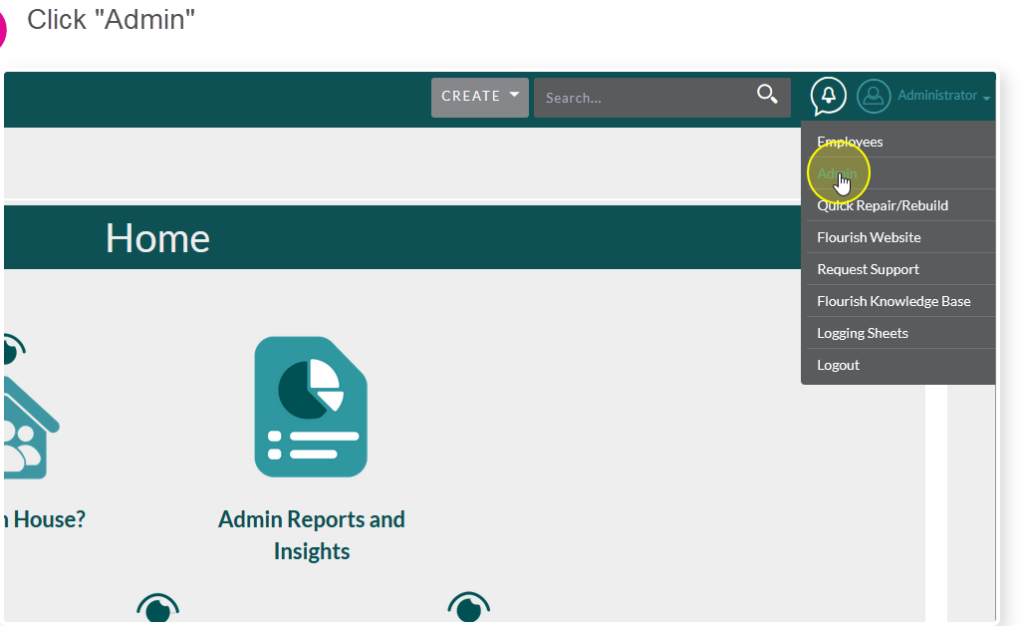
Click “Admin”
Click “Role Management”

Click on the Role you would like to edit.
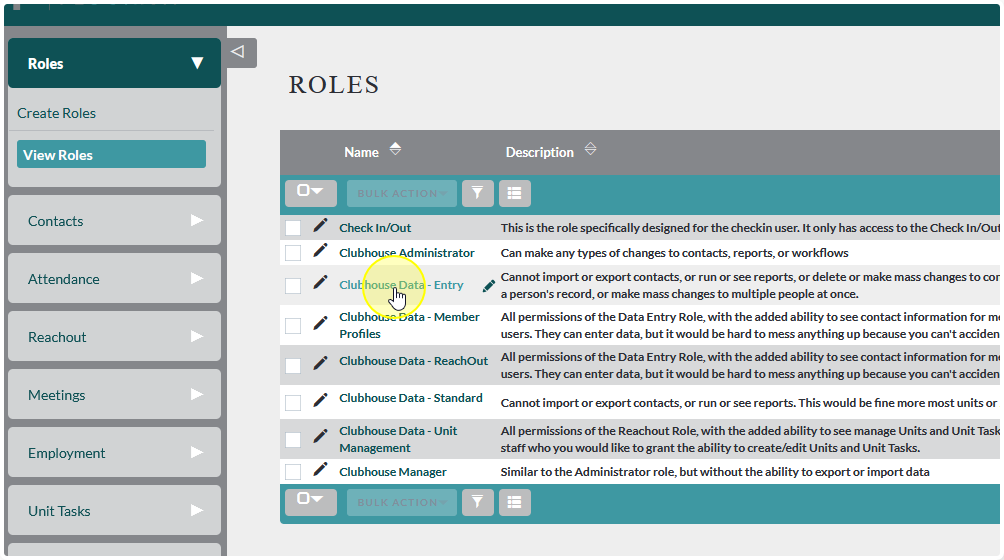
For this example we’re using Clubhouse Data – Entry
Settings Definitions: #
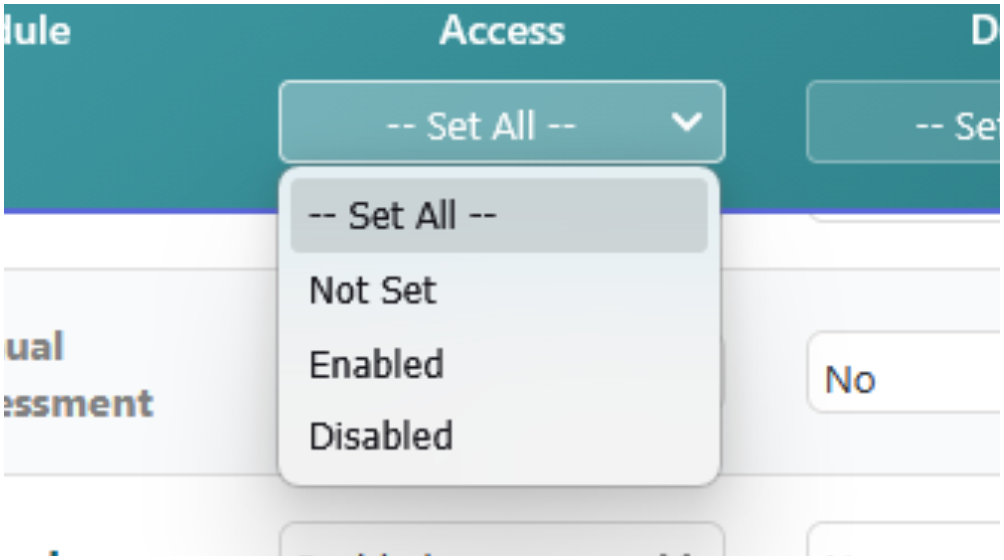
Access: This determines whether or not the user will be able to see a module at all
Not Set: This behaves like “Enabled” and will allow the user access to the module. It is only here to let you know that you haven’t set it yet.
Enabled: The user will be able to see this module on their sidebar menu and access the module in some capacity
Disabled: The user will not be able to see this module at all. Even if they somehow get a direct link to the module they will be denied access
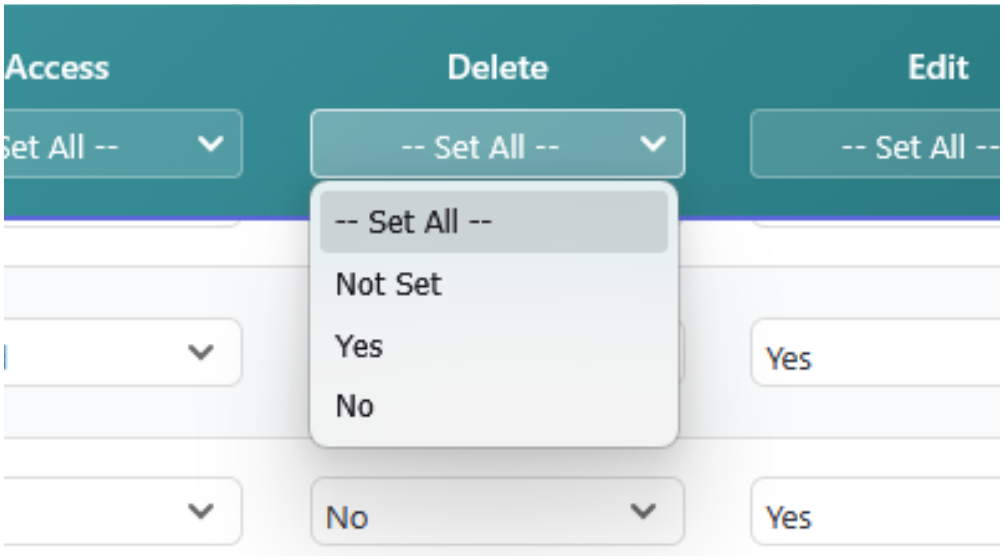
Delete: Determines whether or not the user has permissions to delete records from the module
Not Set: This behaves like “Yes” and will allow the user to delete
Yes: The user can delete records from the module
No: The user cannot delete records from the module
Note: We recommend very few people have access to this ability. Accidental deletions can be very difficult to restore and we cannot always guarantee accuracy.
Edit: Determines whether or not the user has permissions to edit records from the module
Not Set: This behaves like “Yes” and will allow the user to edit
Yes: The user can edit records from the module
No: The user cannot edit records from the module

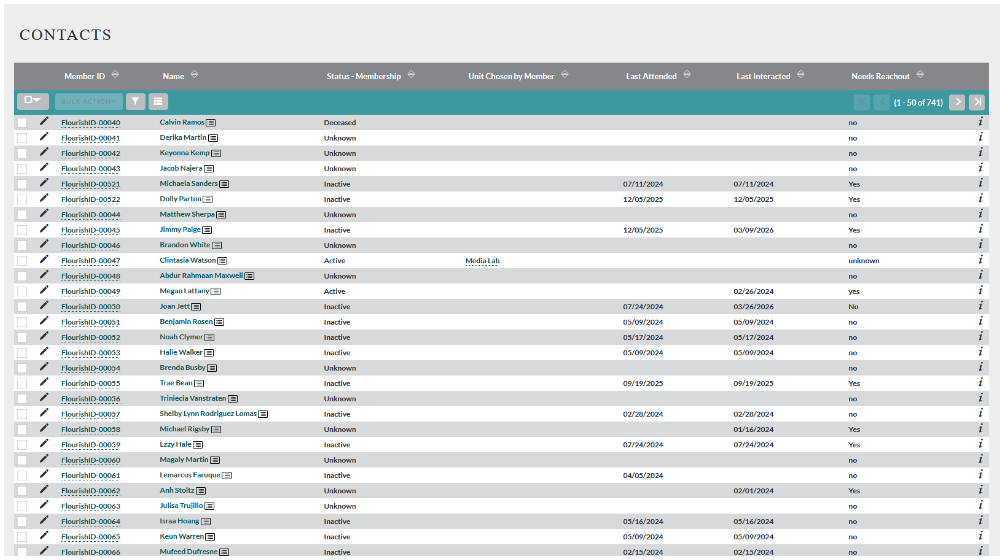
List: Determines whether or not the user has permissions to use the list view of a module
Not Set: This behaves like “Yes” and will allow the user to access the List View
Yes: The user can access the List View from the module
No: The user cannot access the List View from the module

Note: The list view is the view that allows you to see a brief summary of multiple records
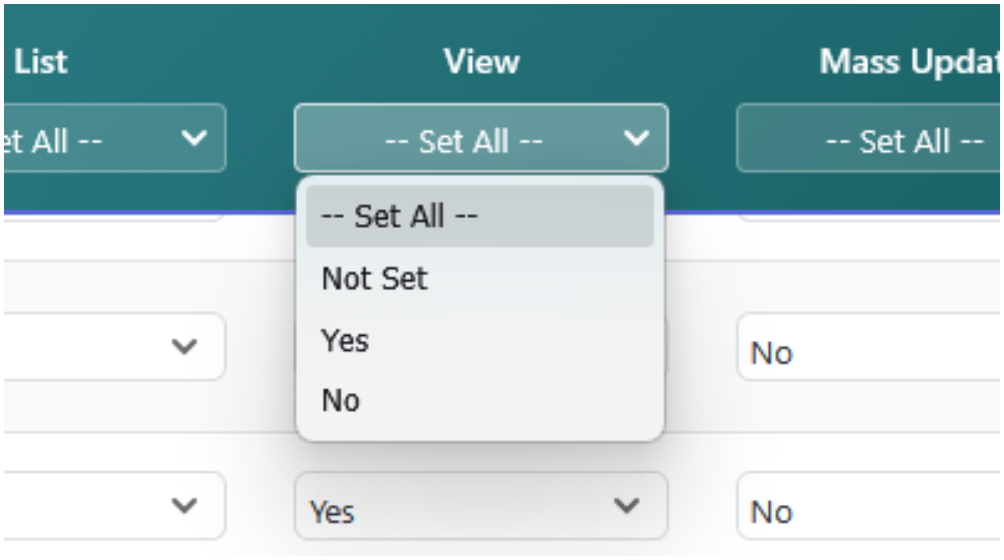
View: Determines whether or not the user has permissions to use Detail View of an individual record
Not Set: This behaves like “Yes” and will allow the user to view individual records
Yes: The user can view individual records from the module
No: The user cannot view individual records from the module
Note: The Detail View is the view of an single, individual record. It generally has more information than the list view
View: Determines whether or not the user has permissions to update records in bulk
Not Set: This behaves like “Yes” and will allow the user to update records in bulk
Yes: The user can update records in bulk
No: The user cannot update records in bulk

Note: We recommend very few people, if any, have access to this ability
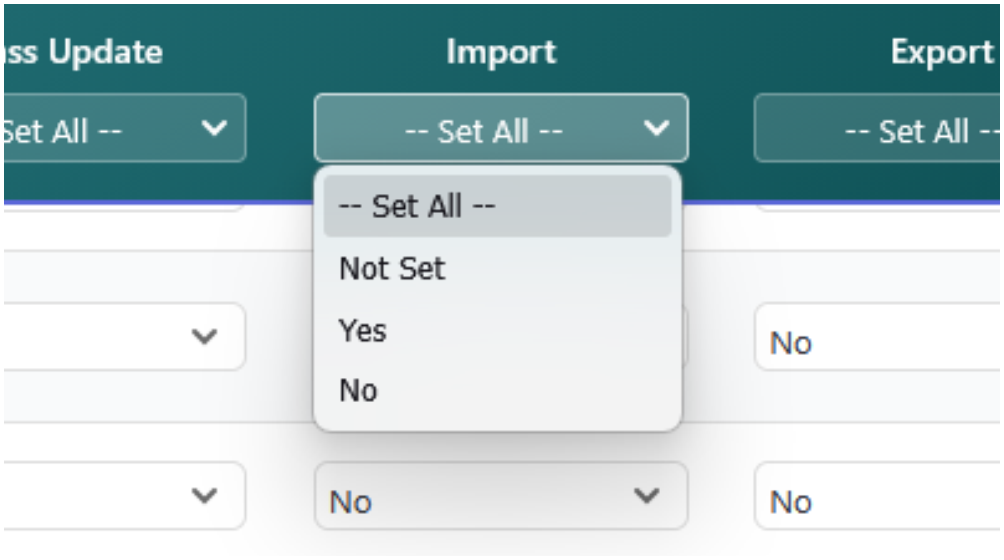
Import: Set to “No” for all modules
This is not something users currently have the ability to do in Flourish at this current time.
Export: Determines whether or not the user has permissions to export data
Not Set: This behaves like “Yes” and will allow the user to export data
Yes: The user can export data from the module
No: The user cannot export data from the module

Module Level Permissions #
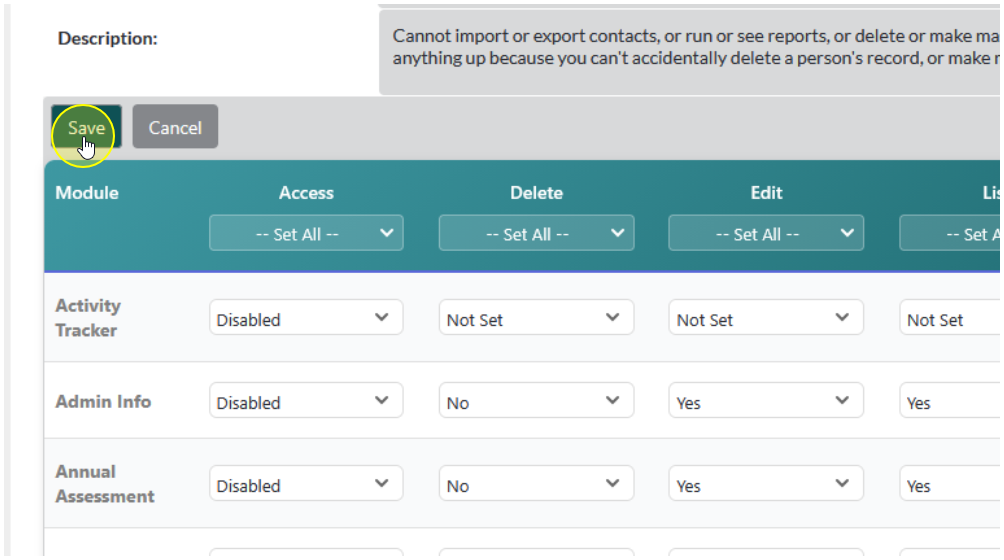
Begin by setting Access, as this will determine whether or not a user has the ability to use the module at all.
You do not need to edit permissions for modules that are disabled. Access overwrites everything else.
You can get a head start by using the “Set All” features at the top. These update the settings to a single value for all modules.


Once you’ve determined whether or not this role will have access to the module, you can set the settings for all enabled modules


When you’re done click Save
Field Level Permissions #
Once you have set permissions for the modules as a whole, you can set field level permissions for each module as well.
This will give you control of the individual pieces of information that users have access to.
To set field level permissions click on the module you’re wanting to set up
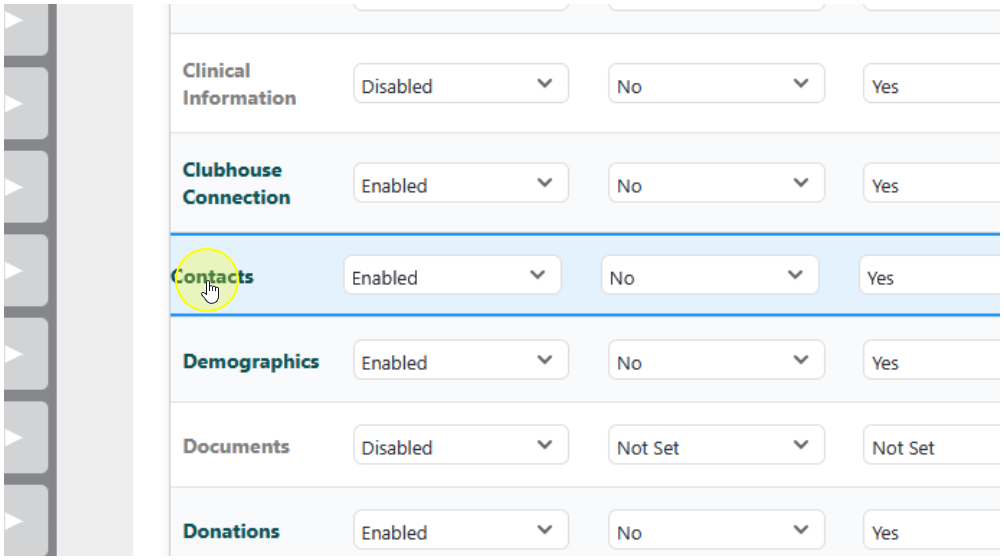
The Field Level Permissions function very similarly to the module level permissions, just with fewer options. For Field Level Permissions you can set:
- Access: Can the user access the field at all
- Edit: Can the user edit this field
- List: Can the user see the field in the List View
- View: Can the user view the field on the Detail View?

Then set the permissions for each action, either by using the “Set All” feature or setting them individually for each field.
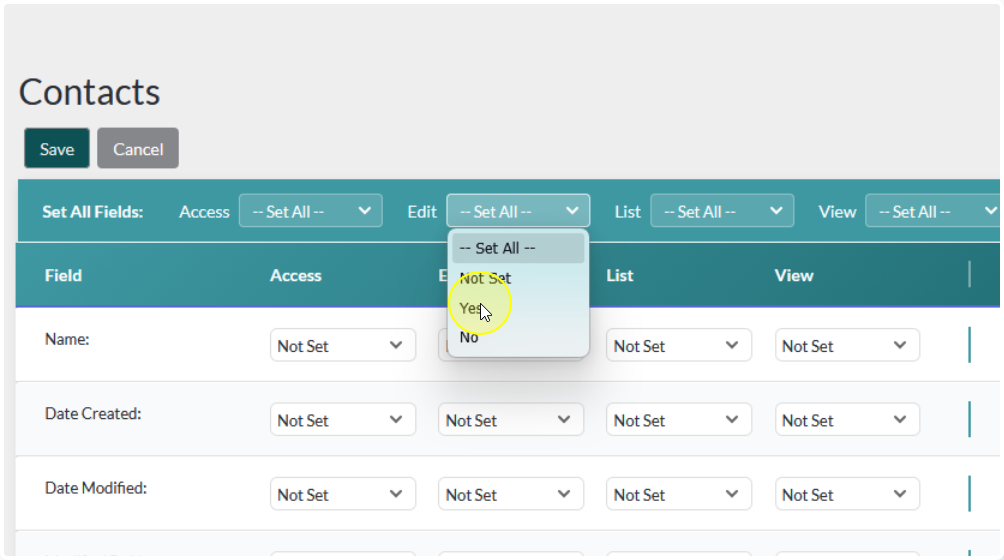
When you’re done, click Save

Creating a Role from scratch #
etween Module Level Permissions and Field Level Permissions you can really customize the access to information for each user.
In Flourish you can create and unlimited number of roles if you wish.
You start out with an assortment of default roles, but you can also create them from scratch.
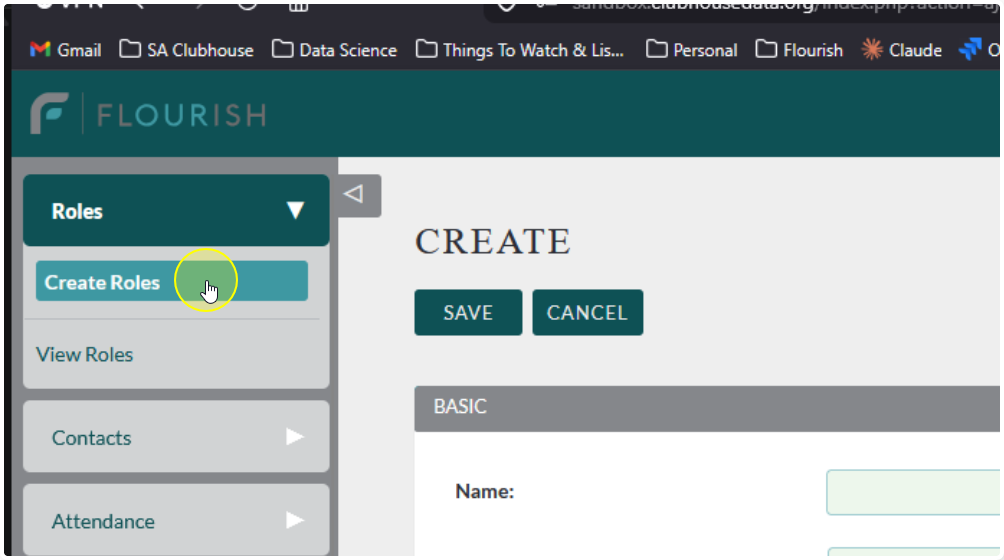
To create a role from scratch click Create Roles in the sidebar menu
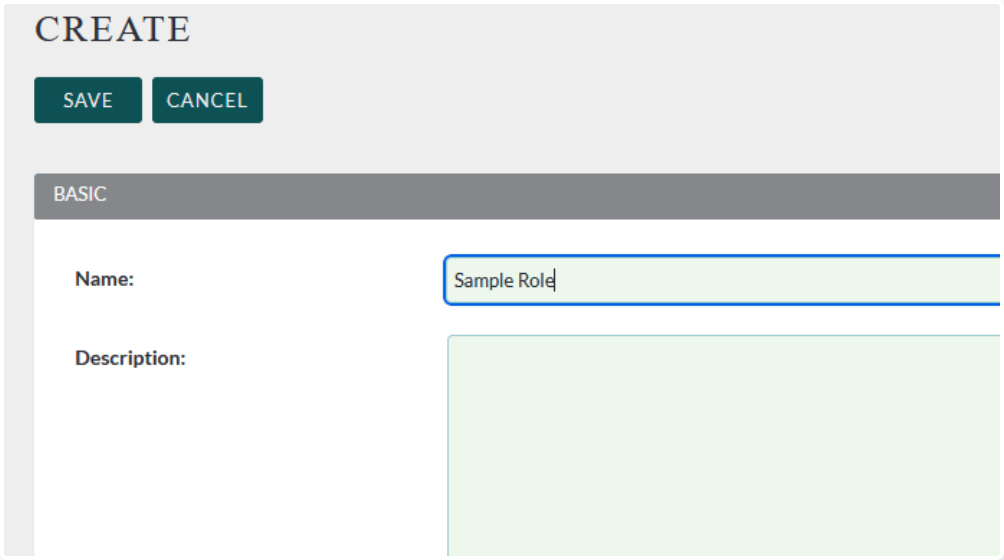
Give the role a name
Write a brief description of the role
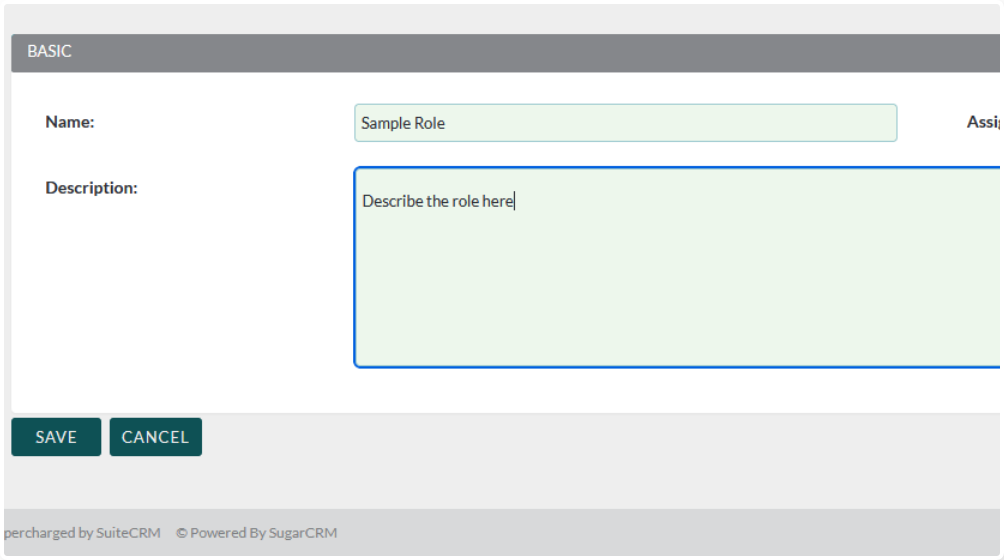
Click Save
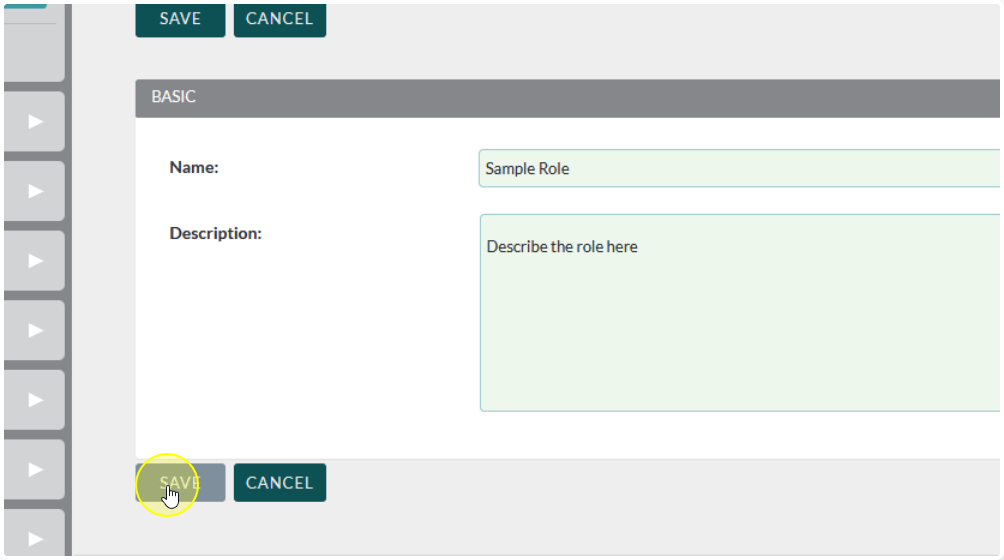
Follow all previous steps to set the permissions
Attaching Roles to a User #
At the bottom of the role settings, expand the “Users” subpanel
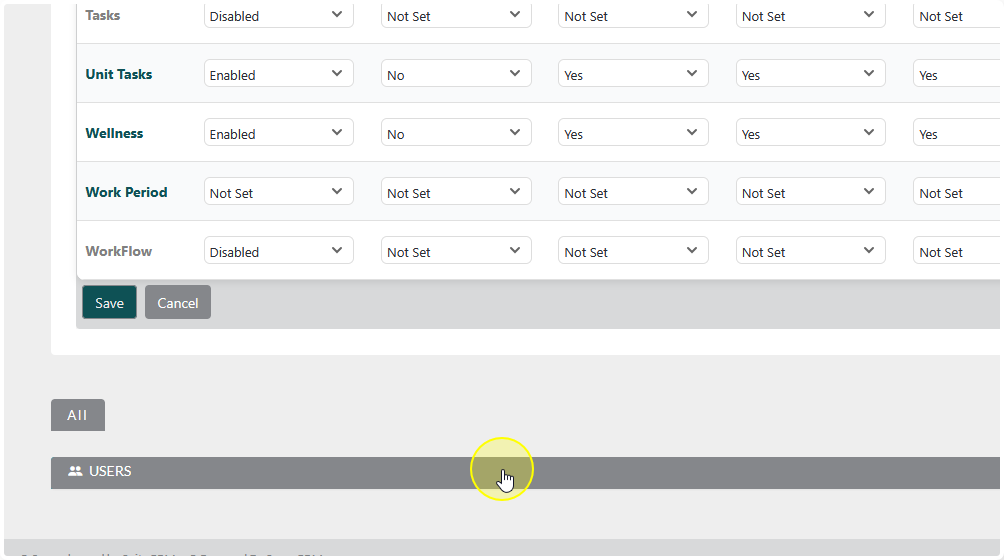
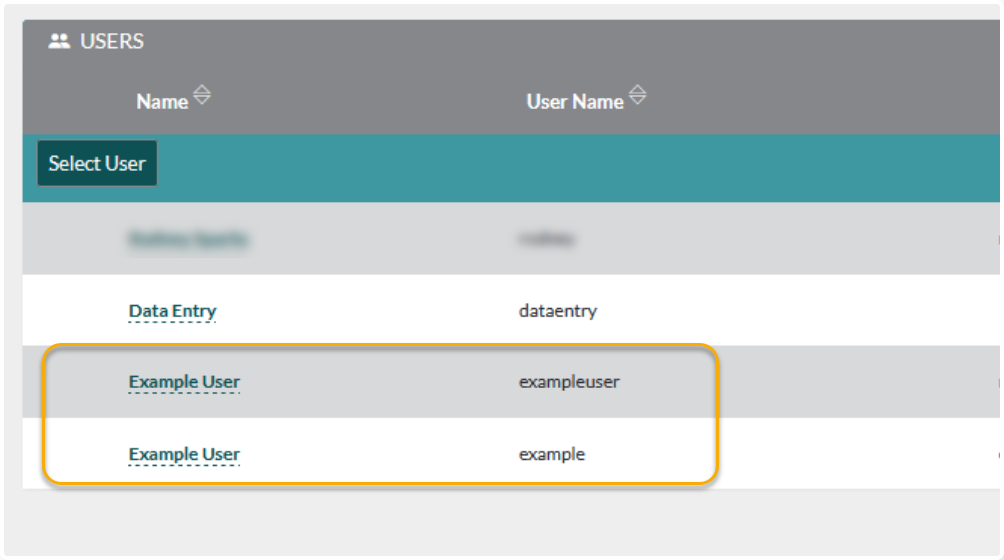
Click “Select User”

Check the boxes next to the users you would like the role to
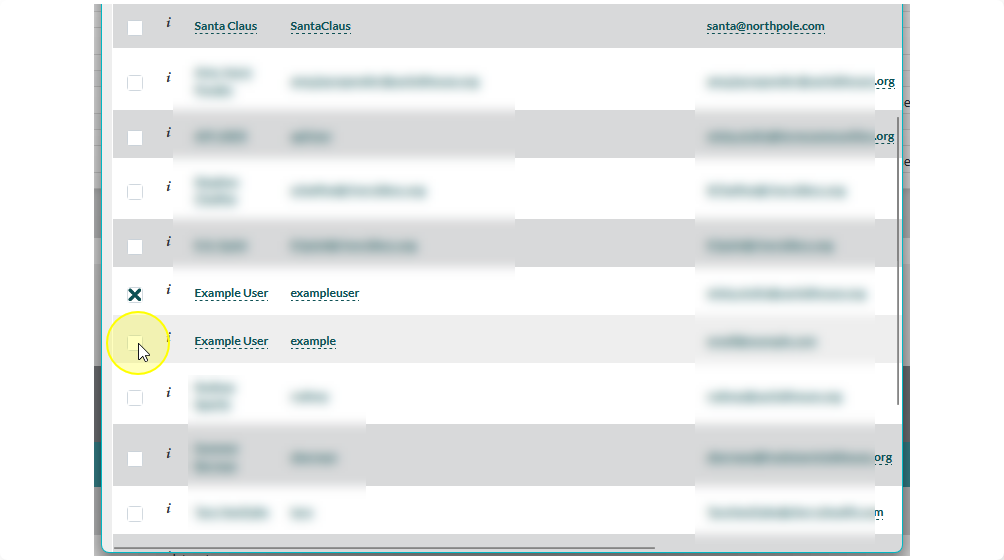
Click Select

The users you selected will now appear in the Users subpanel