ALERT!
Make sure that an admin has set up an intake form prior to using this. The generic configuration may not match your organization’s data entry needs.
If you think this is a valuable tool for your organization have an admin follow this tutorial to configure forms: General Intake Form Configuration
Navigation #
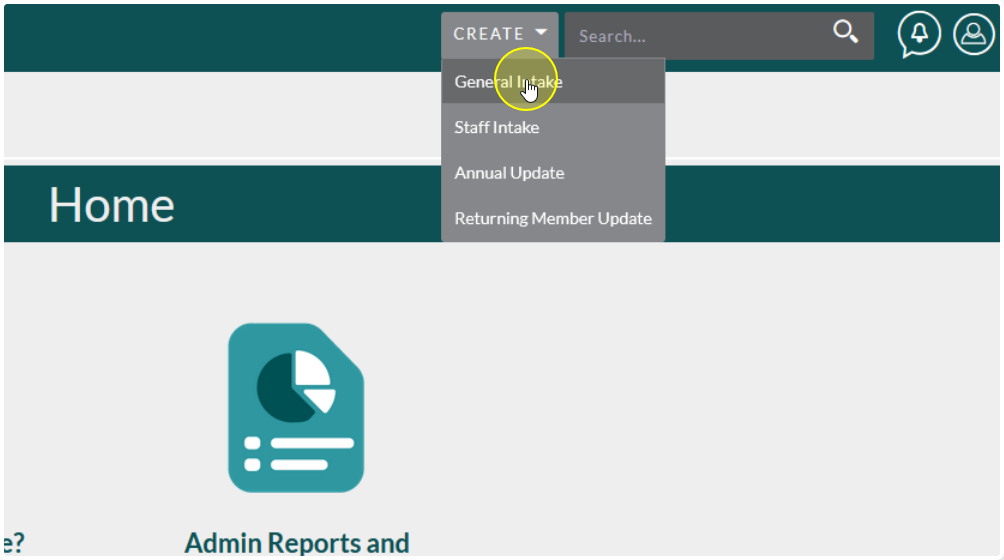
Click on the Create dropdown located on the top navigation bar, then choose the form you would like to use
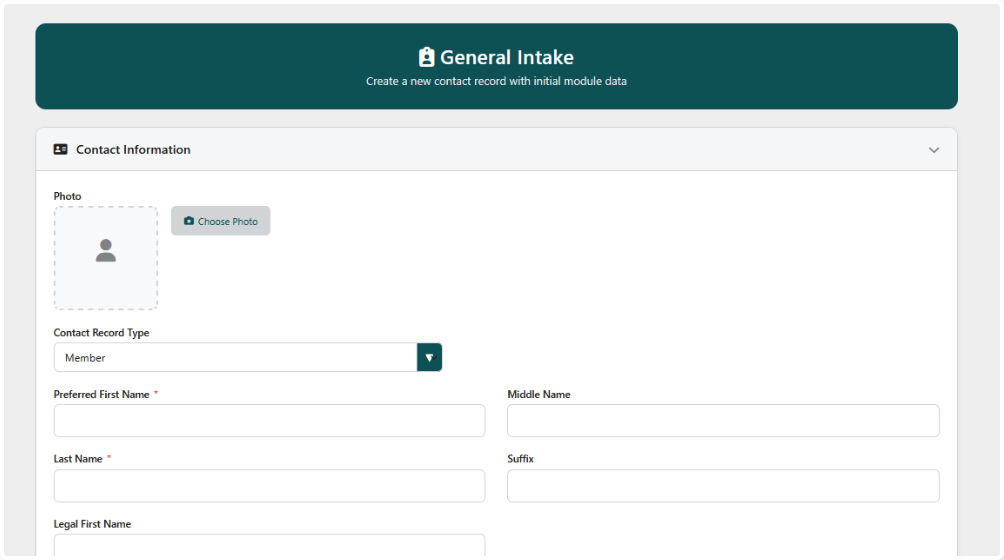
You will be taken directly to the appropriate Form
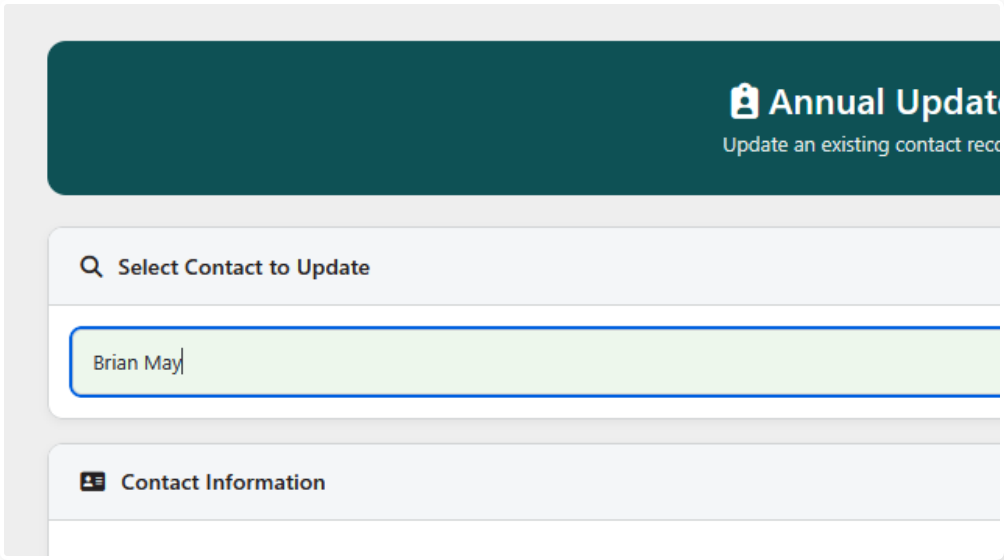
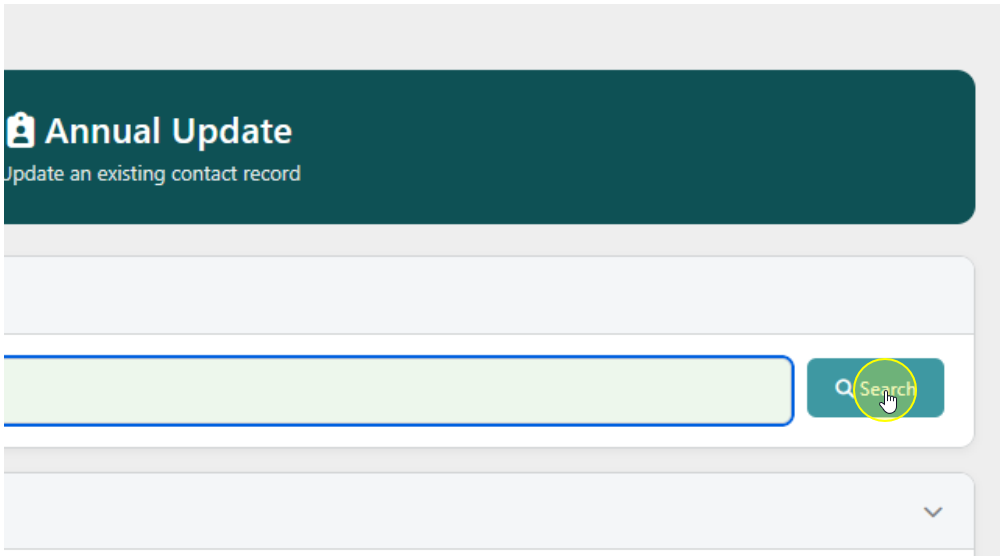
If this is an Update form you will see a Search Box to look for the member you would like to update.
Type in the Member’s Name and click Search
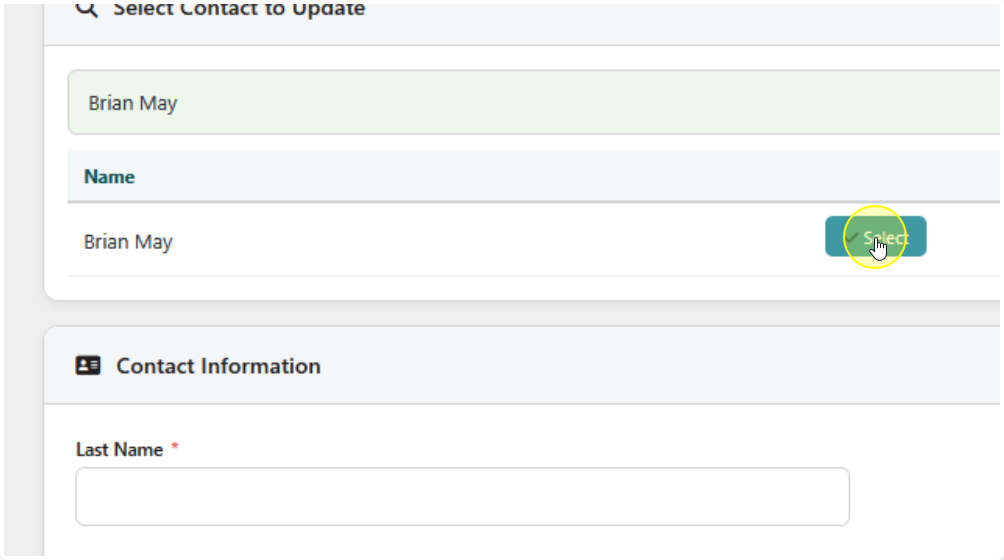
Click Select next to the Contact’s name
Data Entry #
Start Filling out the fields like you would the regular Contact form in Flourish
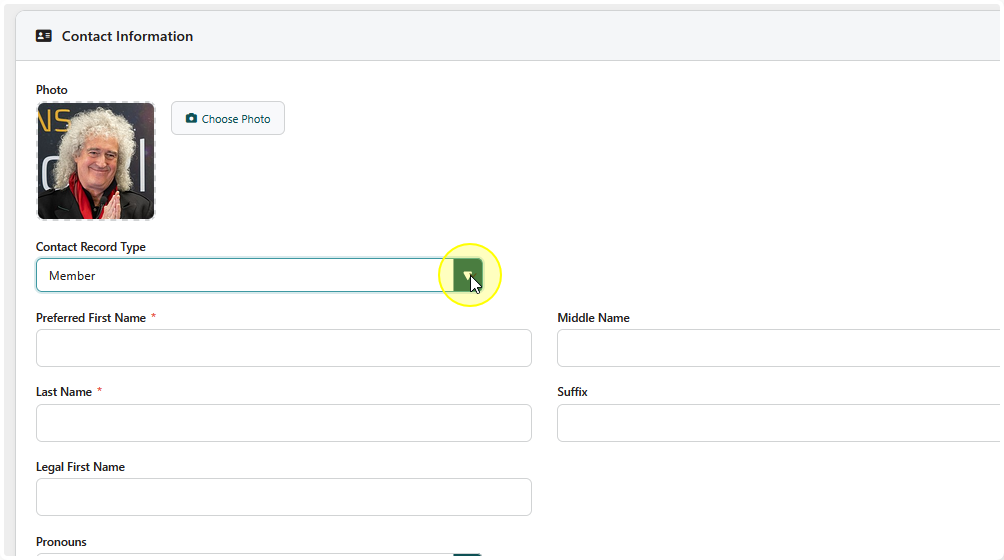
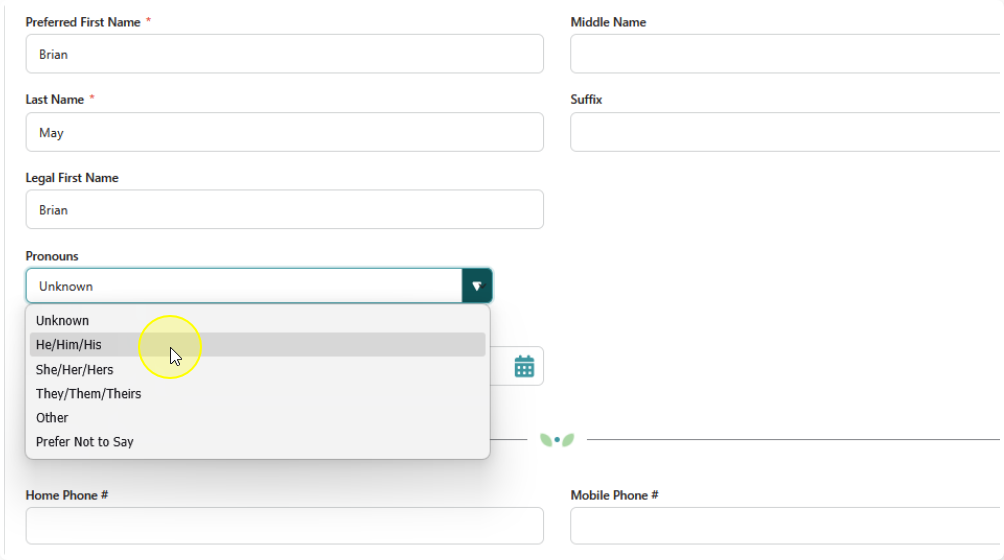
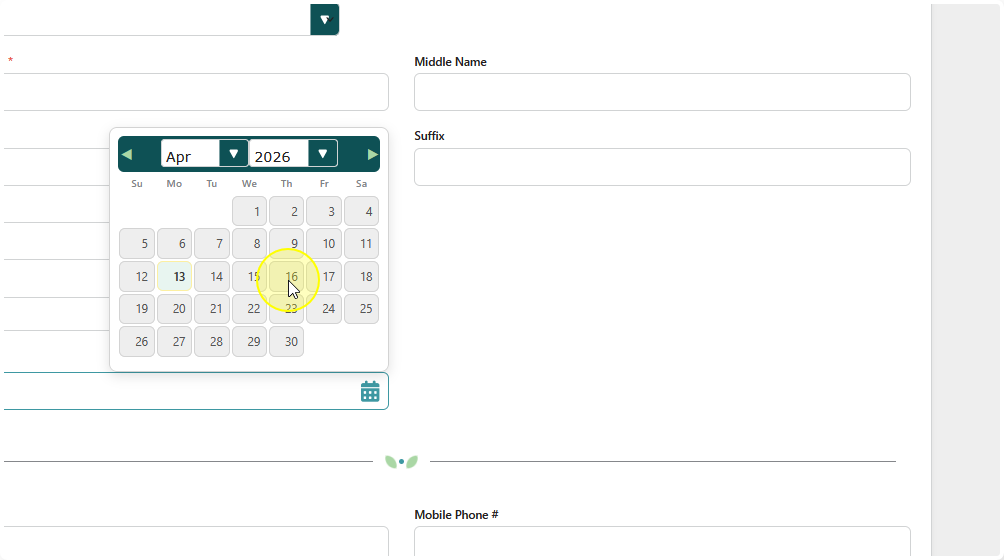
All fields should work in a similar manner to how they work in the rest of Flourish.
As you finish up the Basic Contact Info, you will start to see other modules.
Fill these out exactly like you would if you weren’t using the intake form.
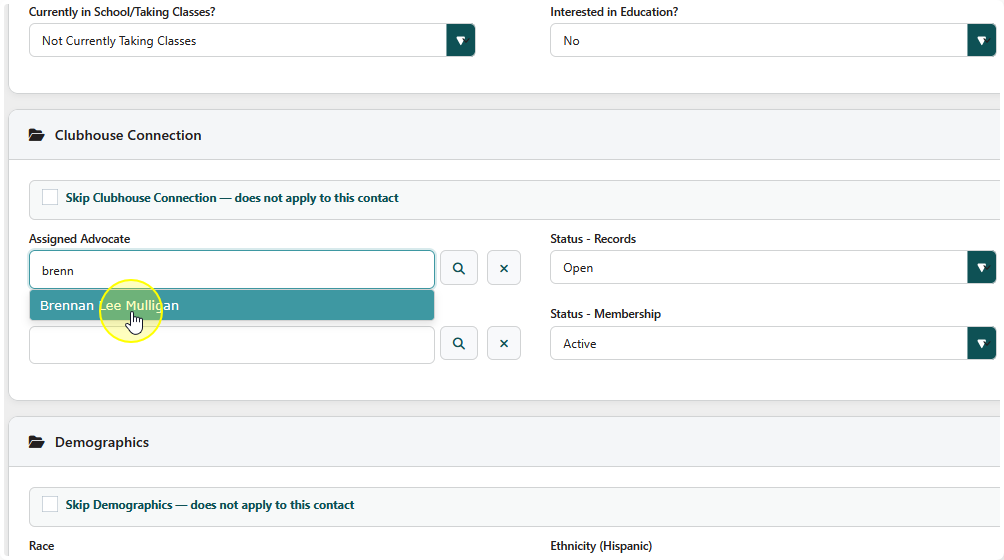
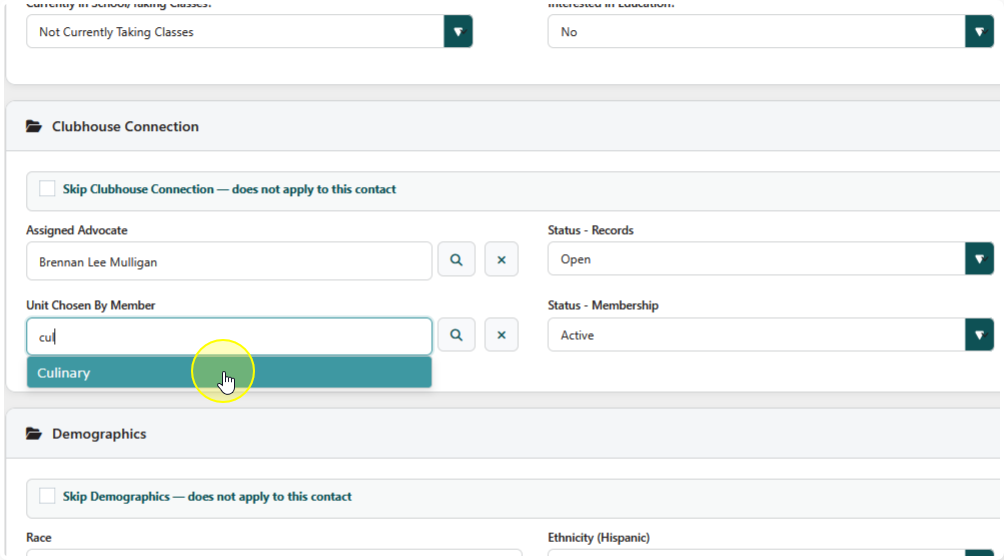
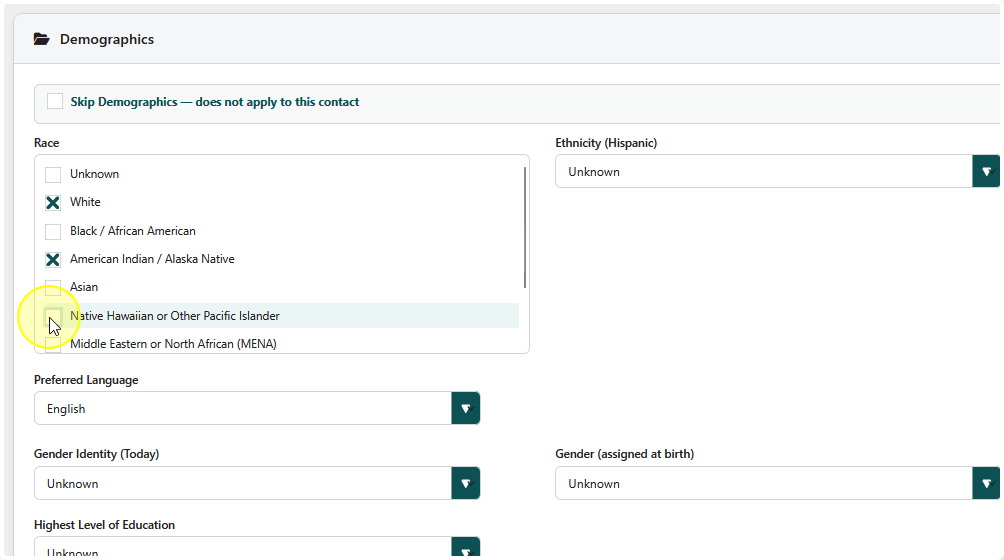
The Multi-Select fields will work a little differently:
As you click on any value it will deselect “Unknown”
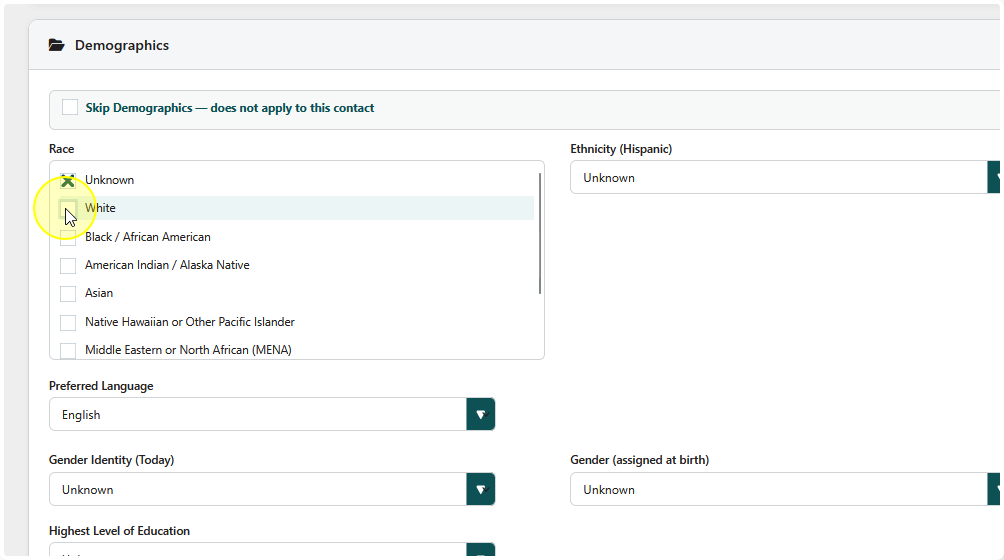
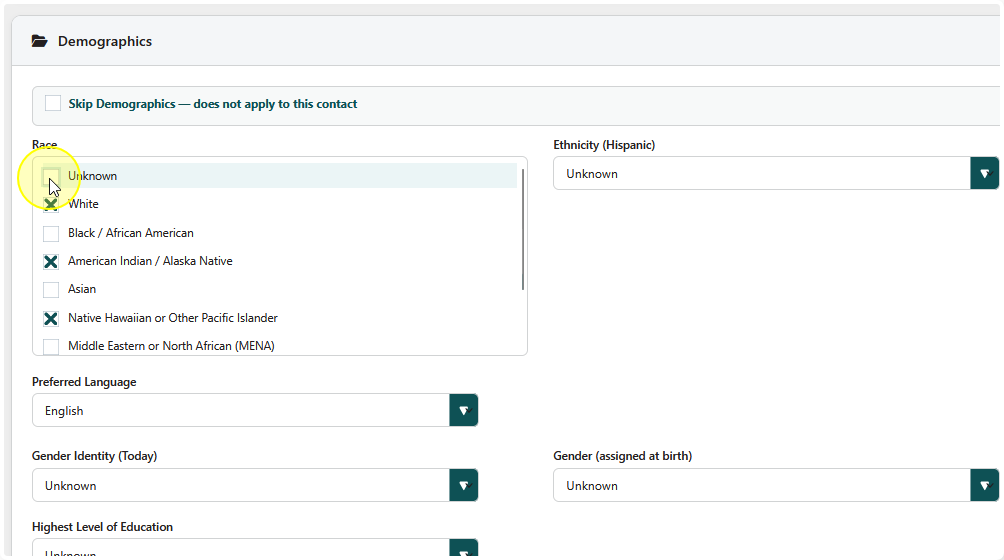
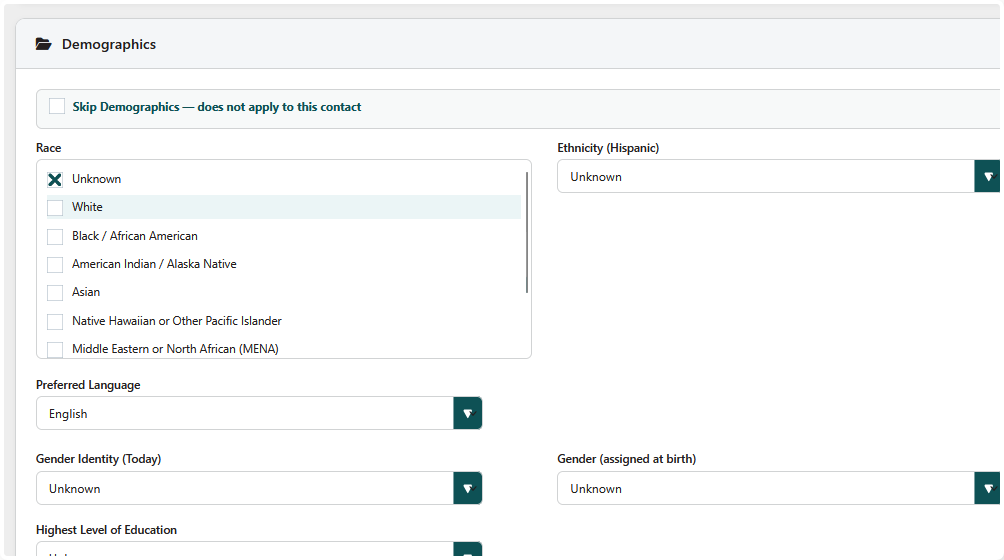
Clicking “Unknown” will deselect all chosen options
If the Contact doesn’t have any information applicable to that module click “Skip [Module Name]”
This will disable data entry for that module.
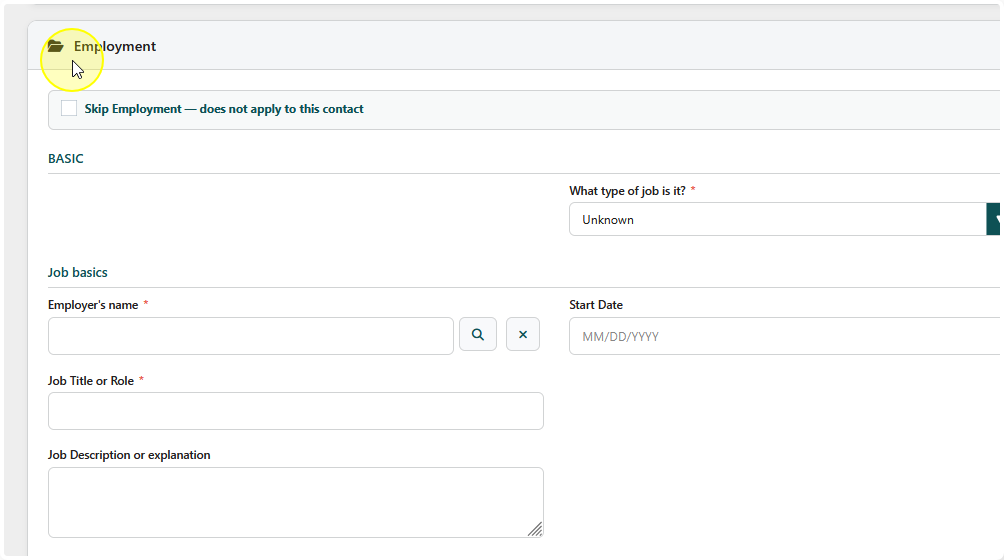
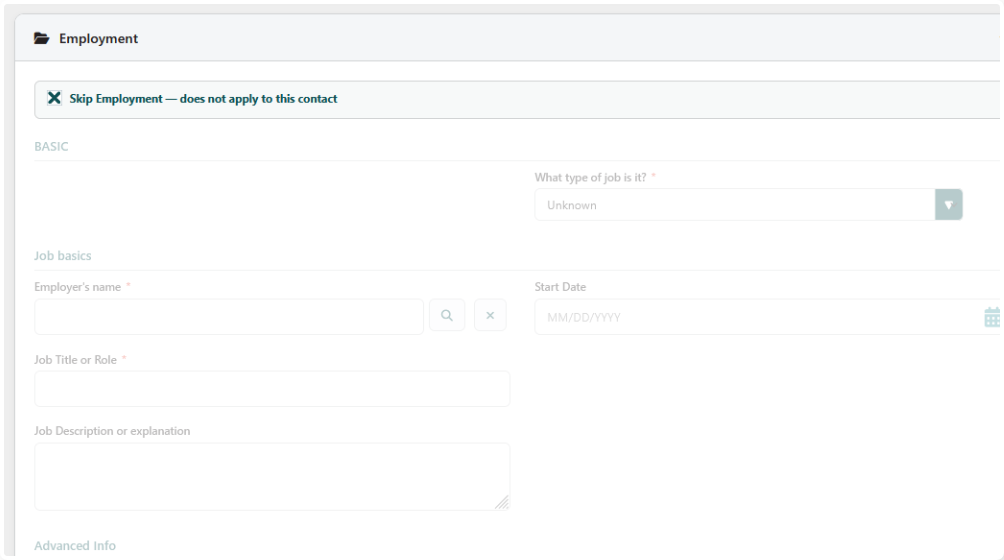
NOTE: Always skip modules that don’t have data to enter. Otherwise you may end up with blank records generated for the contact.
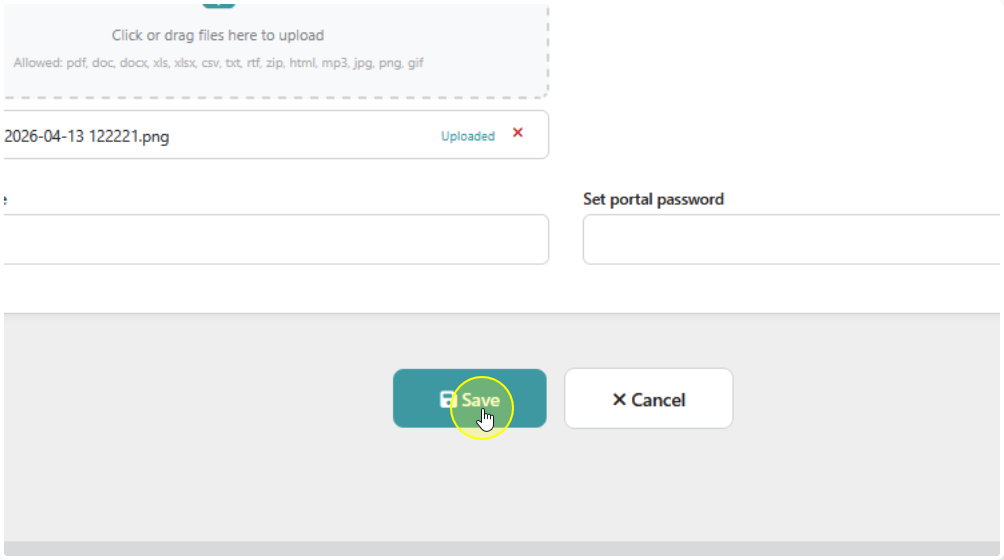
If there is a Survey attached to this intake form then it will say “Save & Continue to Surveys
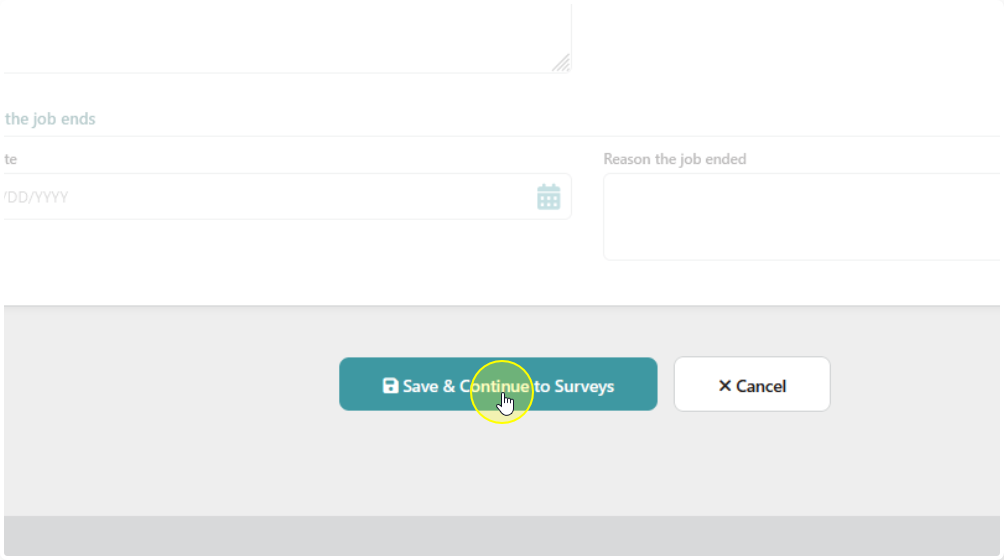
If there are no surveys at the end it will only say, “Save“
Handling Duplicates #
If the system detects a potential Duplicate it will trigger a Duplicate Checker

If the entry is truly NOT a Duplicate then go ahead and click on “Not a Duplicate – Continue“
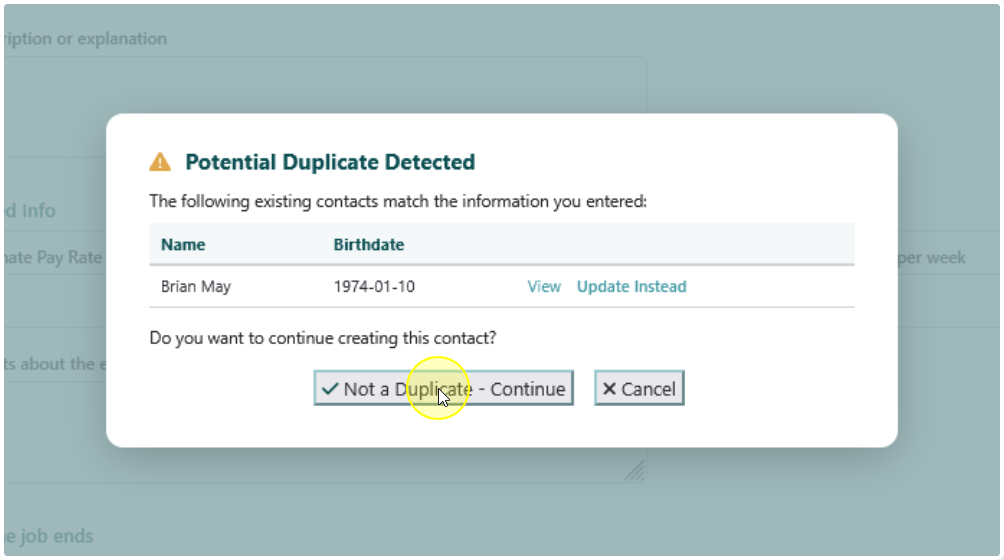
If the record IS a Duplicate then click “Update Instead“
This will trigger the system to update the existing record instead of creating a new one.
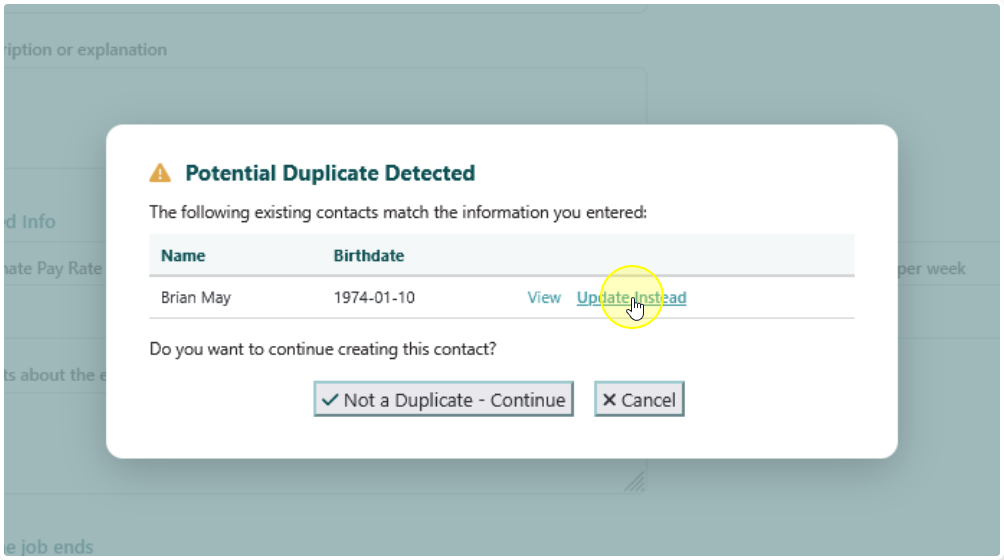
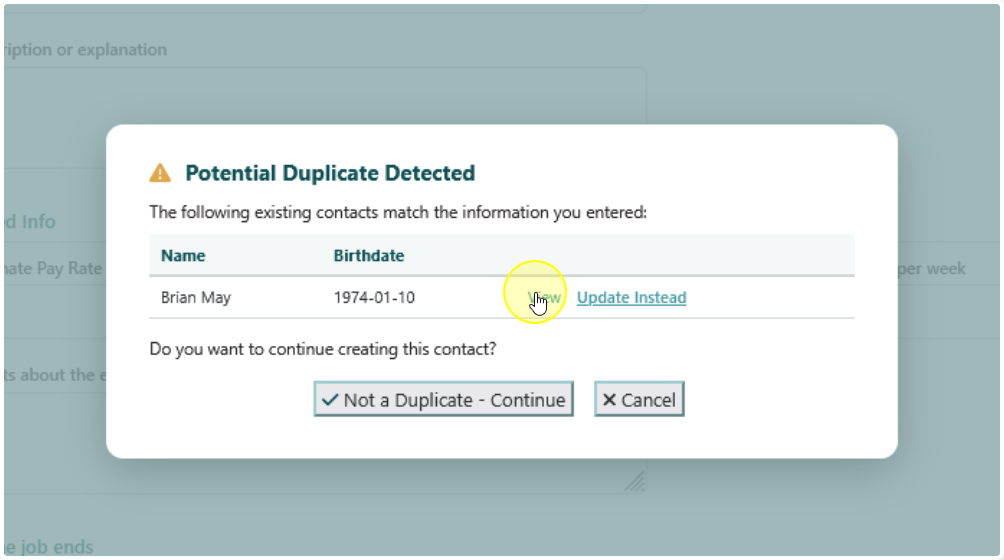
If you are unsure click on “View” to inspect the existing record
ALERT!
Do not ignore the Duplicate Checker
Always inspect records if you’re not sure. Duplicates in Flourish can create several data entry issues that can be difficult to maintain and/or correct.
Surveys #
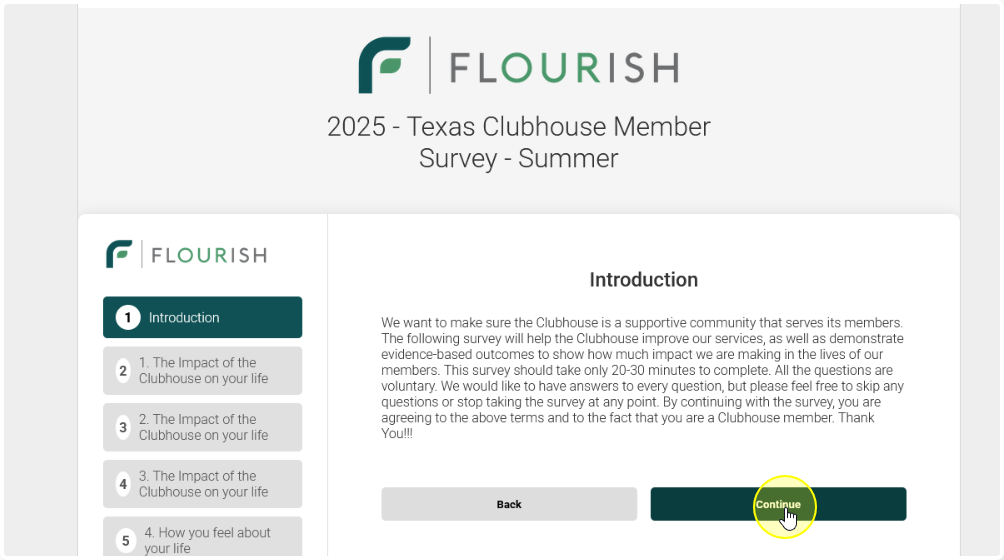
If a Survey is attached to this form then you will next be redirected to the survey(s)
Click Continue to navigate through the pages
Click Finish when you’re done with the suvey
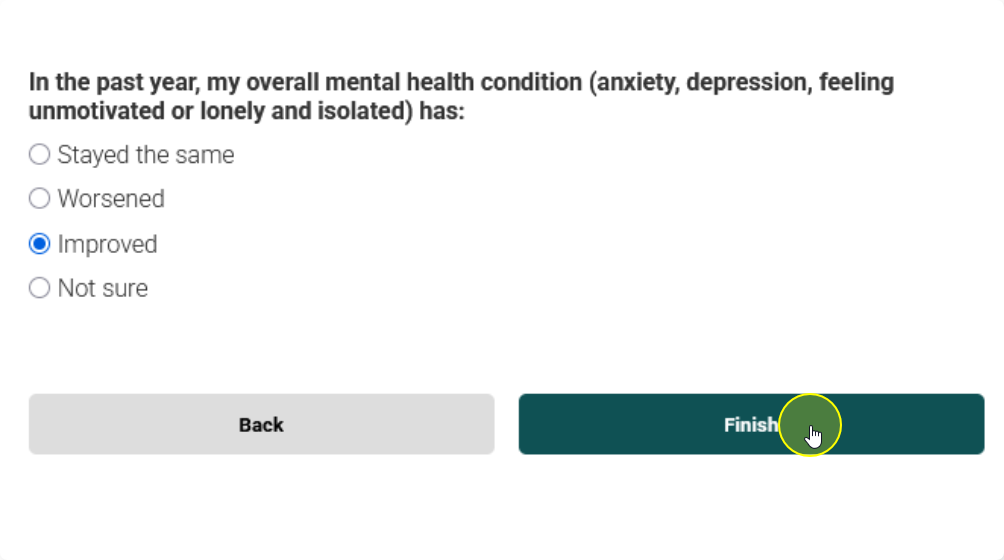
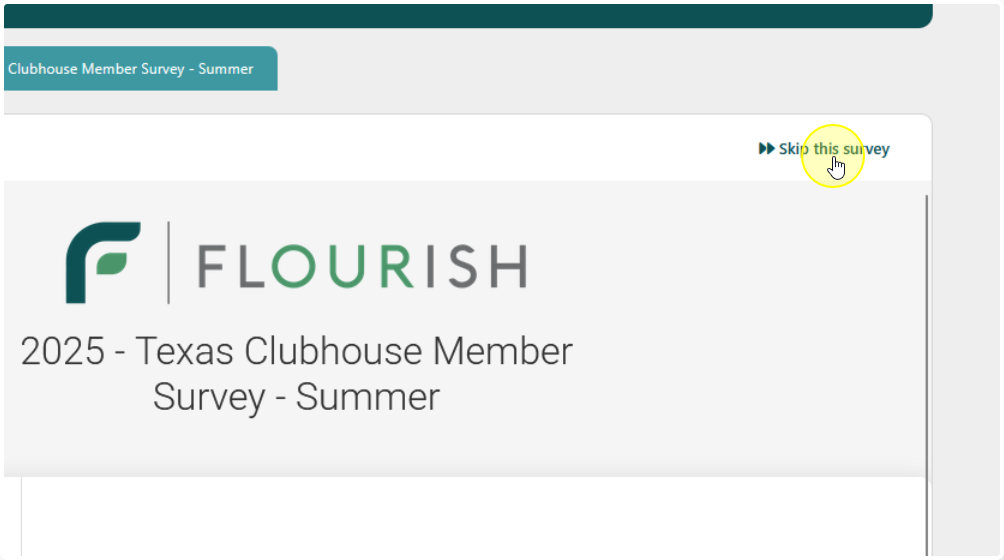
If the Contact did not fill out the survey or the survey doesn’t apply you can skip it by clicking Skip this survey in either right hand corner.
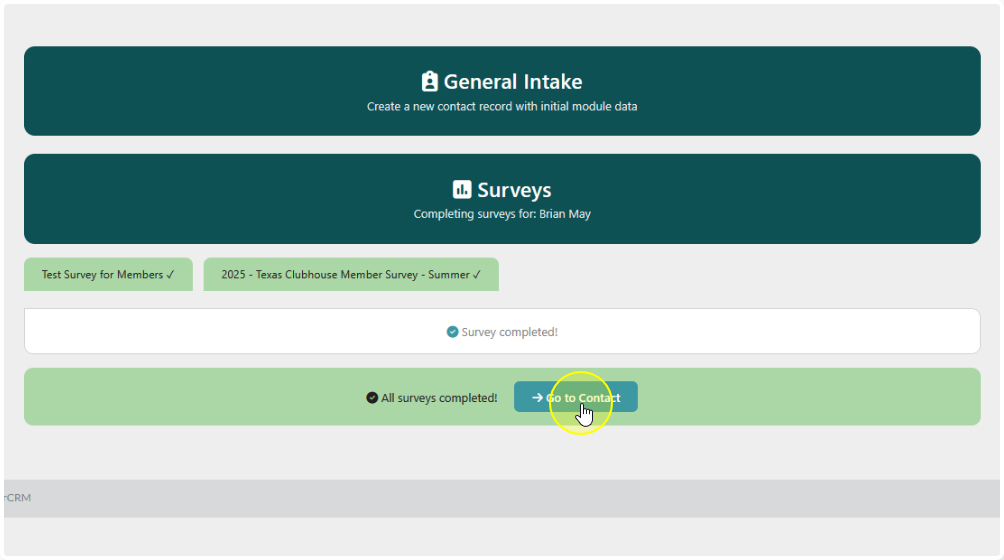
Once the Survey(s) are complete you will get a page like this.
Click “Go to Contact” to view the record that you just entered