
This is not the only way to create a goal, but it is how The Flourish Team recommends you add them
Navigation #
Navigate to the Goals and Plans area of Flourish
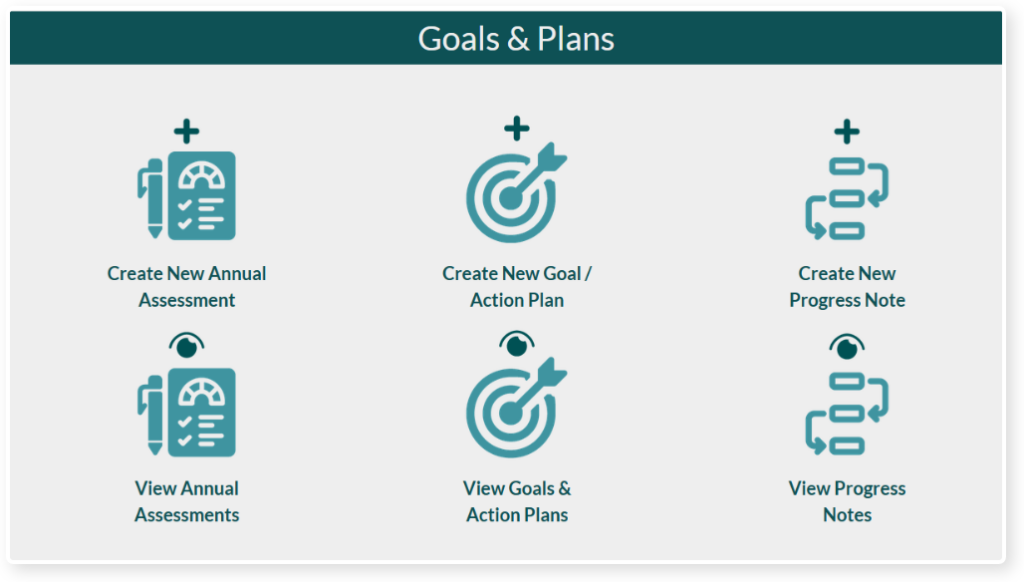
Start by creating an Annual Assessment

An Annual Assessment is a good place for you to gather all of the goals members are working on in a single place. We recommend using this to help you with your goal planning workflow. Not only does it keep goals more organized, it also makes goal creating much simpler.
Beginning an Assessment #
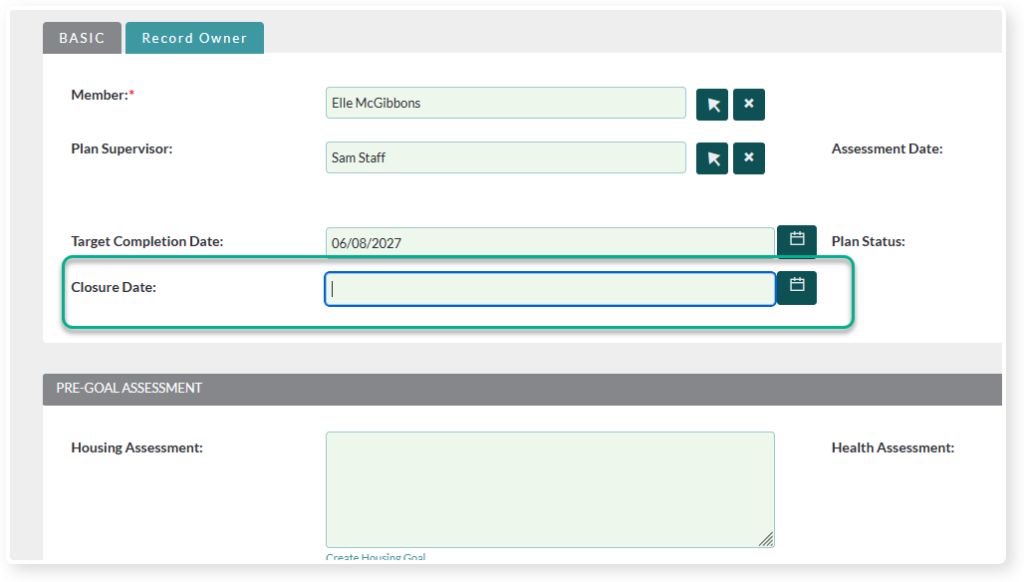
Add a member to the Assessment

Add the Plan Supervisor

Add the date of the Assessment. This should be the date the Assessment was created with the member
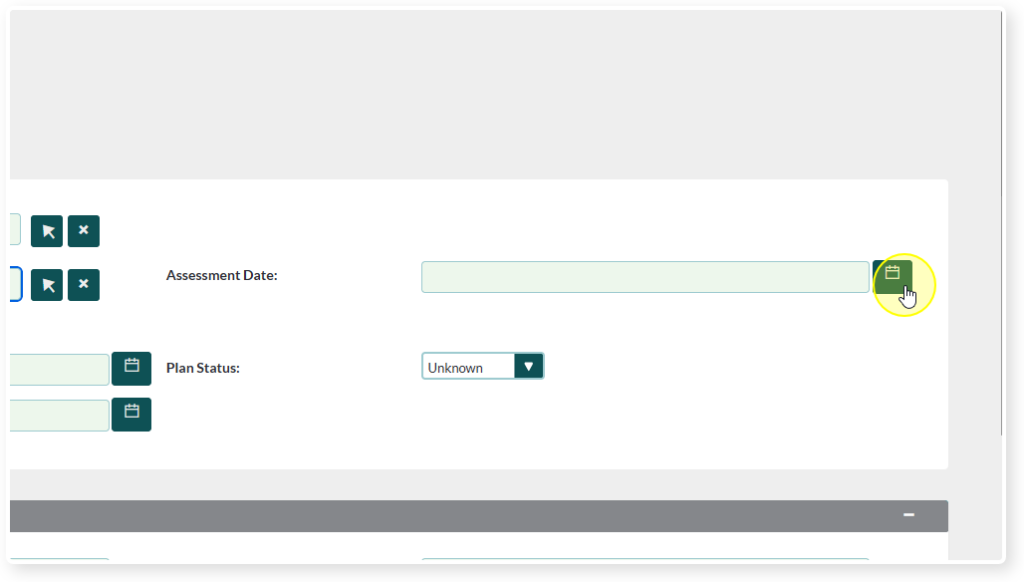
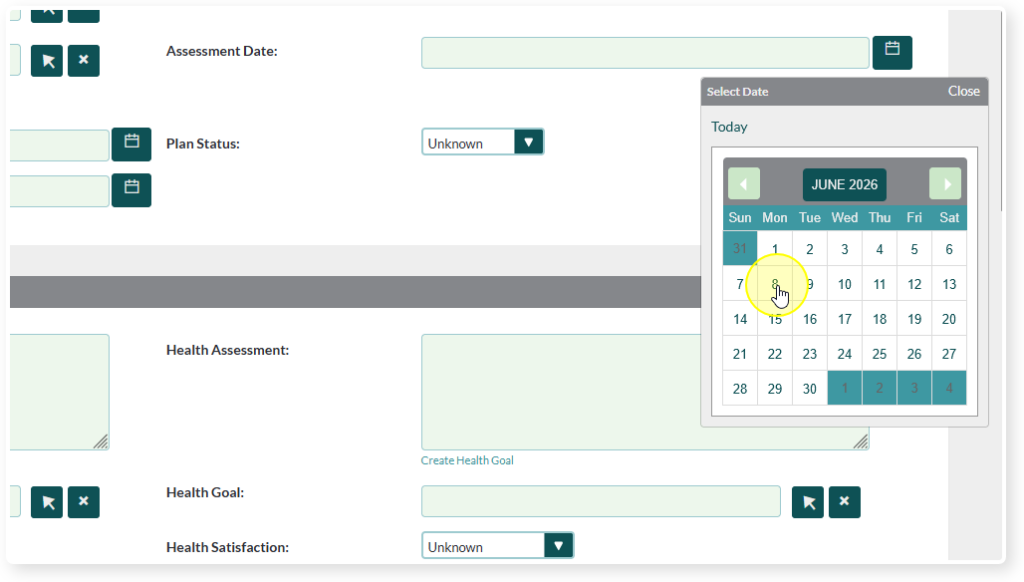
Note that the Target Completion Date automatically sets the Target Completion date to exactly 1 year after the Assessment Date.
You can still change this. It is just a feature that helps make data entry easier.
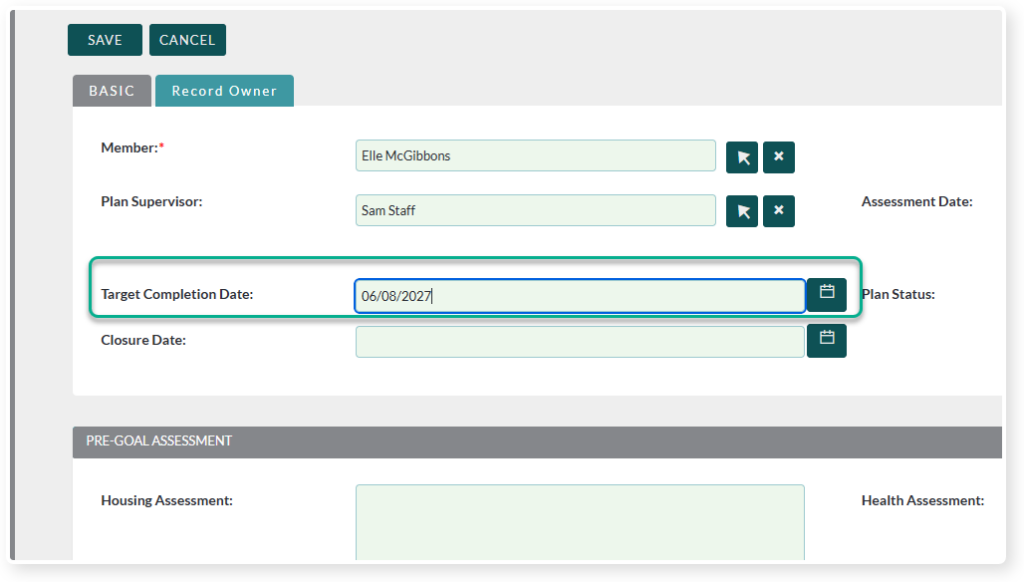
Leave the Closure Date Empty. This is for when you close out this assessment for a new one.
If you want to have your assessments on a different interval you can change the the time period for automatic dates in Set Clubhouse Settings: How to Set Clubhouse Specific Settings
The Assessment boxes are where you can give a brief summary of where the member is at the time of the assessment.

Creating a Goal #
You can create a goal directly inside of the Assessment Screen. Just click Create “X” Goal

You will get a pop up that already has some fields set.
You can still change these, this is just to make data entry quicker.

The goal type will automatically set to the category you clicked on.
Example: If you click, Create Housing Goal it will automatically be set to Housing
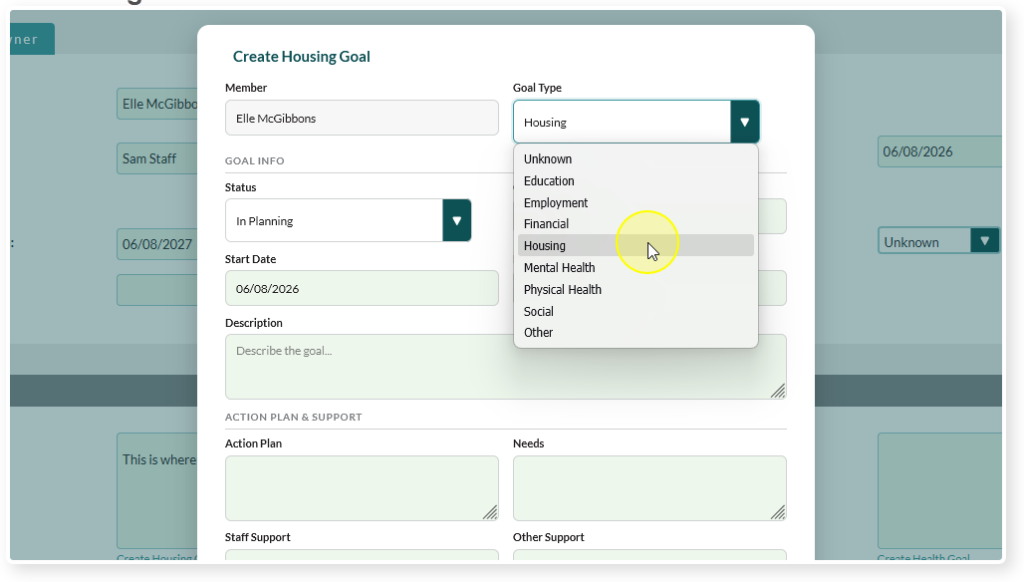
The default Status is In Planning, but you can change it.
We recommend only setting goals that are In Planning, Not Started, or In Progress in this area.
Not Completed and Finished are considered “Closed” statuses and will display that way in the reports

Note: Not Completed vs Finished
Not Completed: The member chose to no longer pursue this goal
Finished: The member achieved the goal
This is how the report will read these statuses.
The Start Date is automatically set to the Assessment Date but you can change this.
This is great for recording goals that have already been started or inputting goals that the member plans to start in the near future.

The Follow-Up Date is the date you would like to next check in on this goals progress
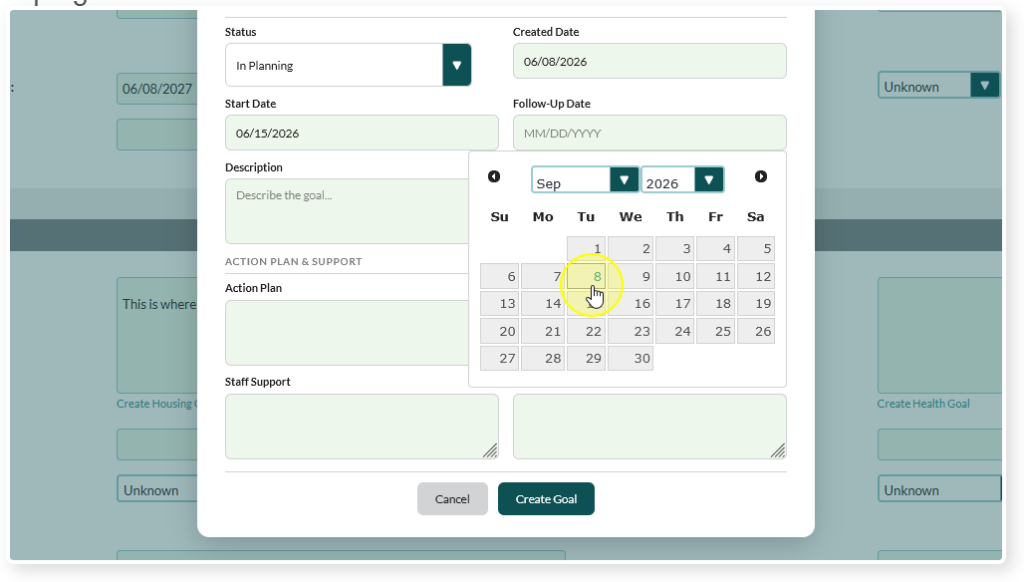
Description is where you can put the details of the goal
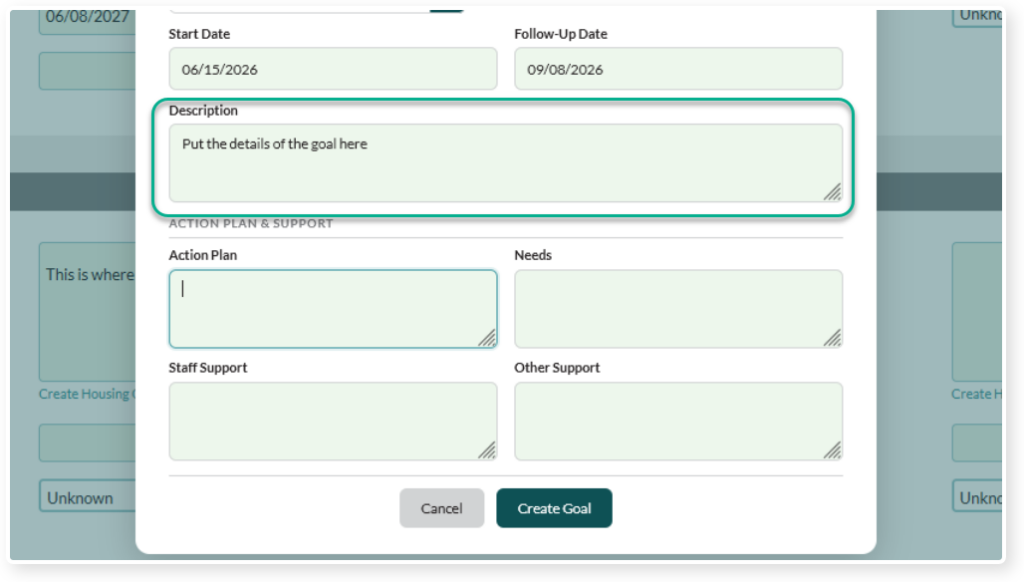
Action Plan is where you input the plan for achieving the goal
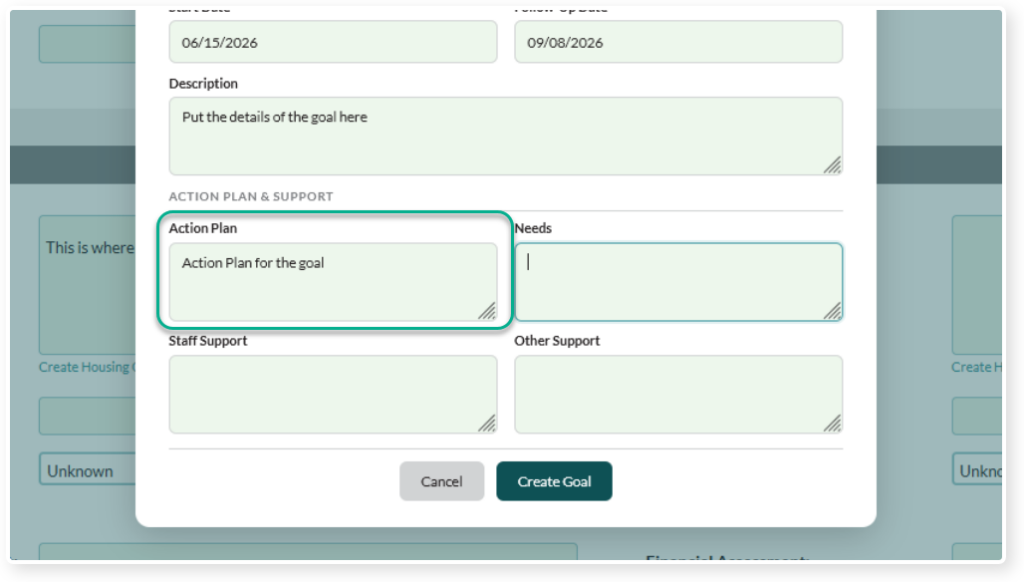
Needs is where you can record what a member needs to achieve this goal

Staff Support is where you can input the support clubhouse staff can provide to help a member achieve this goal
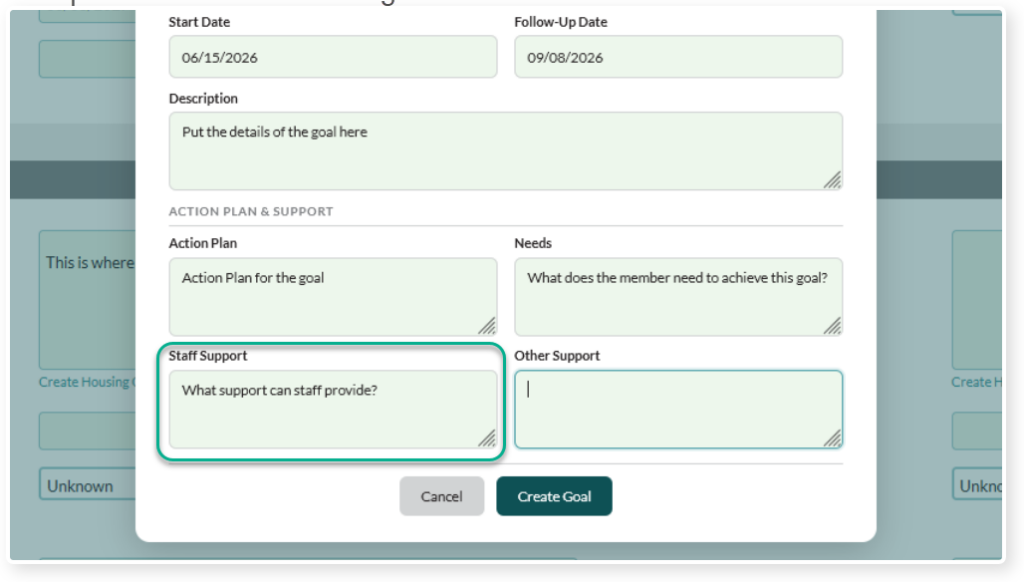
Other Support is for any other support needed to achieve this goal

When you’re done inputting the details of the goal click Create Goal

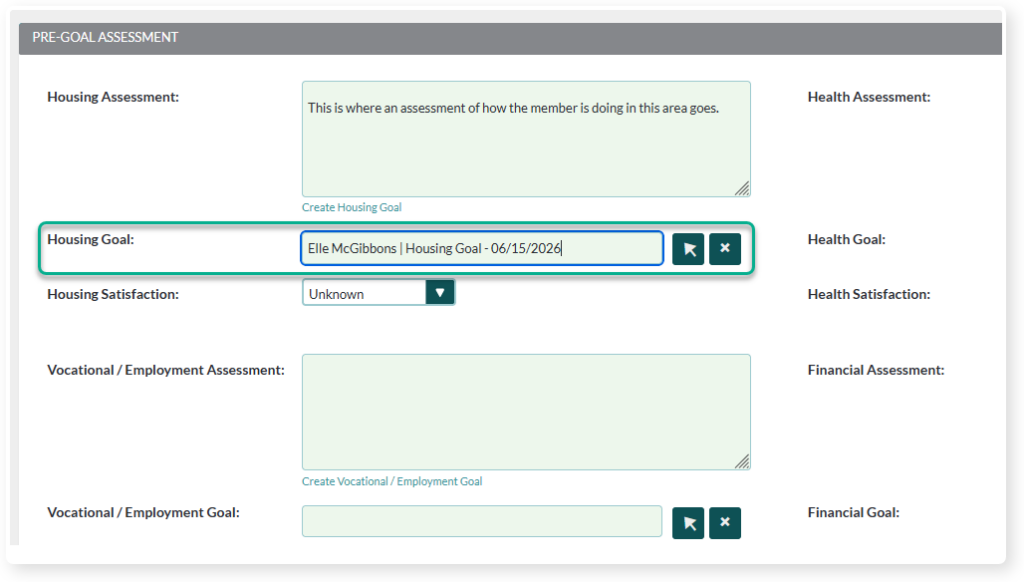
The goal will auto fill into the appropriate section
Health Goals #
Health goals have a slight difference from other goals when being input

Click Create Health Goal

You will notice that there are 2 different types of goals related to health
For this example we’re using Physical Health

Fill in all of the details and create the goal
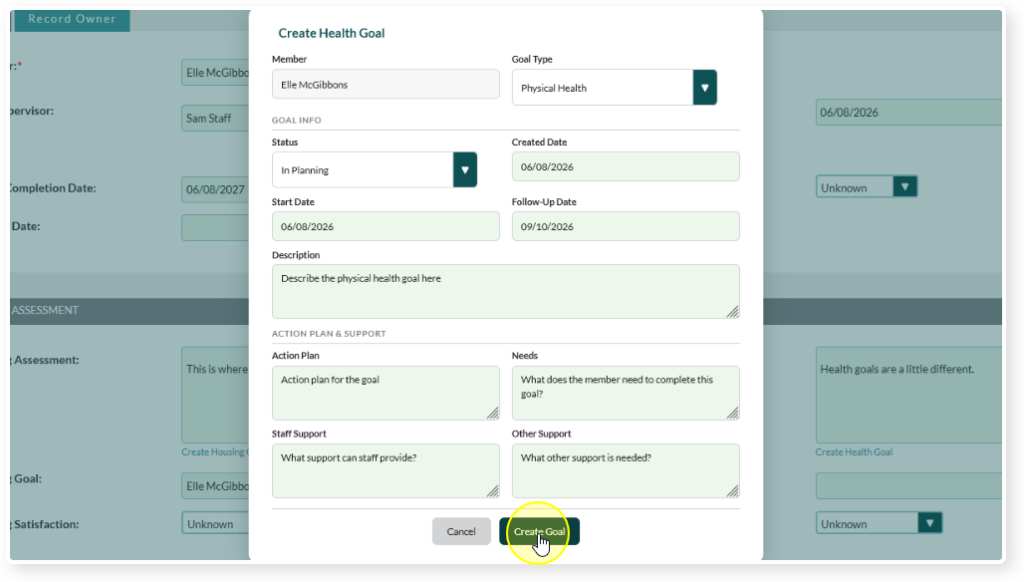
You will notice that it ended up in the Health Goal section, as expected.
But what if you want to also create a mental health goal?
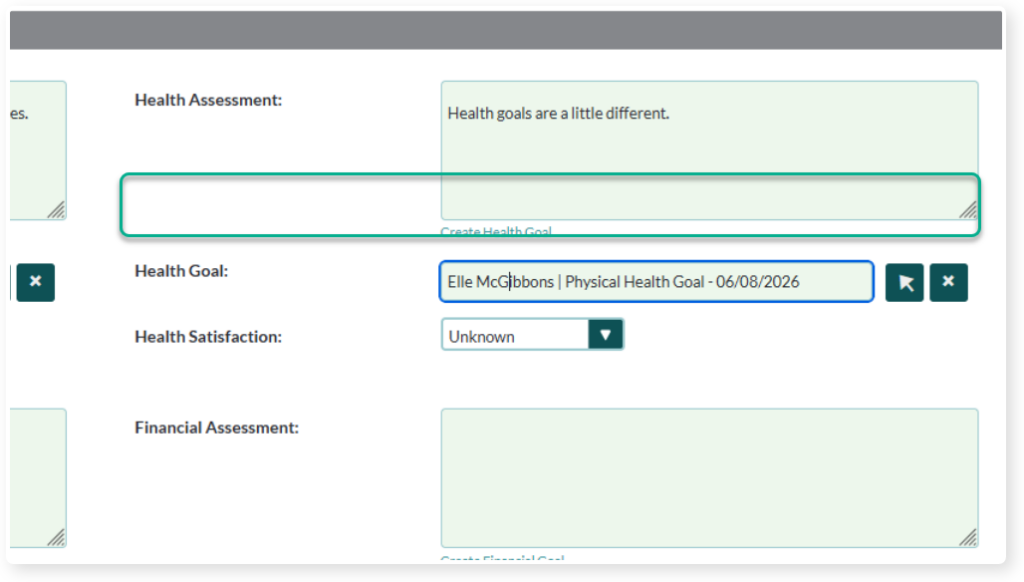
Click Create Health Goal again

This time choose Mental Health

Fill in all of the details and create the goal
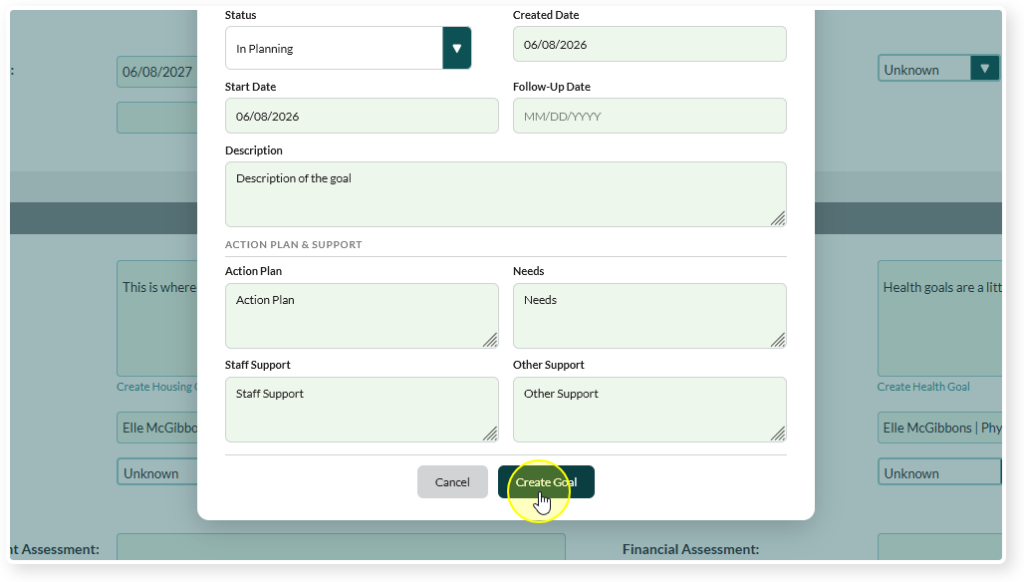
The second Health Goal goes to the first available “other” goal area
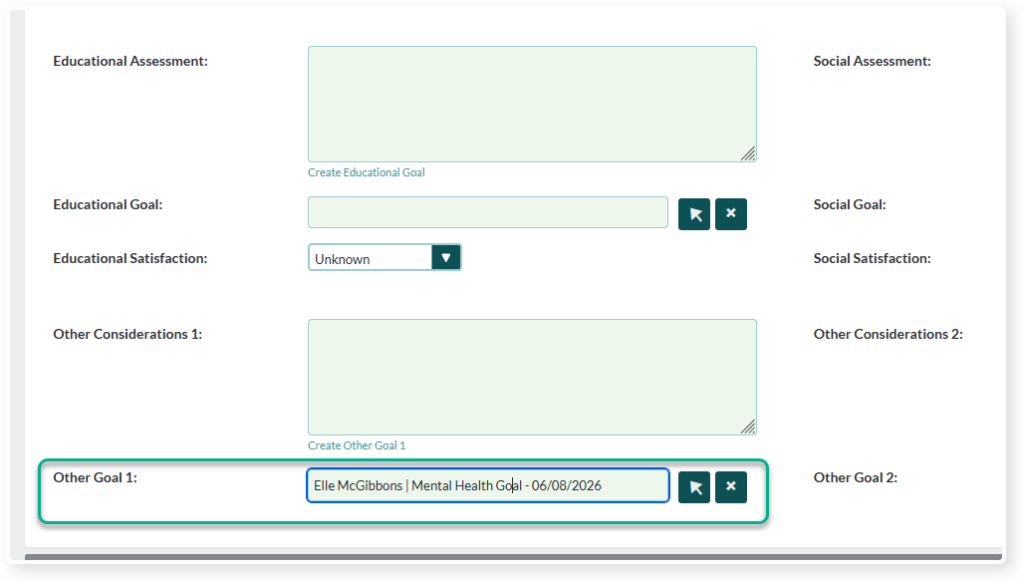
Fill in all of the goals you would like to create

Then Save the Assessment

You will end up with a convenient place to see all current goals
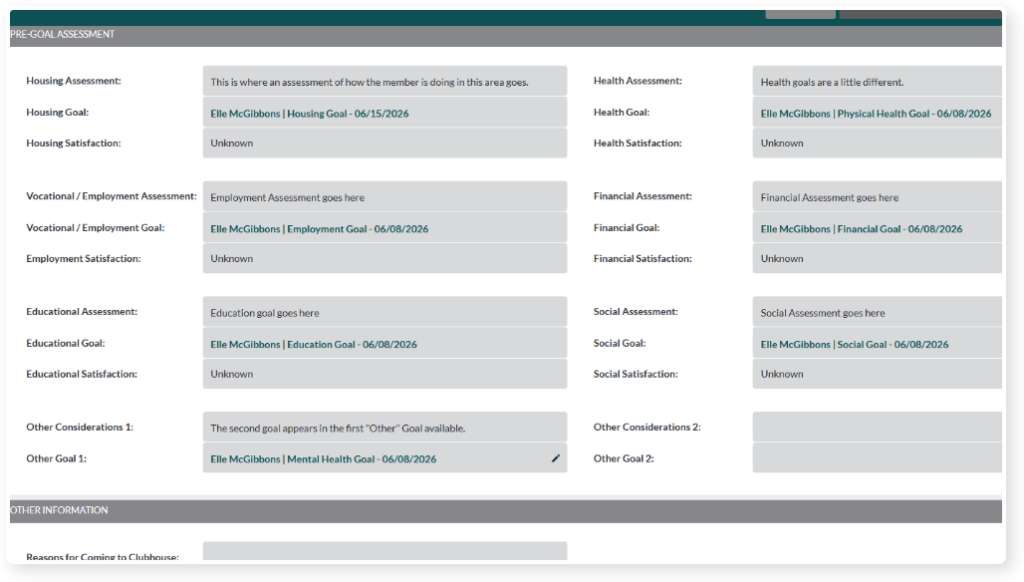
Viewing the Goals #
To view an individual Goal just click on it from the Assessment page

You will be taken to a page for that specific Goal

Notice that the Related Assessment auto fills in

Also notice that the Goal End Date is empty. This is on purpose. Use this field for recording the date that the goal was either achieved or stopped being pursued
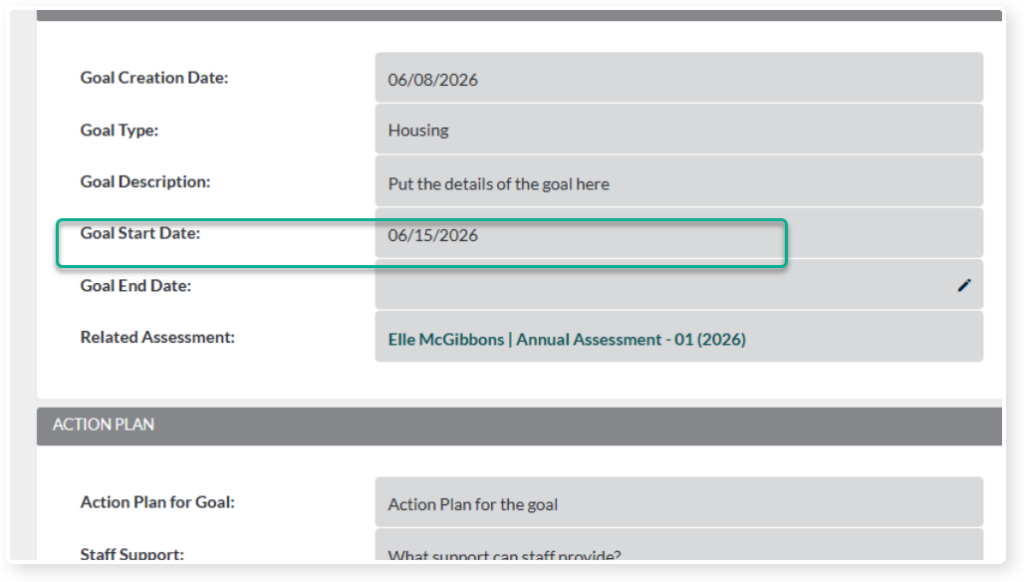
To get back to the Assessment click on it from the Goal page

To see how to add a progress note to a goal follow our tutorial