
Flourish now has the ability for you to create a General Intake form that combines multiple modules to allow you to do all of your intake data entry in a single place!
Note: This is an advanced user tutorial. It may take some trial and error to master.
If you are unable to master generating surveys after following this tutorial a few times please submit a Training Request via the Flourish website
Navigation #
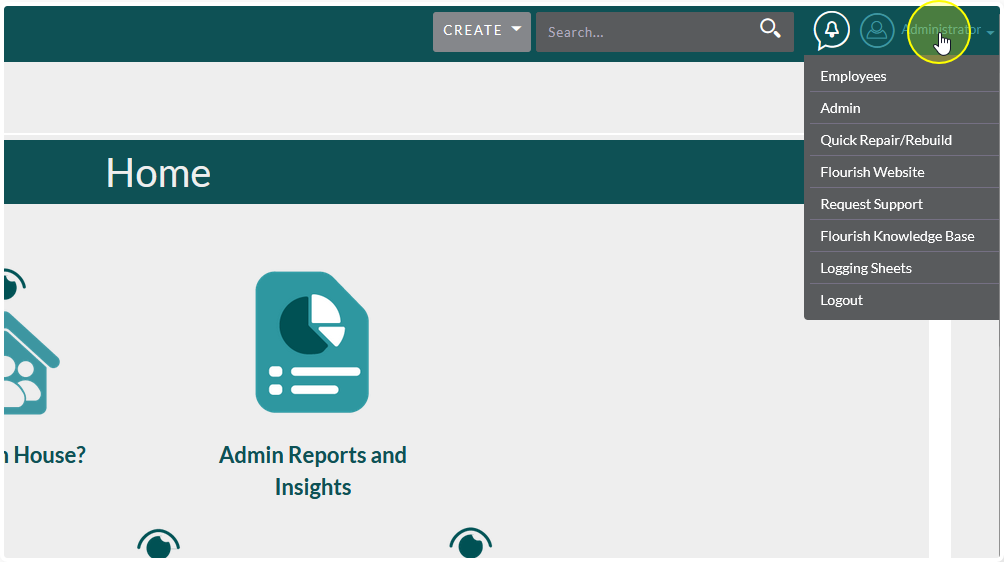
Hover over your username in the upper right hand corner
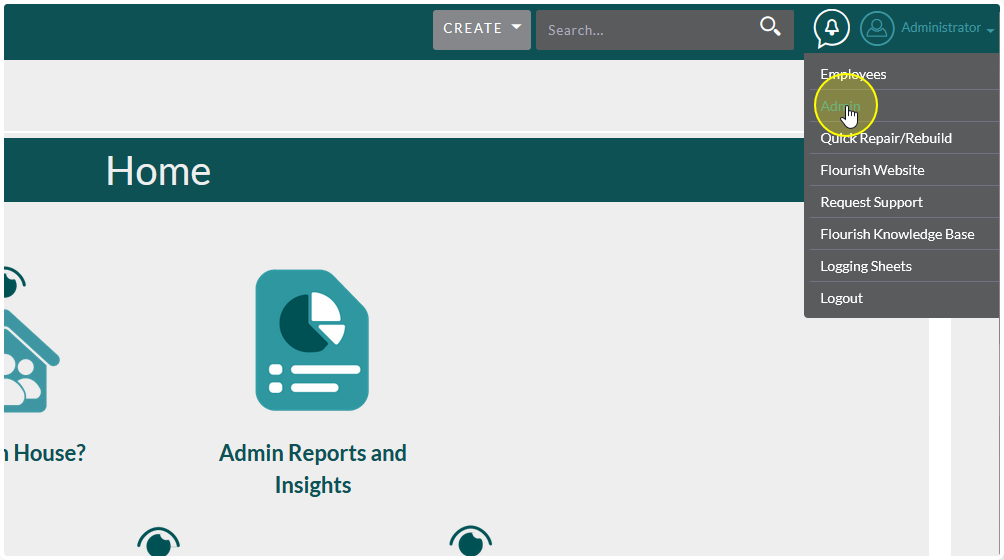
Click Admin
Scroll to the Configure Section
Click Configure Intake Forms

About Intake Forms #
There are 2 types of form you can make:
- New Contact Form: Used for adding a brand new Contact to the system
- Update Contact Form: Used to update Contacts that already exist inside of Flourish.
Setup for both is functionally the same.
Flourish includes a generic “General Intake” form to get you started.
You can edit this form or create your own from scratch.
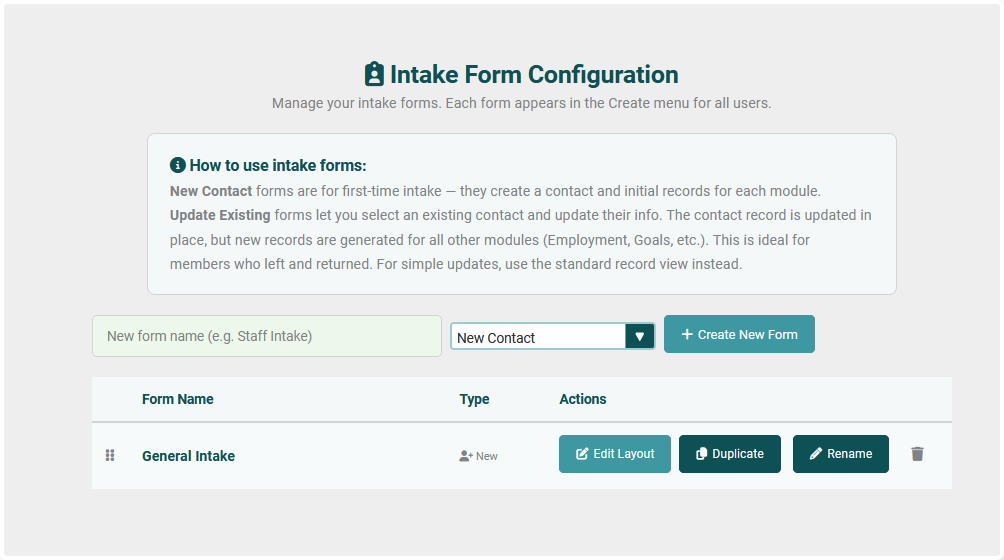
To edit and existing form click on Edit Layout
This will take you to the current layout of the existing form
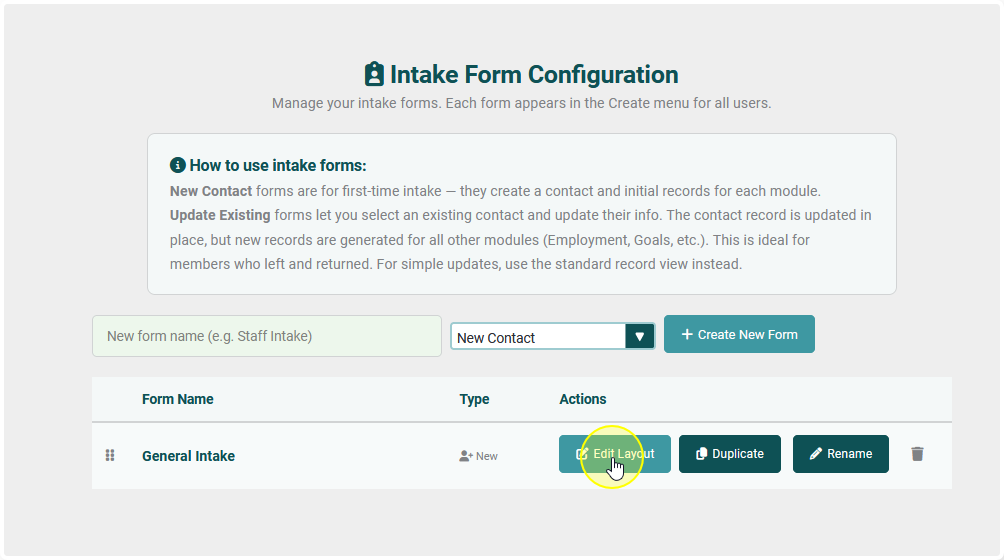
To create a new form from scratch:
- Give it a Name
- Choose a Form Type
- Click Create New Form

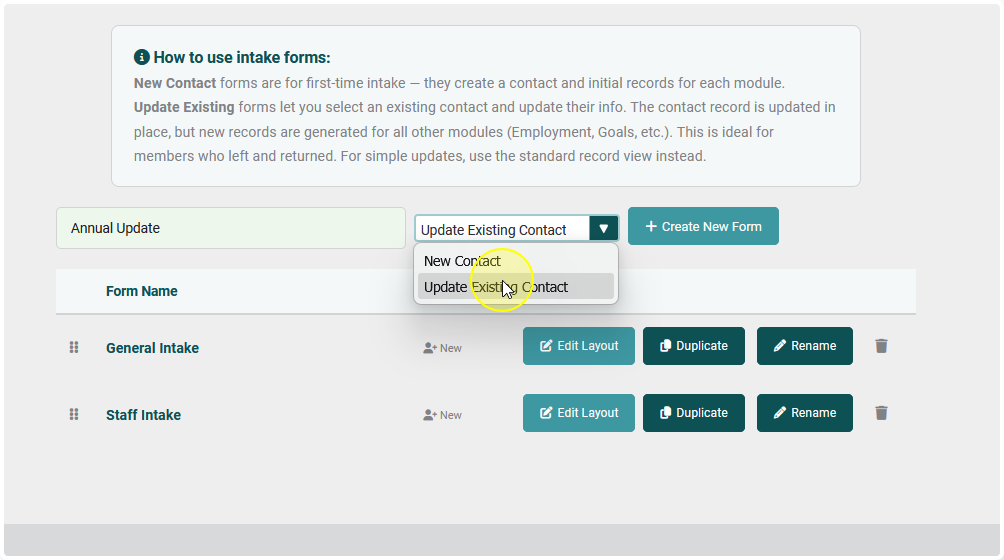
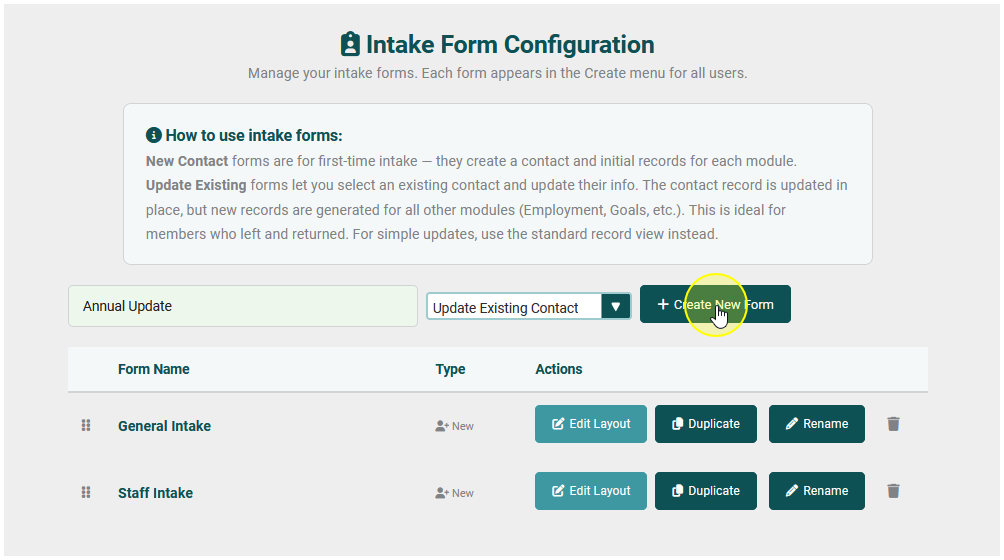
To create an Update Form
- Name the Form
- Select “Update Existing Contact”
- Click Create New Form
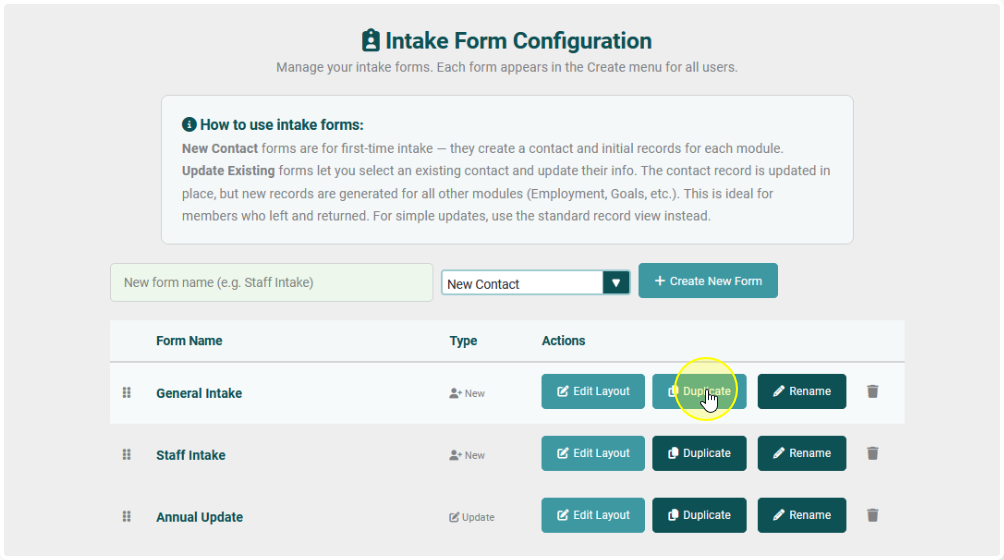
To duplicate an existing form layout:
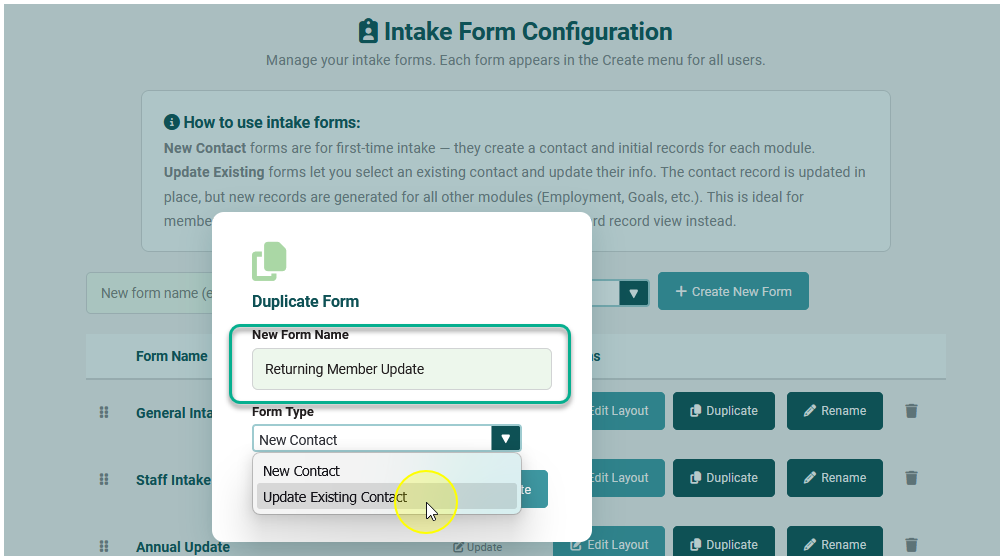
- Click Duplicate next to the form you would like to copy
- Give it a new Name
- Choose if you would like it to be a New or Update form
- Click “Duplicate

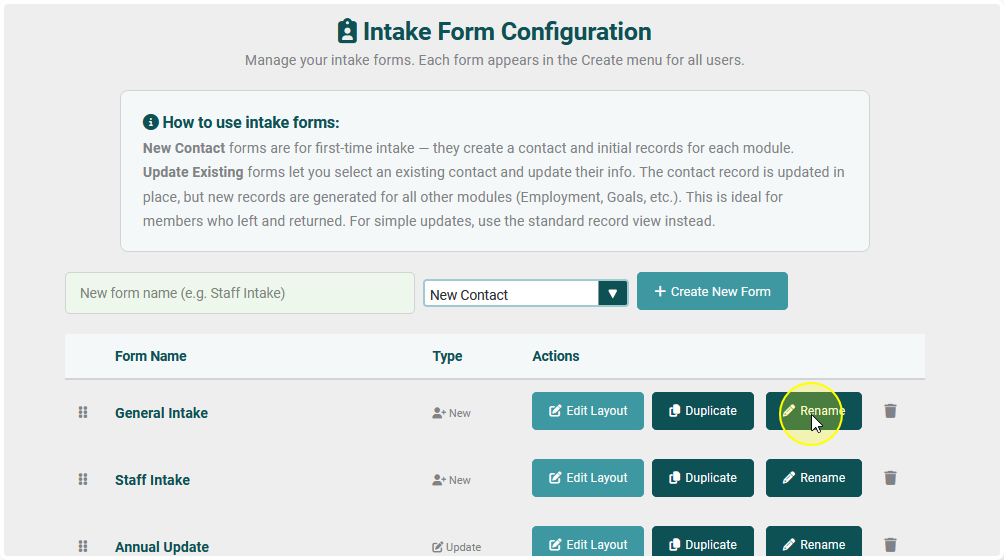
To change the name of the form:
Click Rename
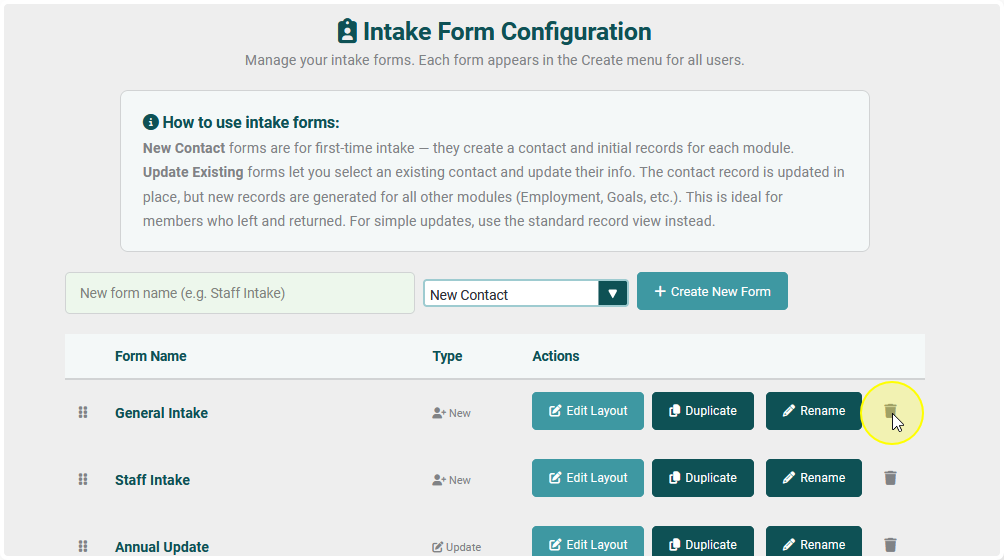
To delete a form:
Click the Trash Can icon next to the form
To reorder the forms:
Drag and drop them to the desired position in the list
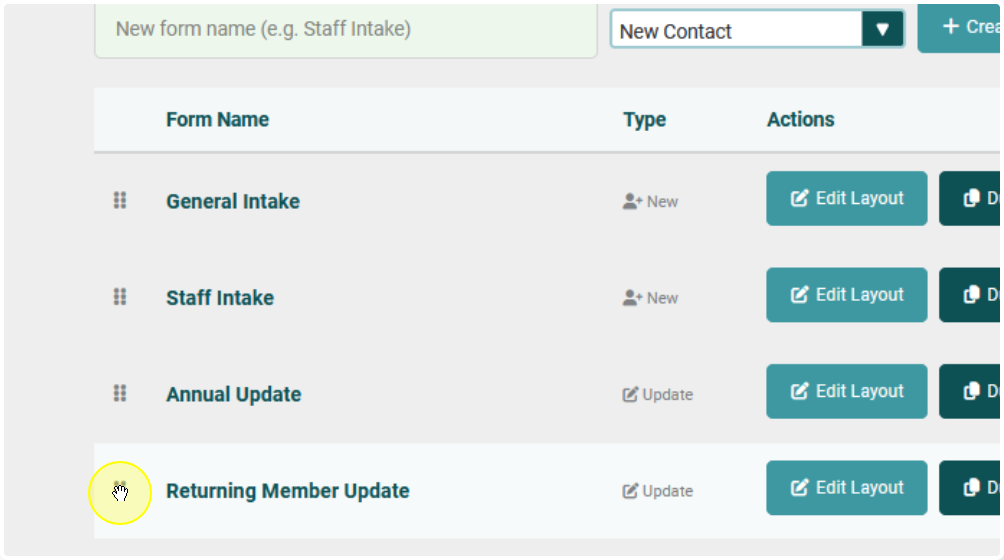
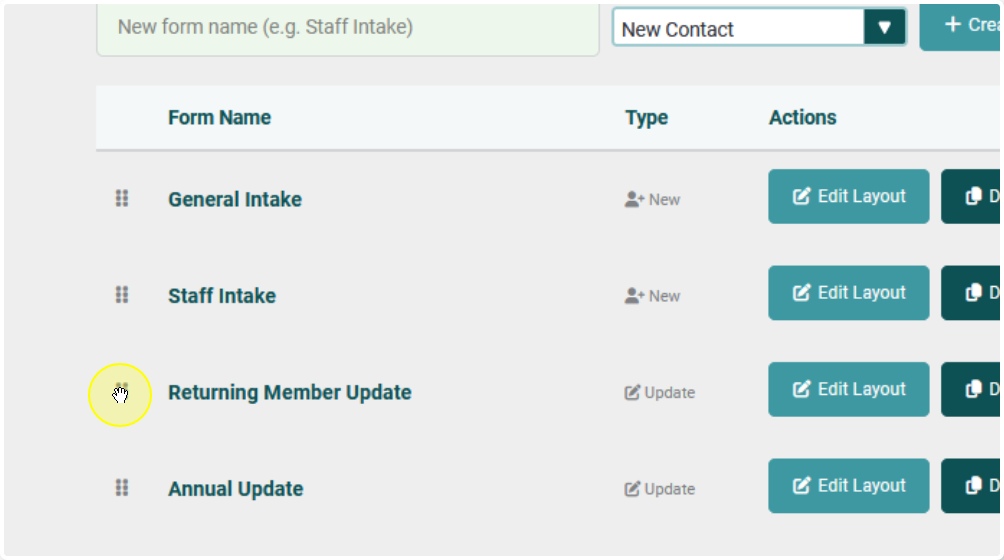
This will determine the order they display in the menu
Layout Actions #
Note: You have a few options for a starting point:
- Working from the Default Layout
- Copying the layout from the Edit View (Will match your Contact Record page)
- Clearing everything and starting from scratch
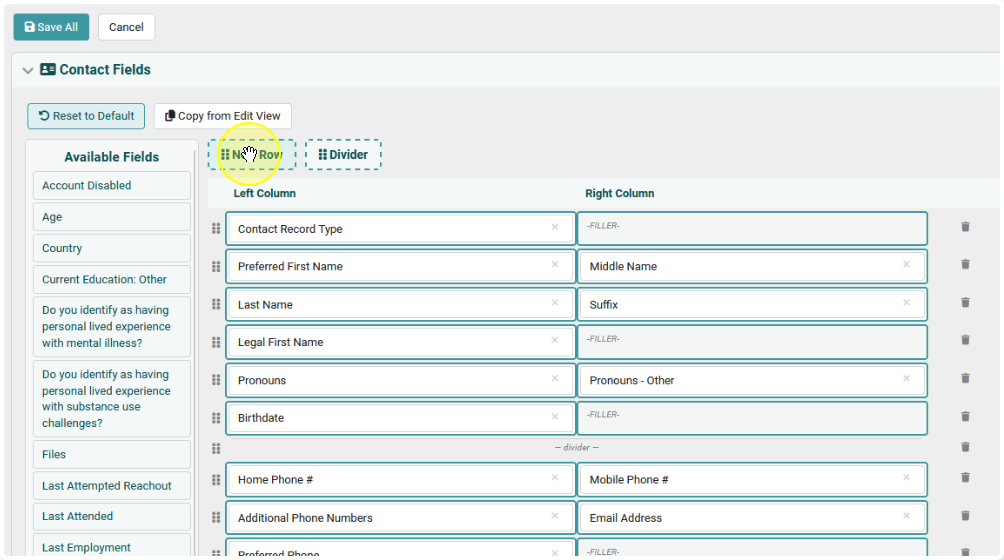
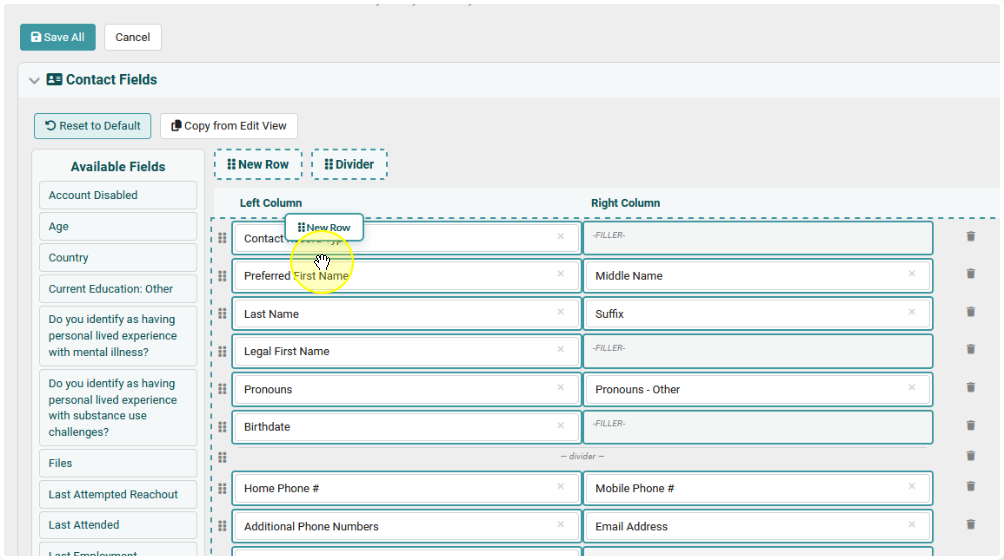
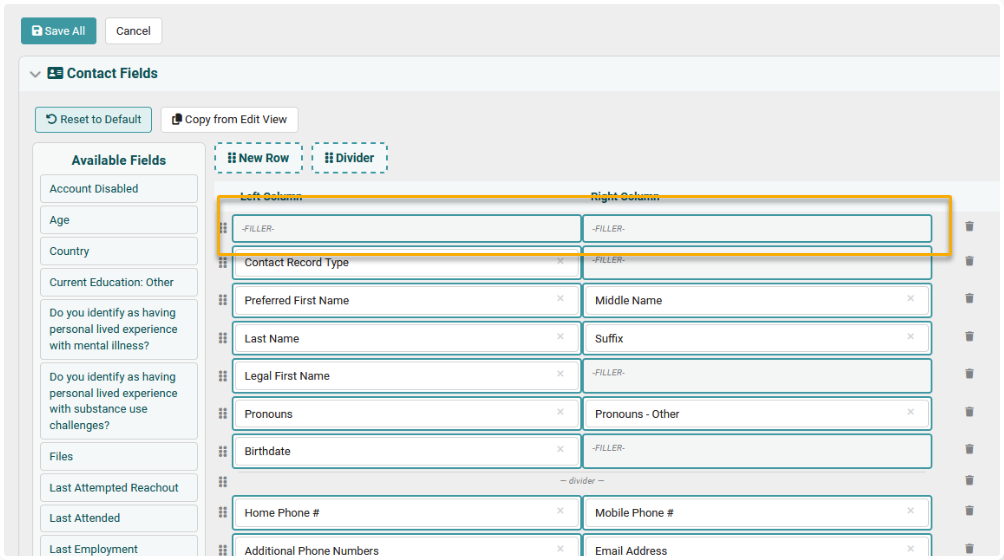
To add a new row:
- Click on New Row
- Drag it into the layout
- Drop it where you would like to see it
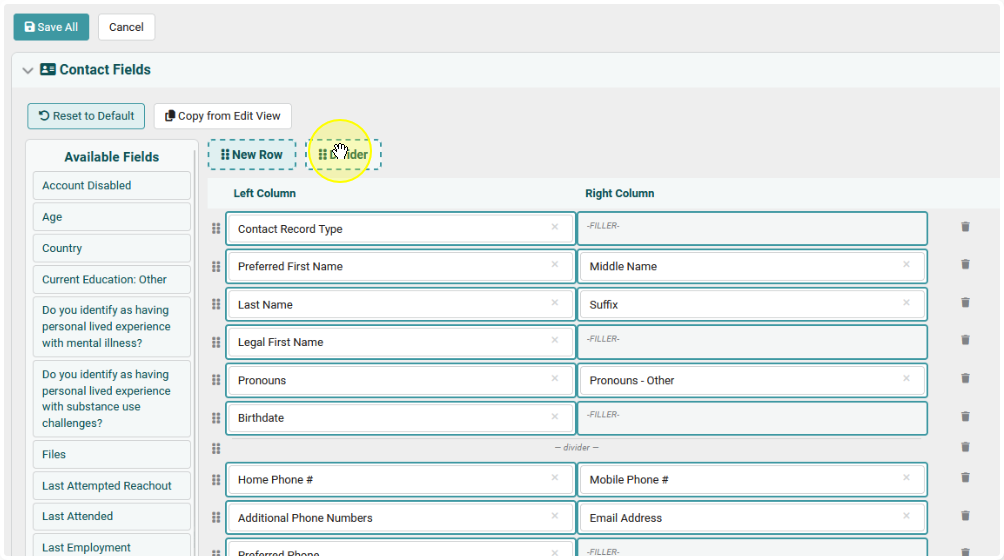
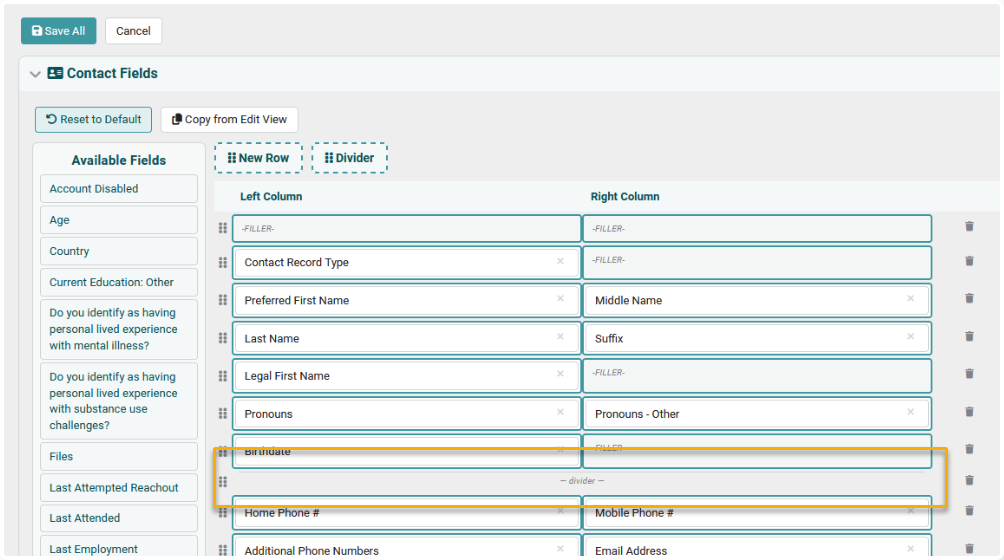
To add a divider row:
- Click on Divider
- Drag it into the layout
- Drop it where you would like to see it
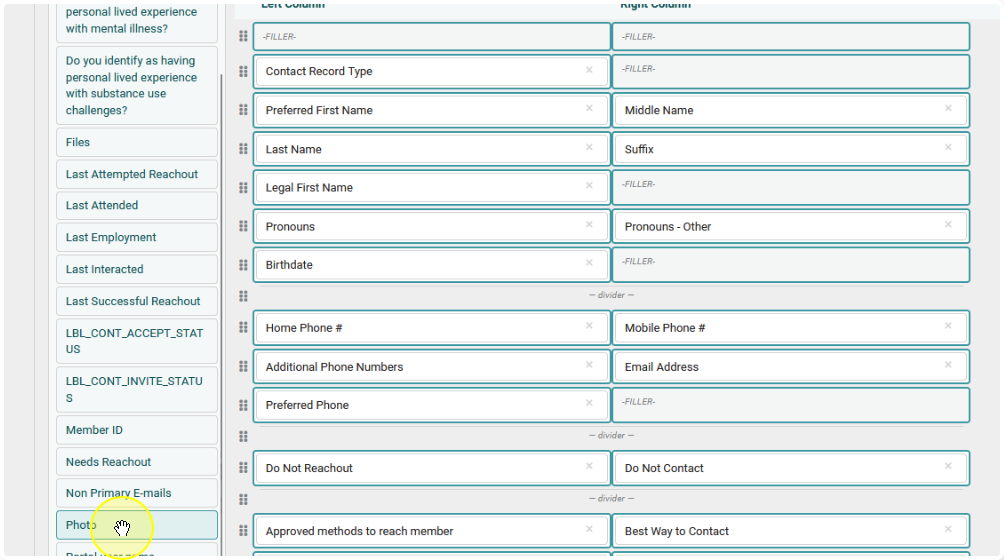
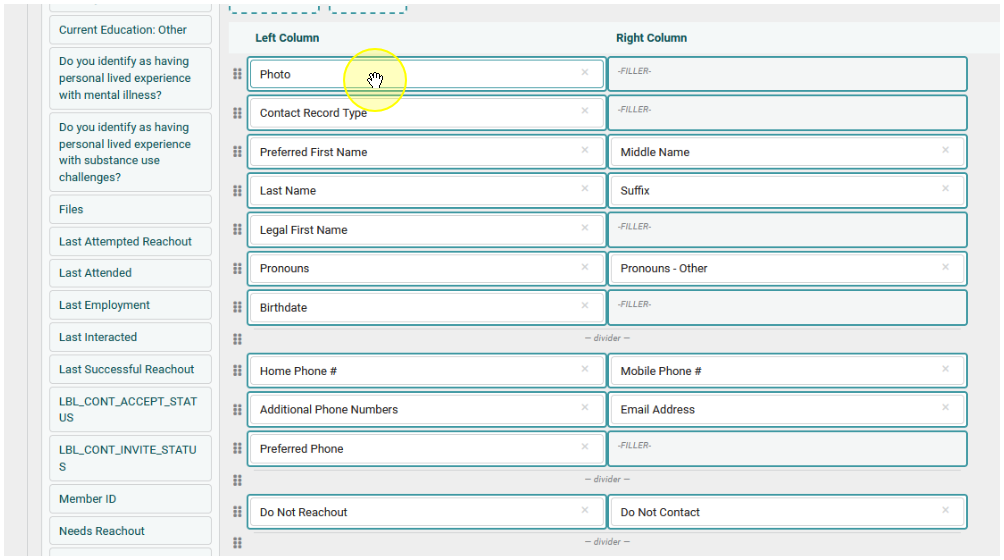
To add a new field to the layout:
- Find the field
- Drag it and drop it into one of the empty cells in the layout.
To delete a field from the layout:
Click on the X next to the field
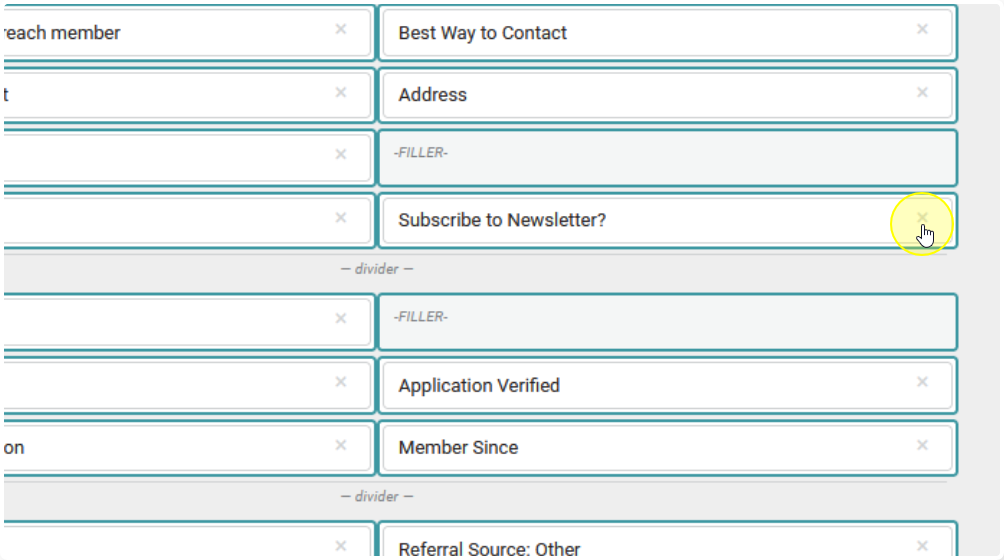
To delete an entire row:
Click on the Trash Can icon next to the row

Including and Configuring Other Modules #
You can add other modules to the intake form as well
To include other modules all you have to do is check the box next to the module name.
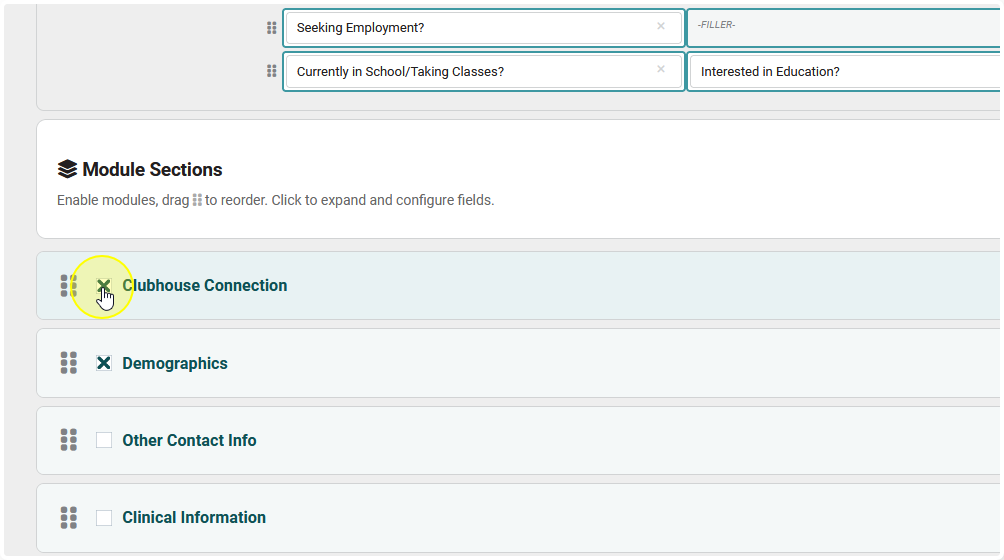
To set the layout of these modules click on the bar to expand the panel.
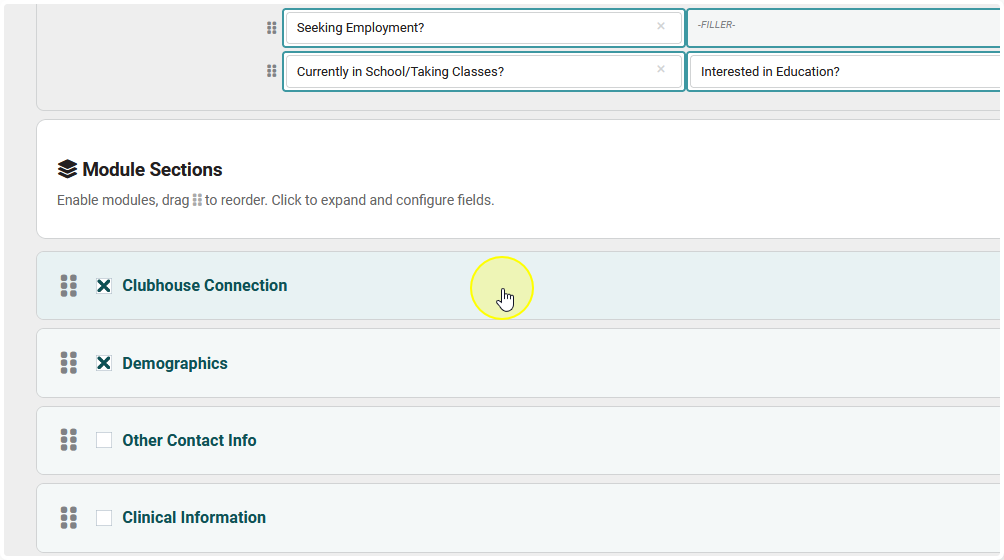
You can set the layout by using the same steps as you did for the Contact module.
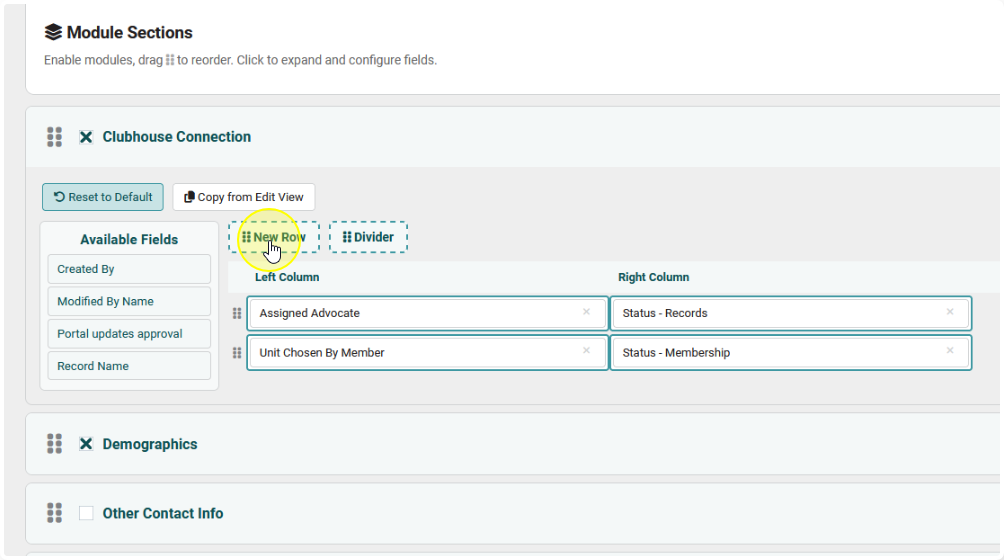
Do this for all modules you would like to include
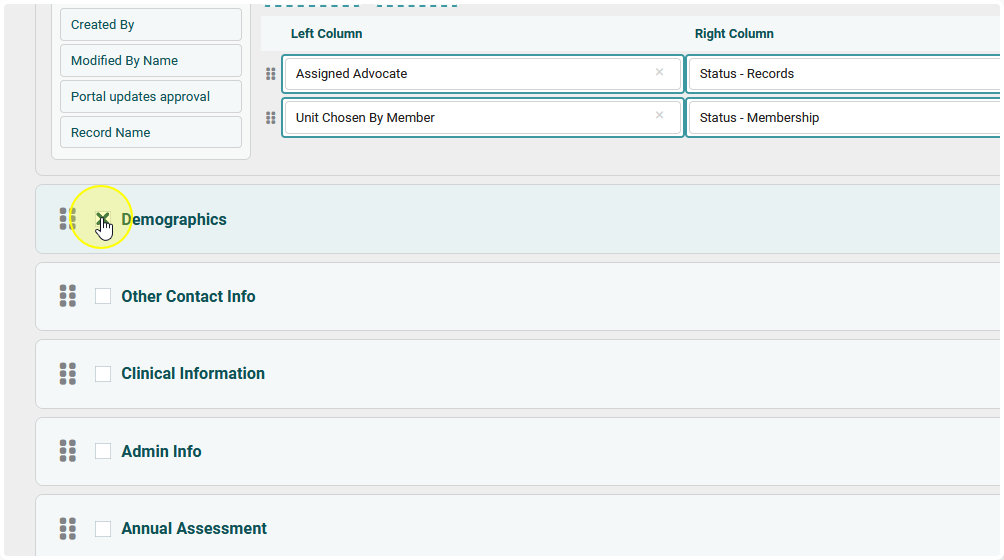
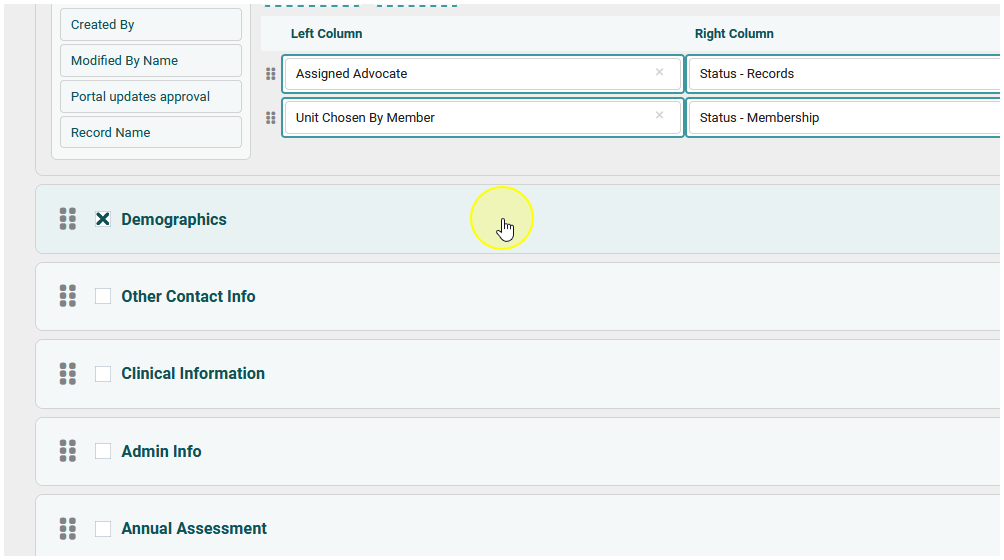
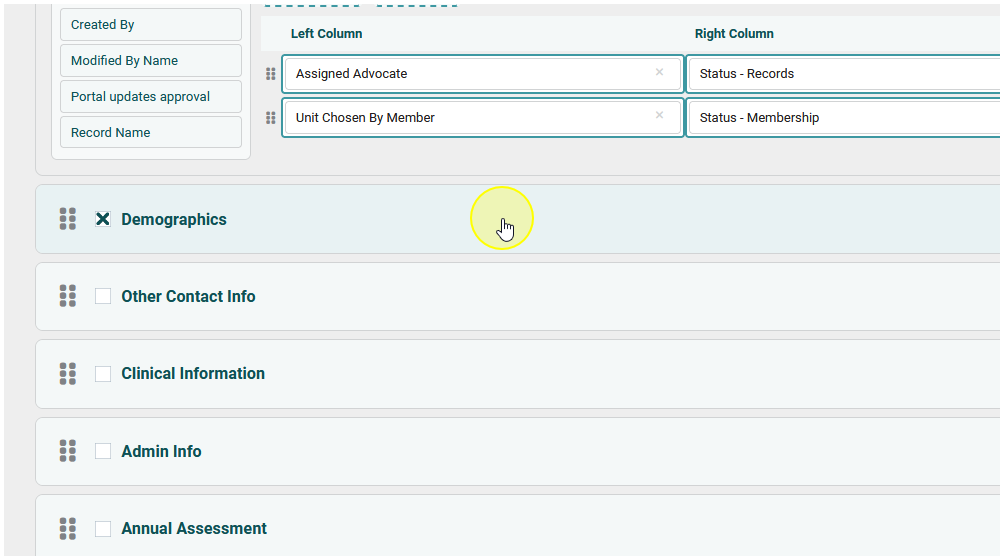
Most of the existing modules that can work with this module are already included. If you have a custom module and/or have a request for another module to be included, please submit a feature request ticket via our website.
NOTE: Not all modules can work with this form. Activity modules (Meetings, Unit Tasks, Supports, etc) are unable to be part of this intake form.
Adding Surveys to the Intake Form #
You can include surveys in the intake form.
To do so, you first need to create the survey in our Survey Module
If you would like to include surveys in your intake form, expand the Surveys panel
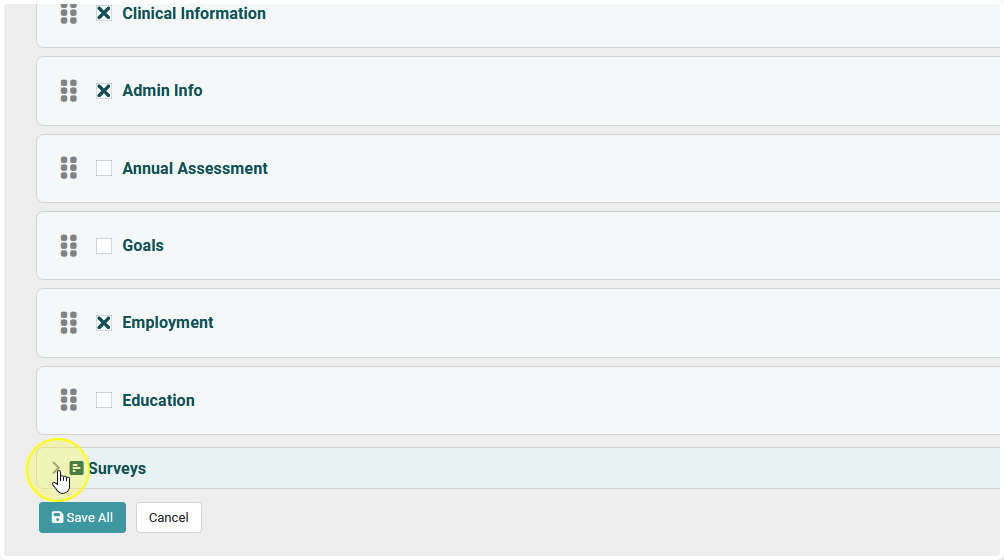
Select a Survey to include from the dropdown list.
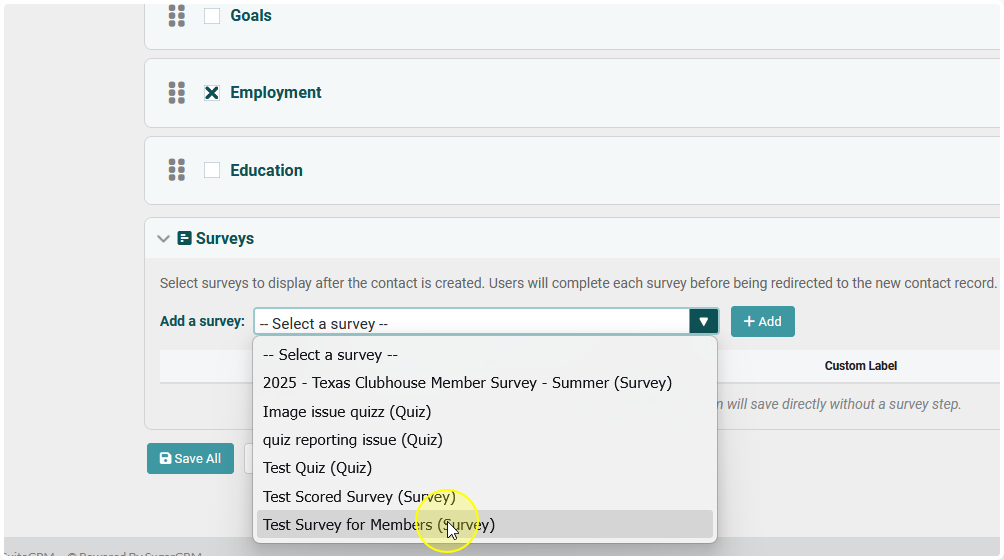
Click + Add to include it in the list
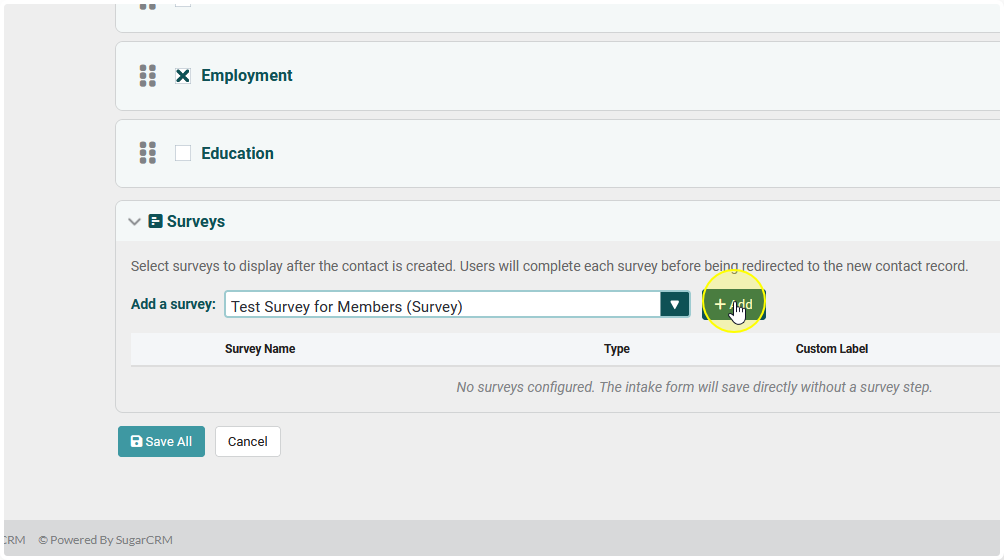
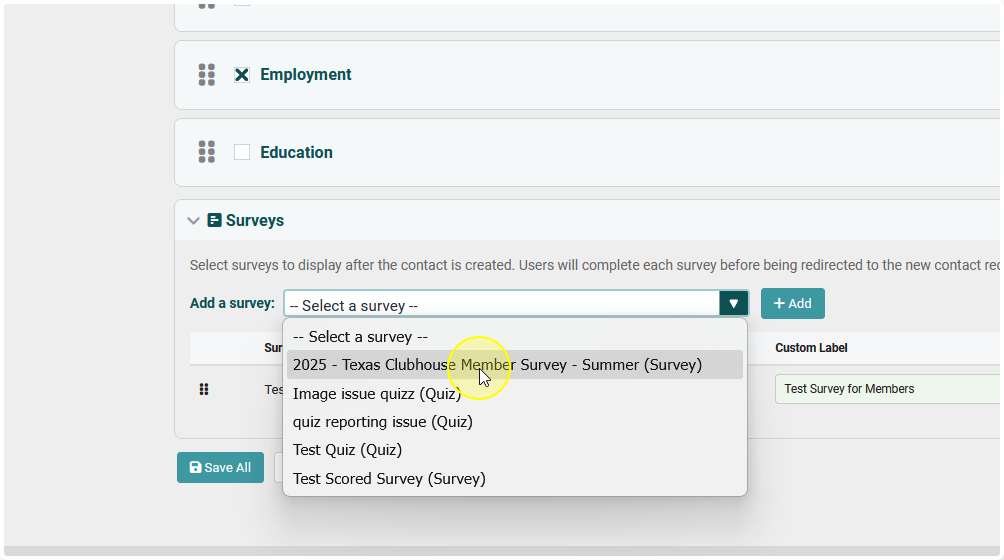
You can include more than one Survey.
To do so follow the above steps for each survey you wish to include.
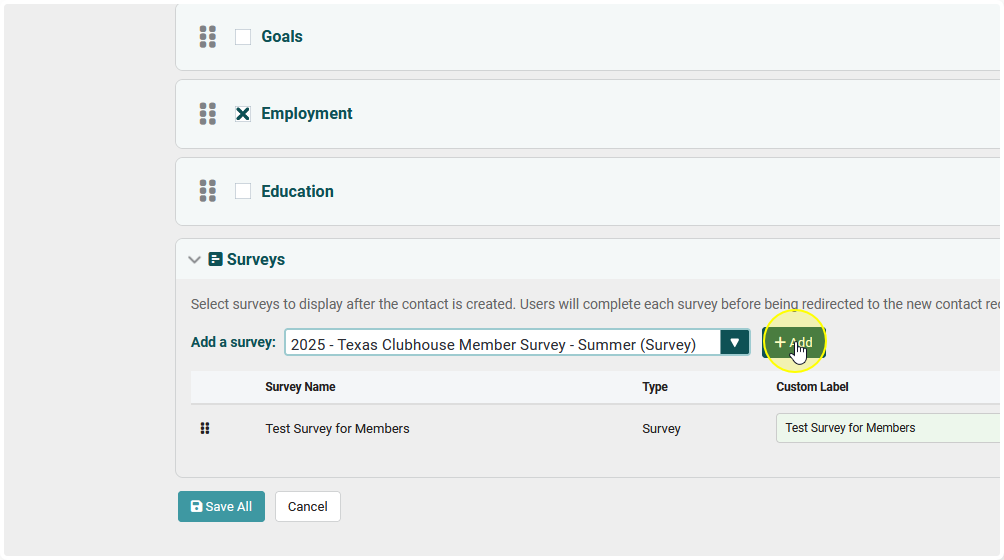
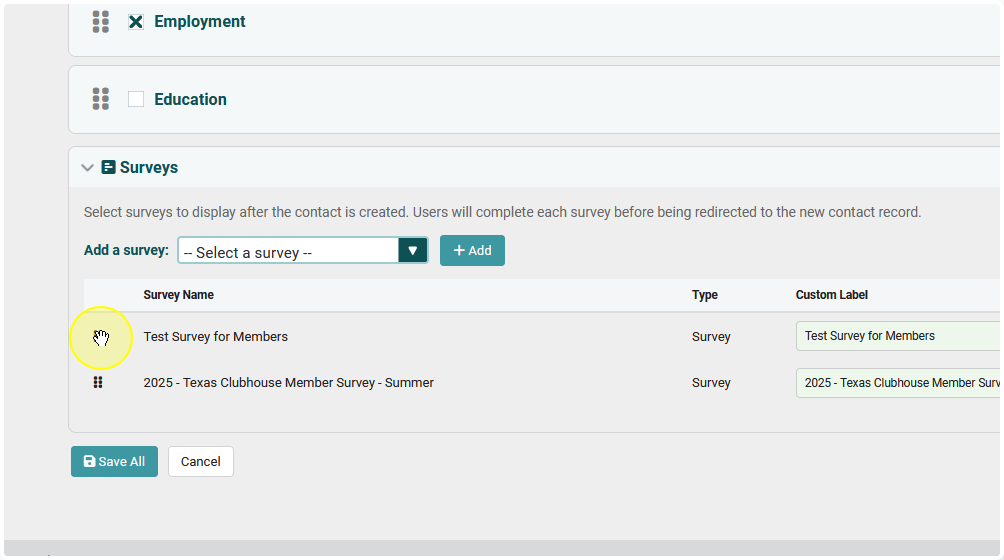
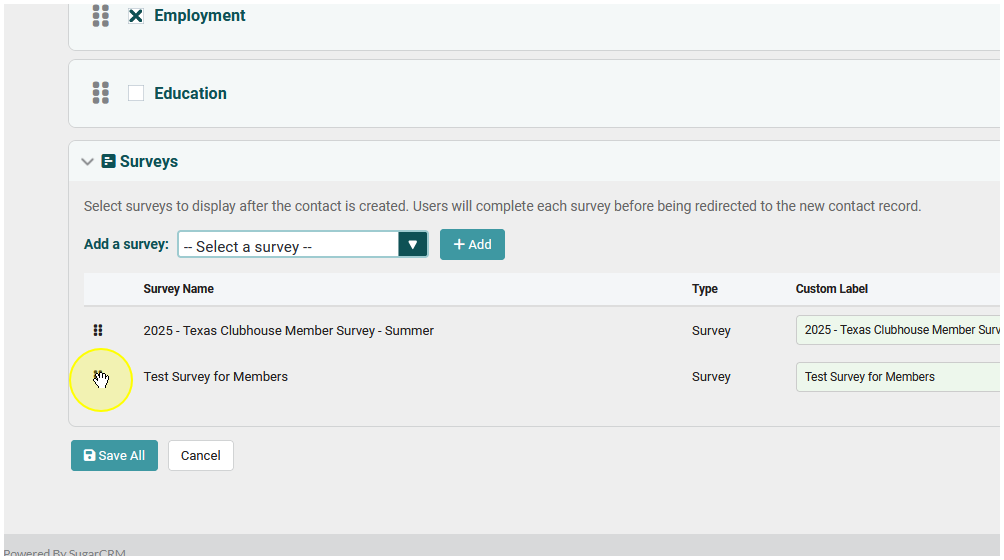
You can rearrange the order that the surveys appear in by dragging and dropping them in the proper order.
Finishing Up #
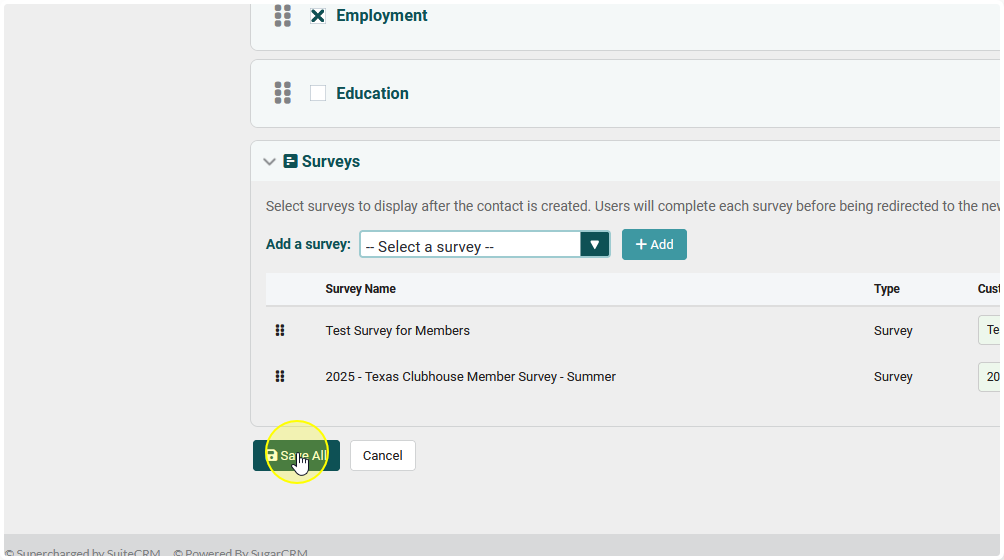
When you’re done configuring your form click Save All to save all module selections and layouts.
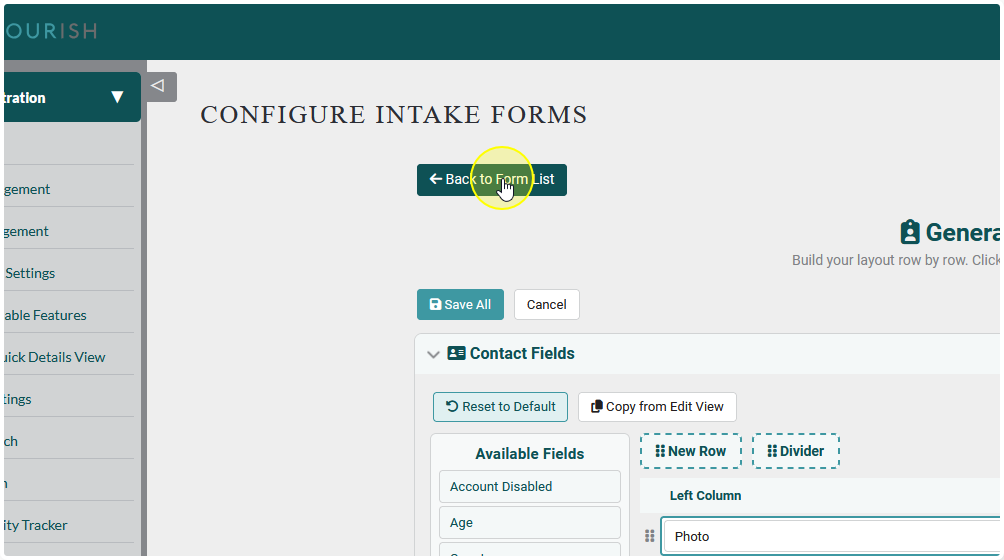
To return to the list of forms click Back to Form List
To use the intake forms:
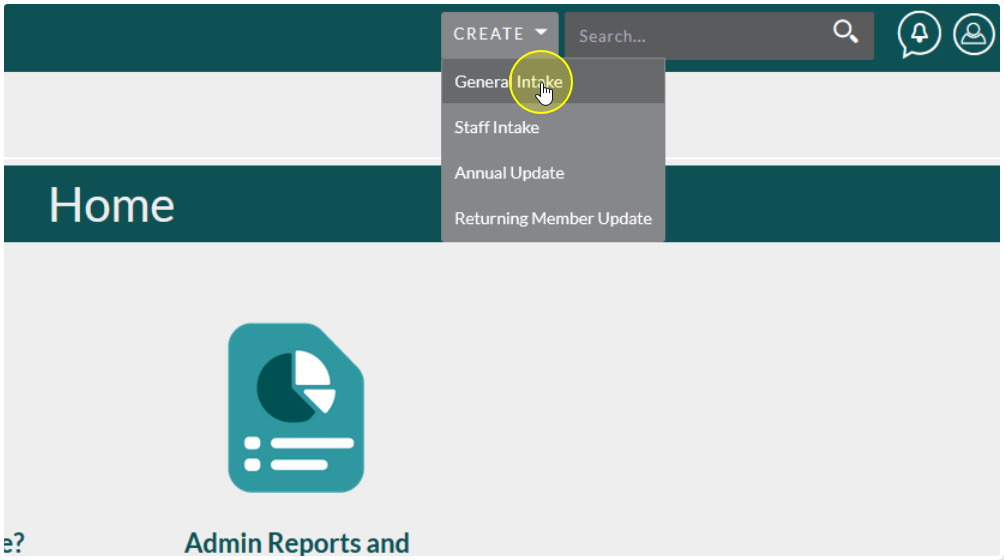
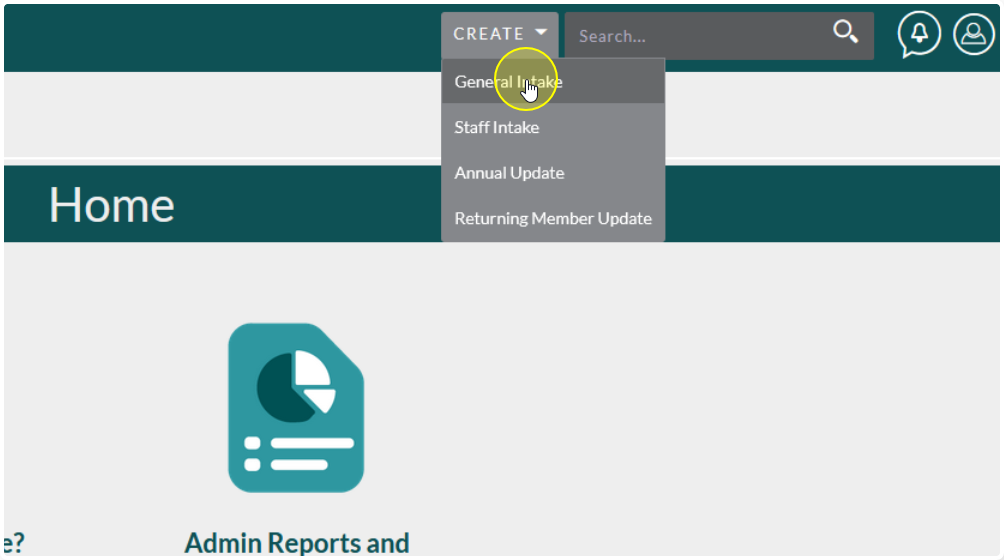
Select the form from the Create menu on the navigation bar
Using the Form #
To learn more about using this form visit this tutorial: Using the Intake Forms in Flourish