Navigation #
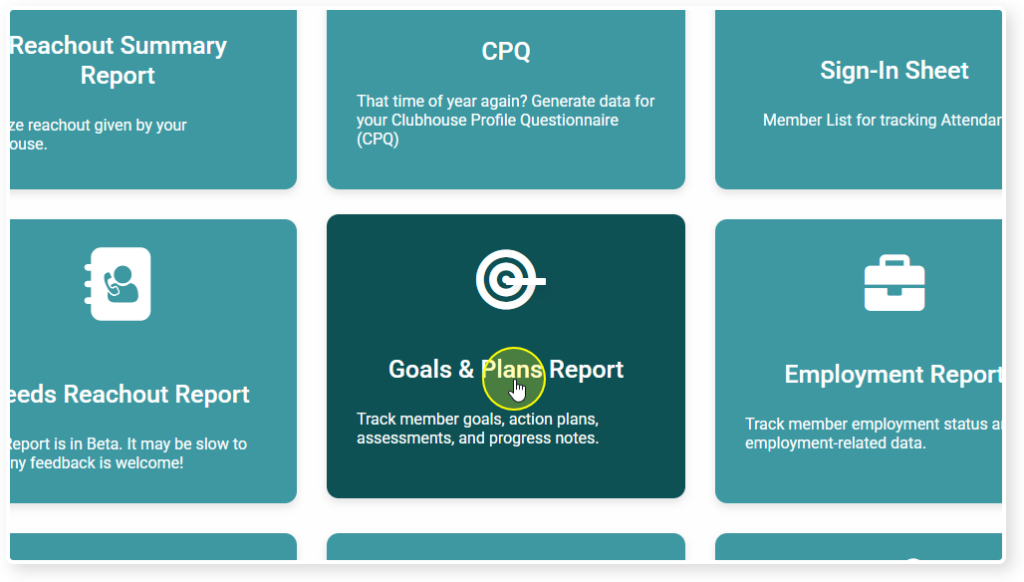
From you Insights page click on Goals and Plans Report
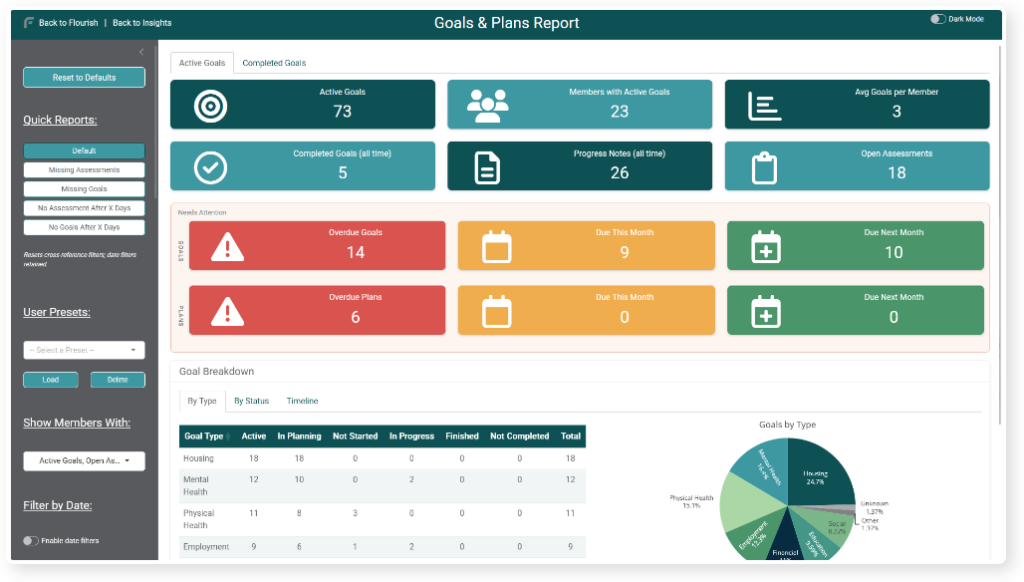
Once the report opens you will first see a lot of quick statistics about your Goals and Plans
As you scroll down you will see a table that has member names and summaries of their Goals and Assessments
Find the member you want more information on and click on their name
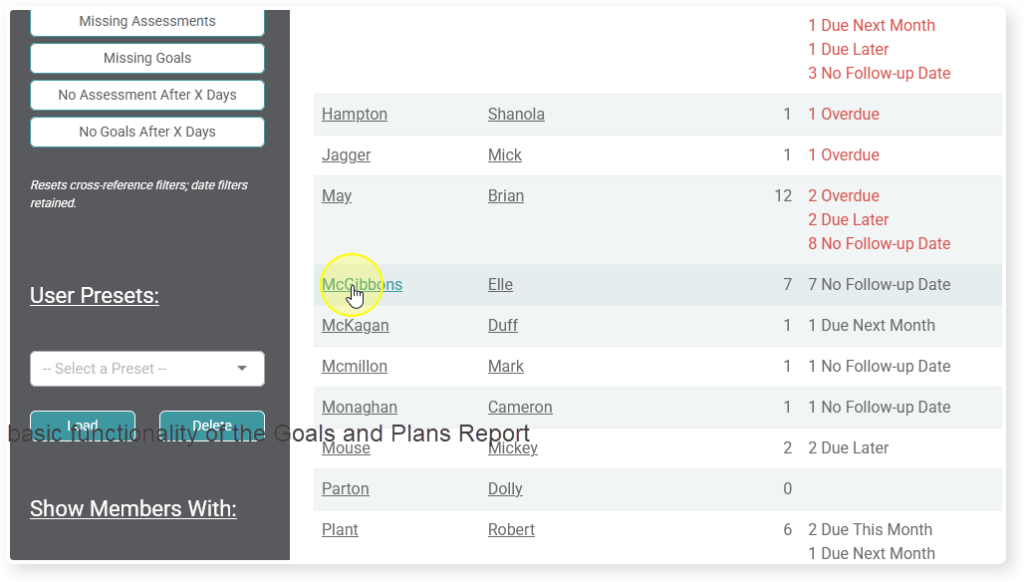
You will be taken to a page that displays all of that member’s Goals and Assessments
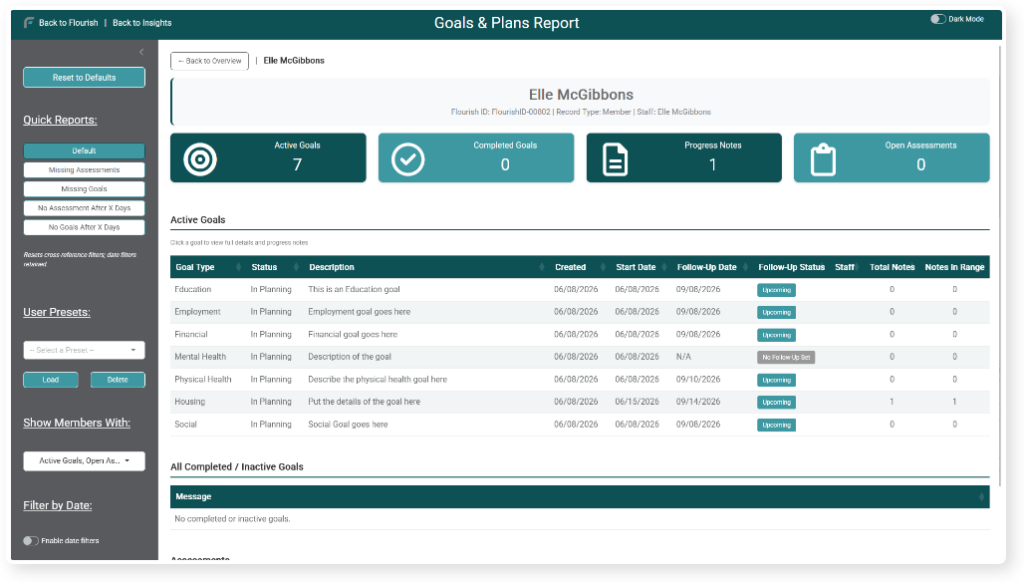
Viewing Goal Details #
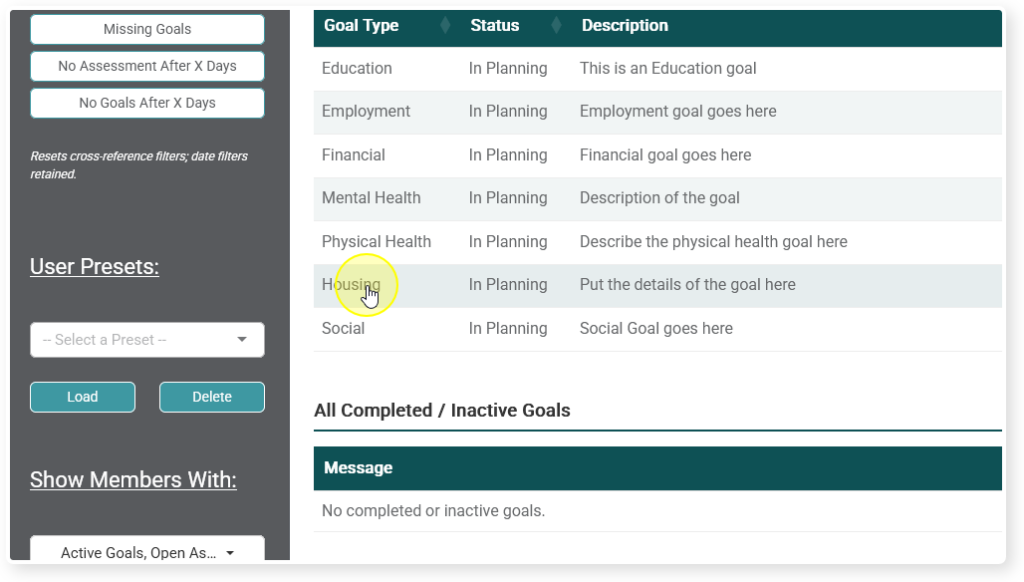
Click on a Goal
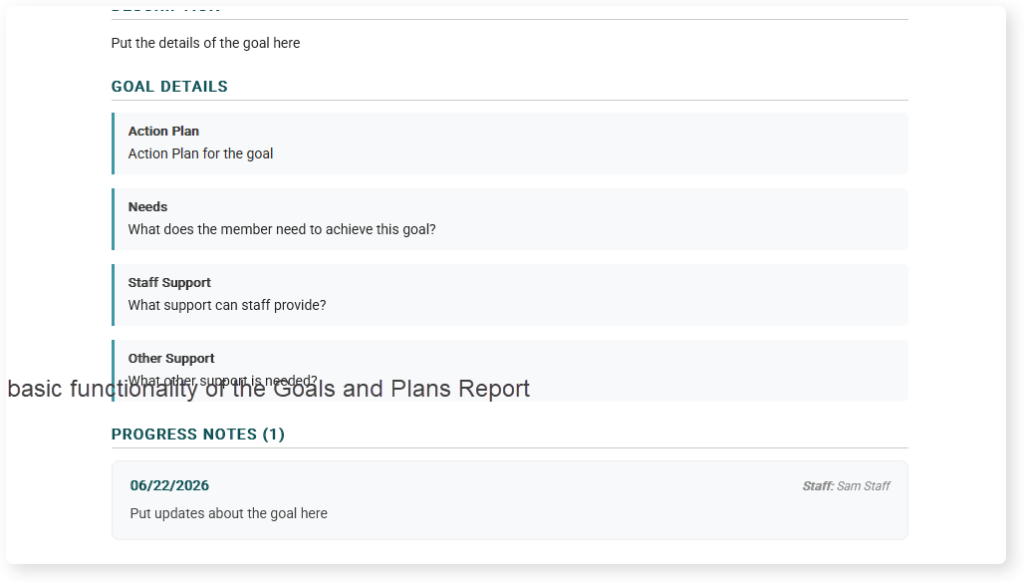
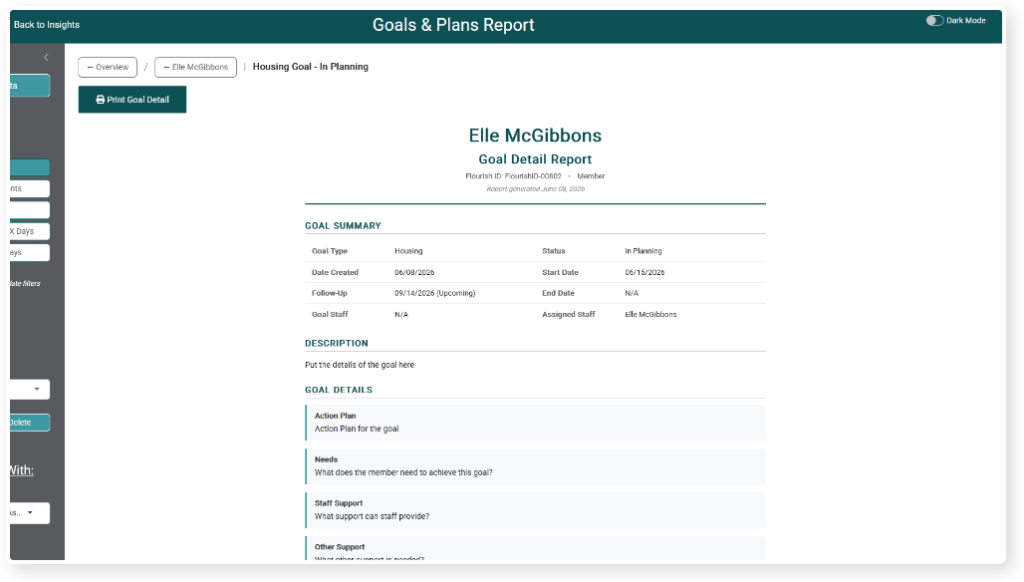
You will get a nice printable summary of that goal and all progress notes associated with it.
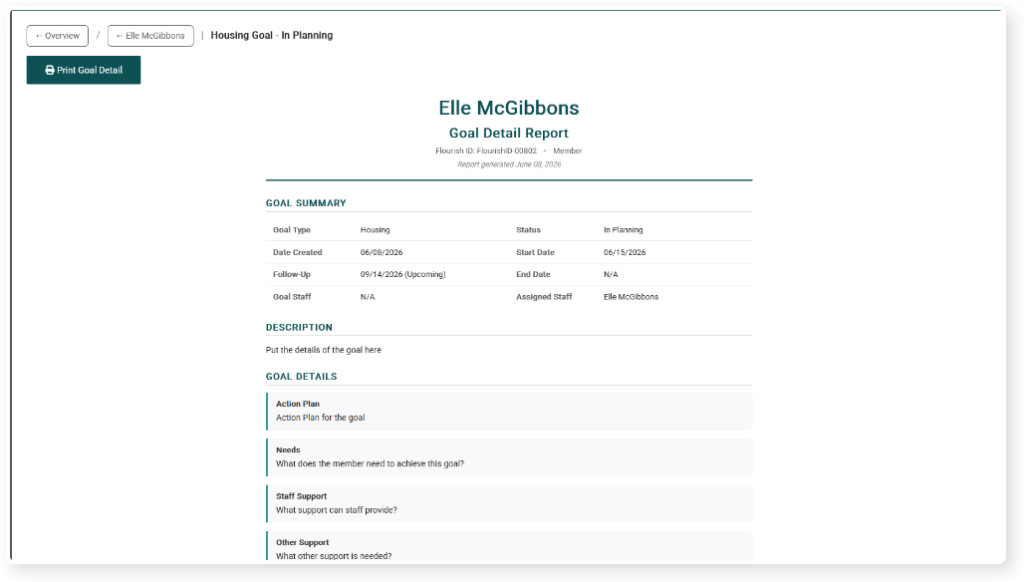
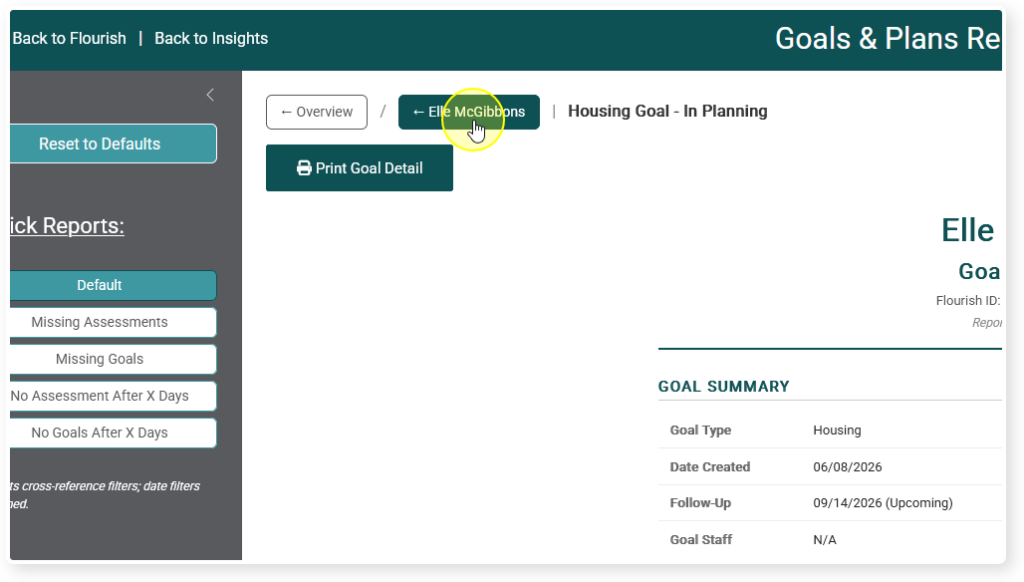
To get back to the summary page click on their name at the top of the page
Viewing Assessment Details #
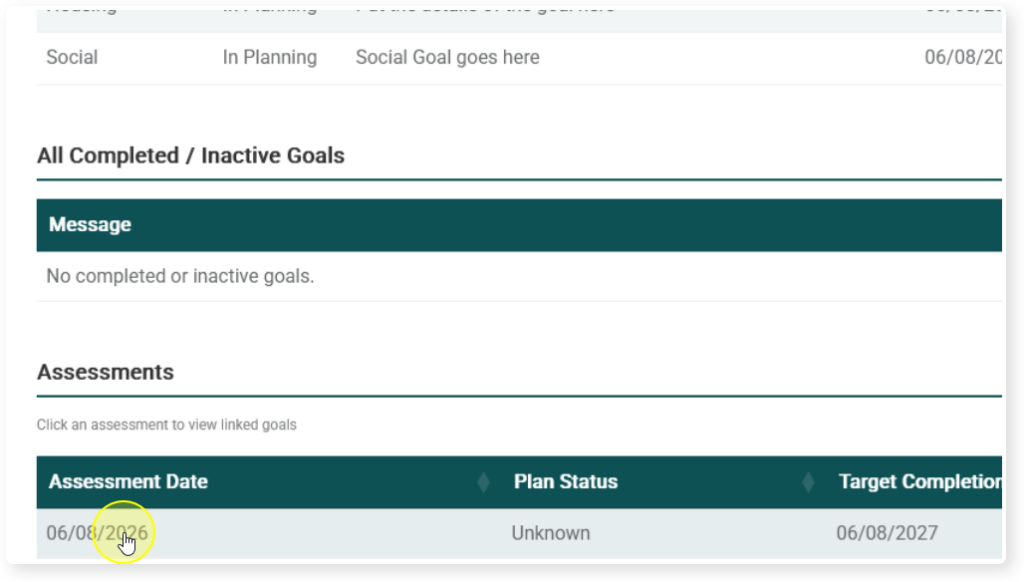
Click on the Assessment you would like to view
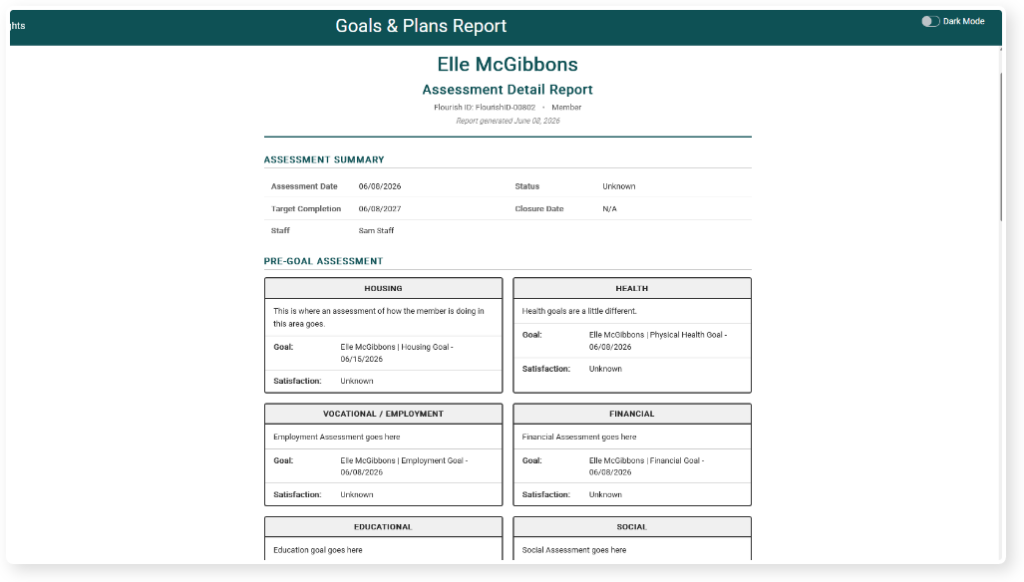
You will get a view similar to the Goal detail page, but this will show the Assessment and all related Goals
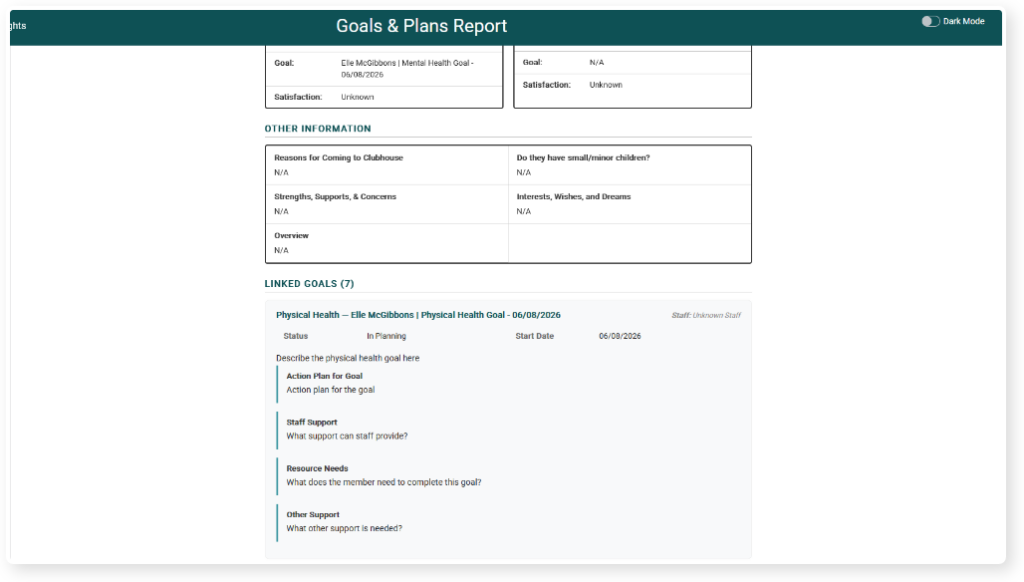
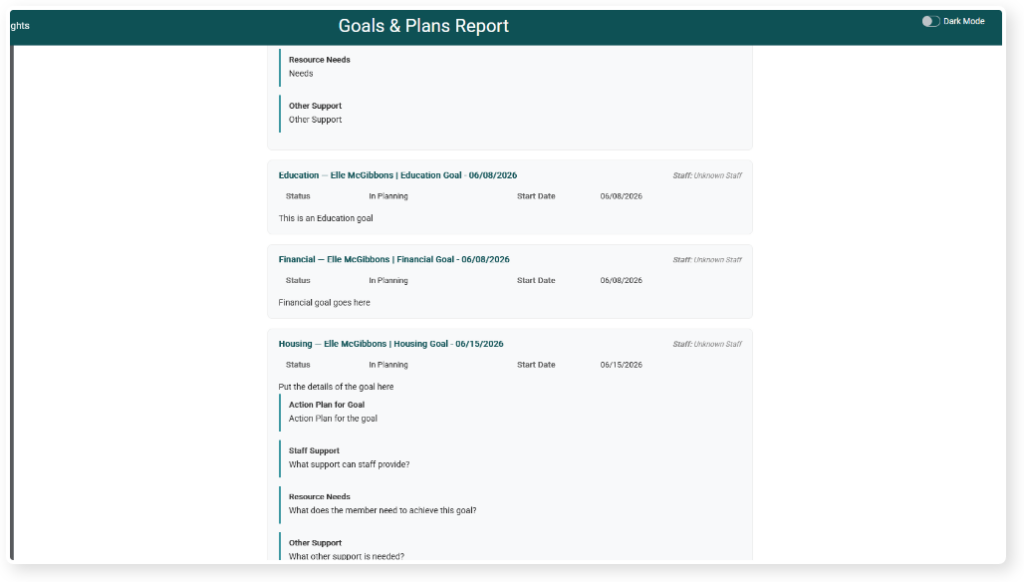
At the bottom you will get another table of the Goals associated with this Assessment
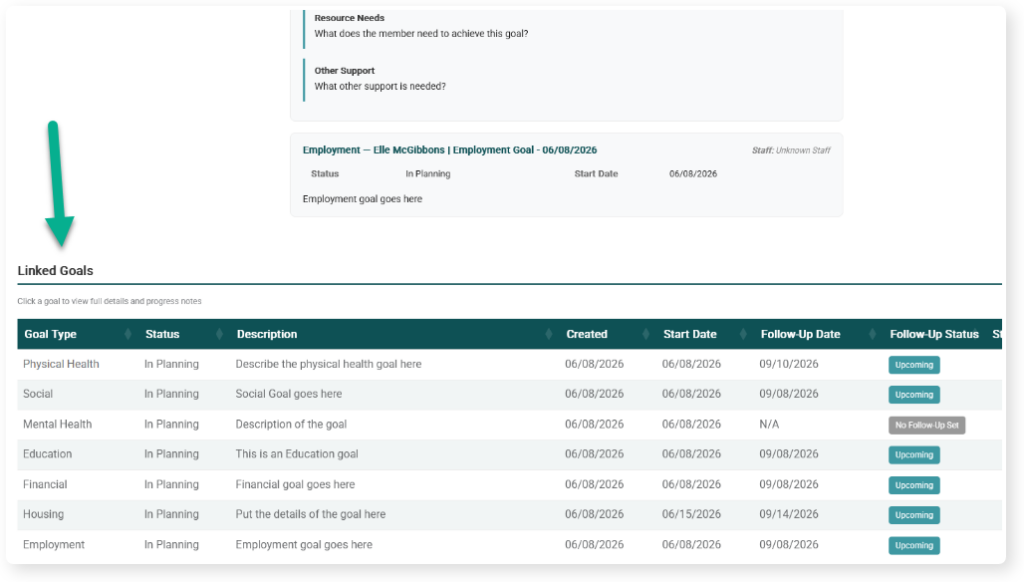
Just like the Summary page, you can click on a goal to get it’s details
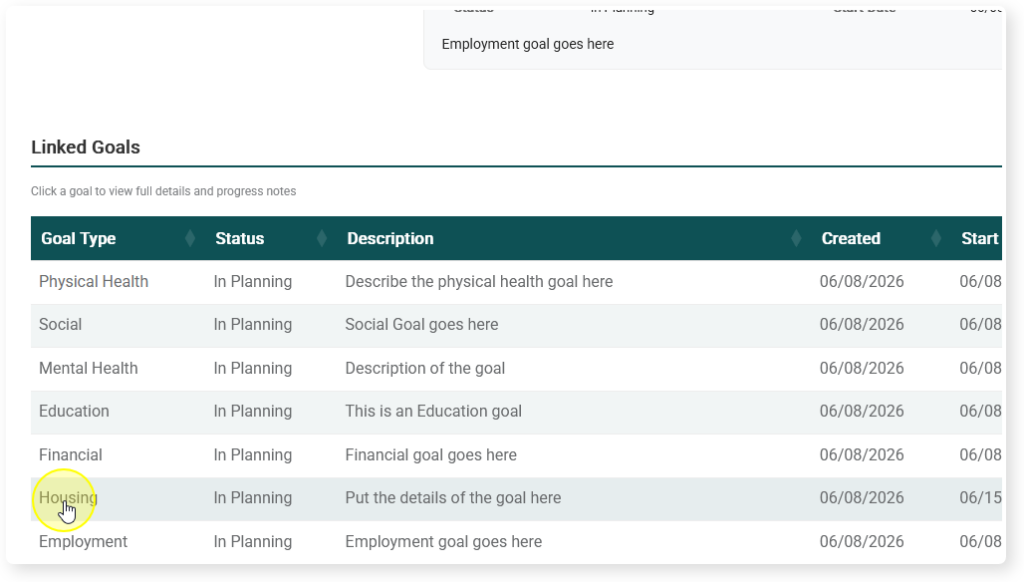
You will be taken back to the printable view of the Goal
Printing the Goal and/or Assessment #
To print the Goal or Assessment click on Print button at the top of the page

A print preview will pop up. Look at it to make sure the formatting makes sense.
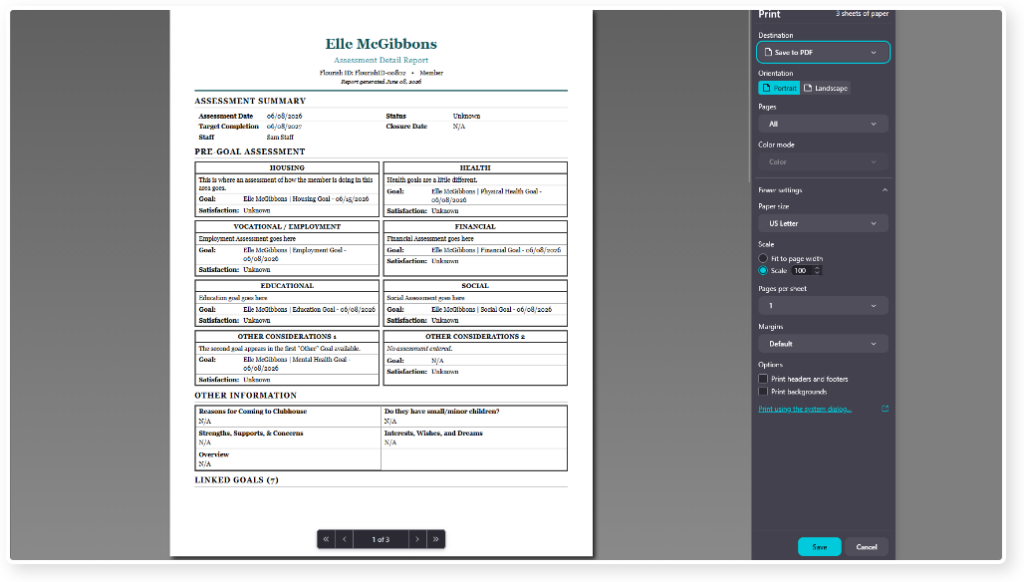
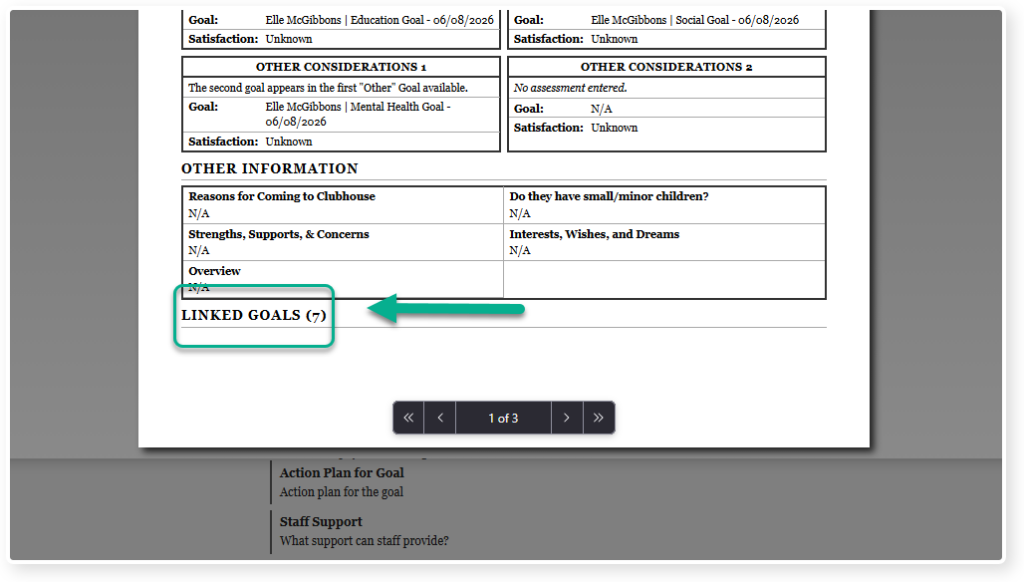
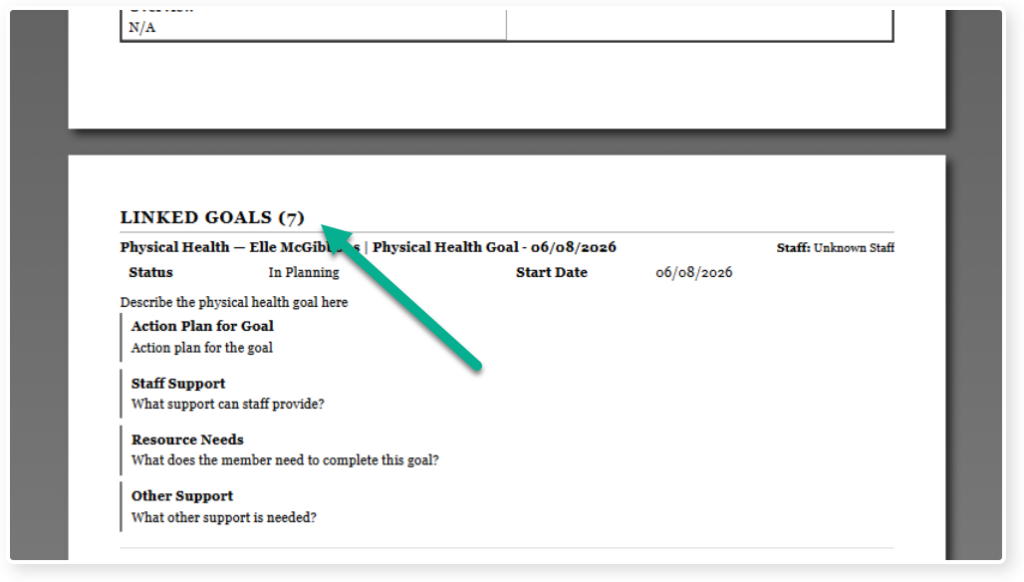
Note: Sometimes things get cut off awkwardly. For example, Linked Goals is at the bottom of page 1, when it would make more sense at the top of page 2.
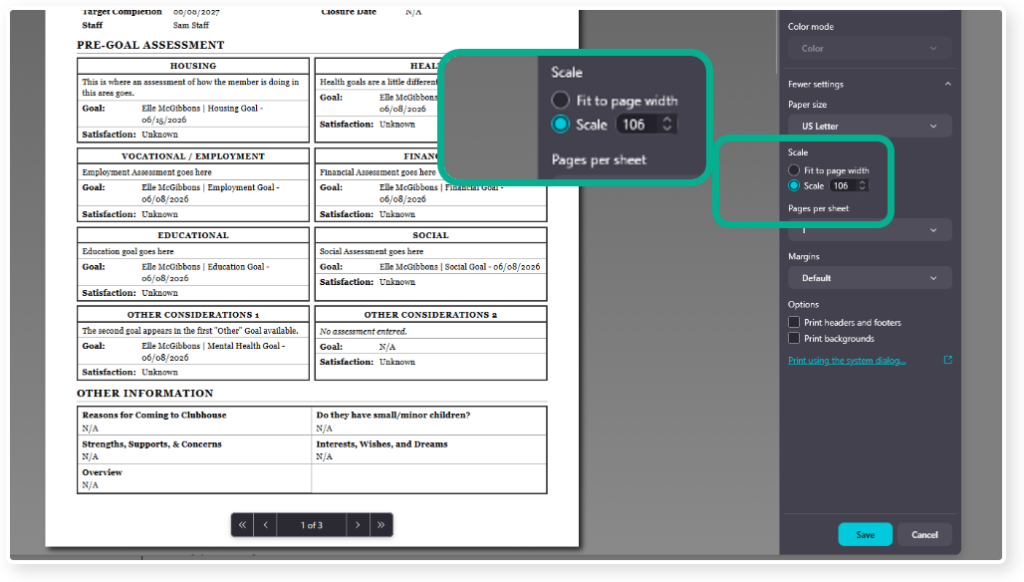
Most of the time you can get around this by simply adjusting your scale up or down by a few percentage points. In this example Linked Goals moved to the top of page 2 at 106%, but it still fits nicely on the page
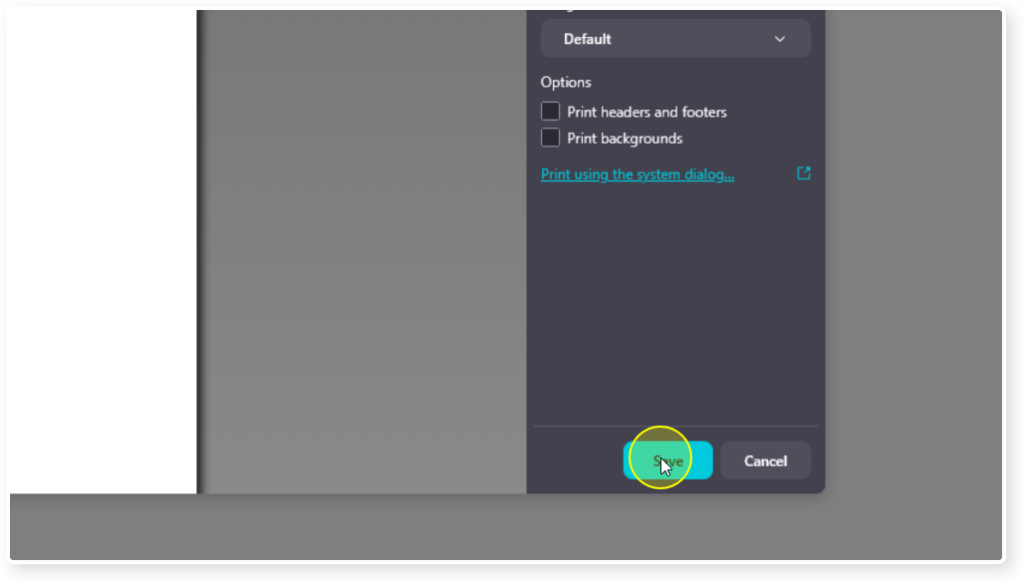
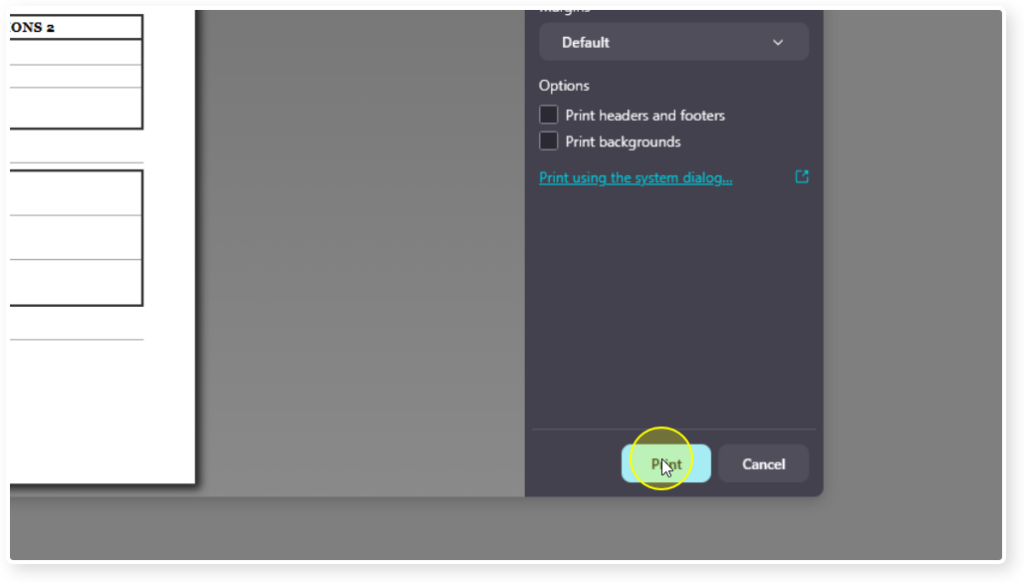
Either click Save if printing to a PDF or Print if sending to a printer.